Use a Lulu export, not a generic Shopify Liquid ZIP. Review paid-theme licensing before publishing.
Download a working copy
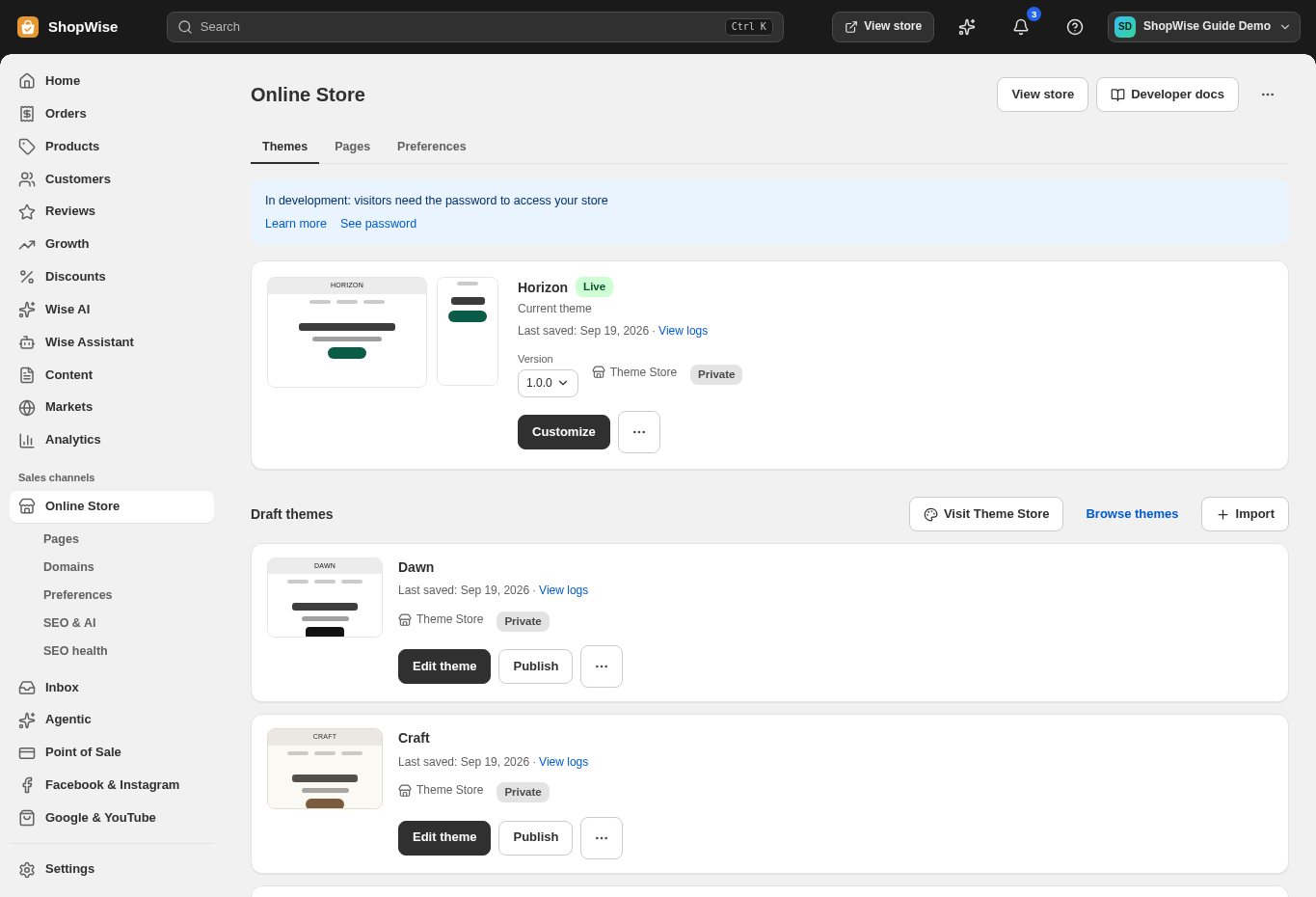
Open Online Store → Themes, open the theme’s actions menu, and choose Download theme file. Keep the ZIP unchanged as a backup.
- The package contains a canonical shopwise-theme.json file.
Import a package
In Themes choose Import and select the upload option. Upload the Lulu ZIP or shopwise-theme.json file, within the 5 MB limit.
- The importer reads shopwise-theme.json.
- Editing only derived files such as templates/index.json or assets/custom.css inside the ZIP does not update the imported theme; use the editor and export again.
Inspect the draft
Open the imported draft in the editor. Review its media references, menus, product selections, templates, and code.
- Media referenced by a package may need to be hosted in the target store.
- Theme import does not import your complete product catalog or orders.
Publish after testing
Use the theme’s Publish action after checking the draft. Complete any required paid-theme purchase shown by the interface.
- Confirm the live theme name afterward.
- Keep the previous theme available if you need to switch back.
CHECK YOUR WORK
You’re ready when…
- The imported draft matches the intended design.
- Referenced content exists in the target store.
- The intended theme is marked live after publishing.
IF SOMETHING DOESN’T LOOK RIGHT
Troubleshooting
Why is a Shopify ZIP rejected?
Lulu requires its own canonical shopwise-theme.json package data. A plain Liquid theme export is not a supported import; ask support about adapting the design.
Why is a control missing or unavailable?
Confirm that you are in the correct store and that your role allows this action. Optional apps and channels may require installation, a plan, or activation. Share the screen name and error with support if access is still unclear.