



Register as a partner
Apply for a Lulu partner account, understand the pending review, and sign in once the Lulu team approves you.
Download this guide: PDF · Word (.docx)
On this page
- 1. Open the partner portal
- 2. Switch to Create account
- 3. Know the field rules
- 4. Fill in your details
- 5. Send the application
- 6. Read the Application received message
- 7. Signing in while you wait
- 8. Watch for the decision email
- 9. Sign in after approval
- 10. Know what approval unlocks
- 11. Reset a forgotten password
- Completion checklist
- Troubleshooting
A partner account is how theme designers and app developers build for Lulu merchants. It is separate from a store login: use it at partners.lulu.us.com only. Applying is free. Use an email address you check, because every application is approved by hand and the decision arrives by email. You do not need a store of your own to apply.
Open the partner portal
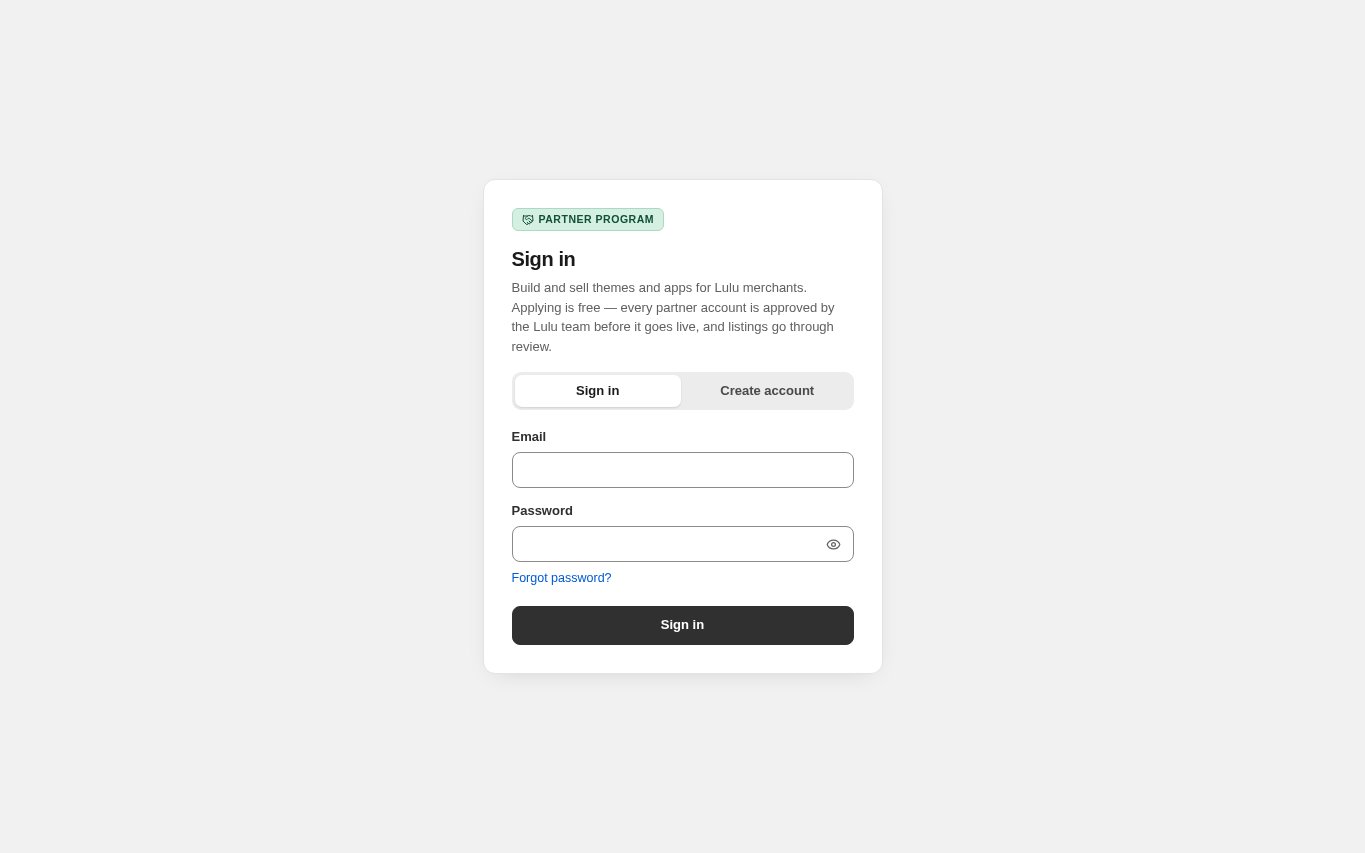
Go to partners.lulu.us.com. The address opens the Partner Program card with two tabs: Sign in and Create account.
- You can also reach it from the Partner login link in the footer of lulu.us.com.
- The portal only works on partners.lulu.us.com. A store address or admin.lulu.us.com does not show it.
- If the card shows “The Partner Program is being provisioned. Check back shortly.”, the service is not ready yet. Try again later.
Switch to Create account
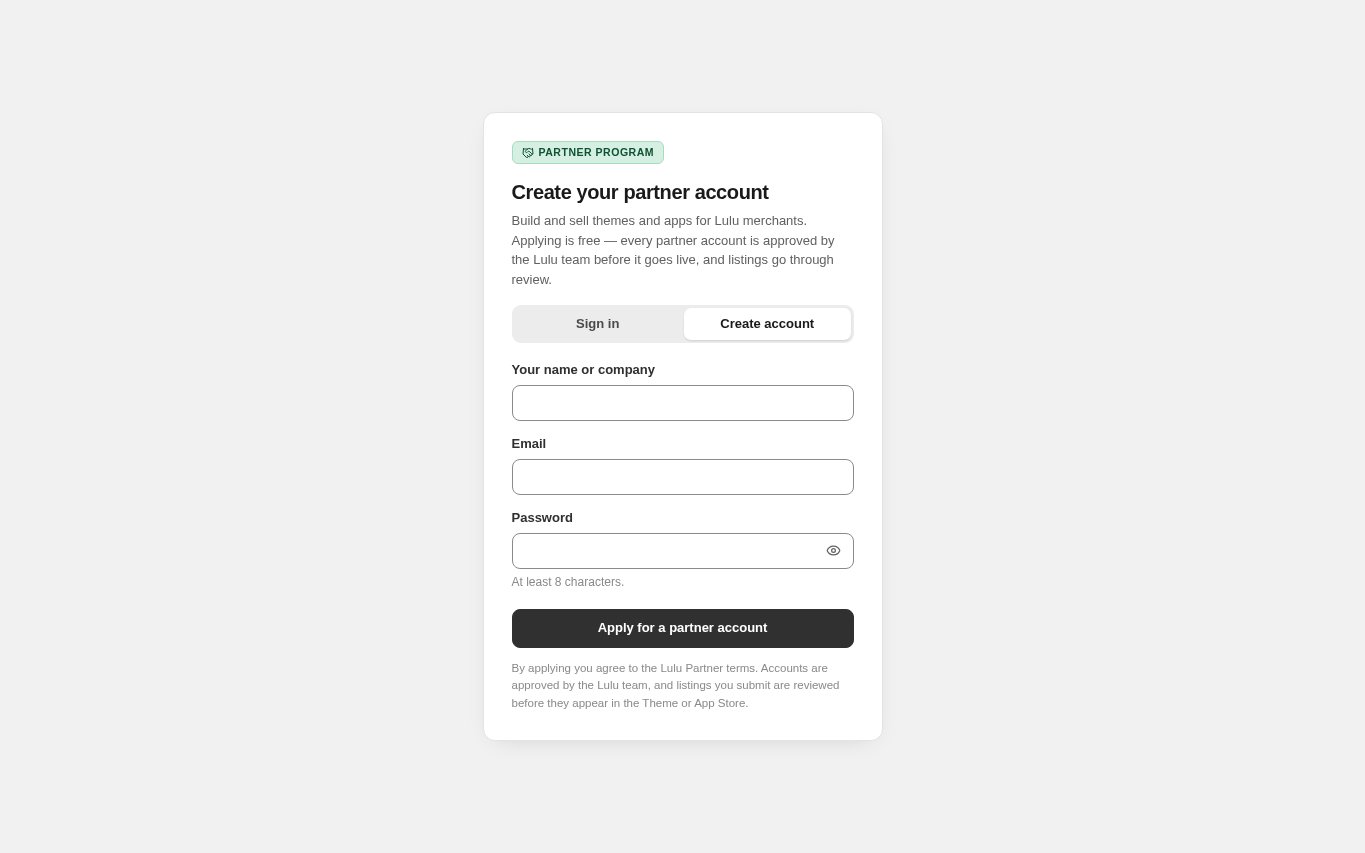
Select the Create account tab. The heading changes to Create your partner account and three fields appear.
- Your name or company: the name merchants see as the maker of your themes and apps.
- Email: the address you will sign in with and where decisions are sent.
- Password: at least 8 characters.
Know the field rules
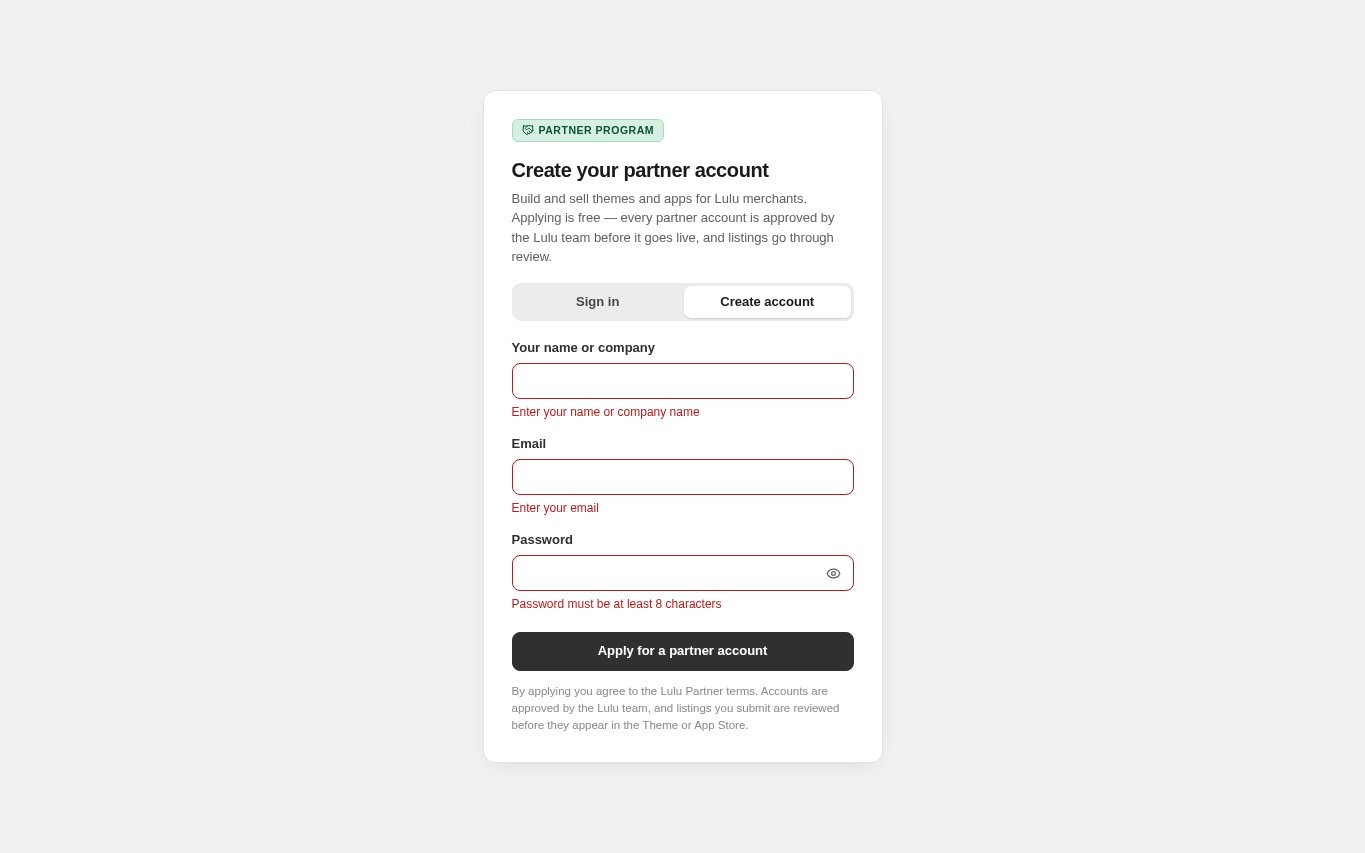
The form checks each field before it sends anything. A field that is missing or wrong turns red and says what to fix.
- Name: at least 2 characters (up to 100). Message: “Enter your name or company name”.
- Email: must be a valid address. Messages: “Enter your email” or “Enter a valid email address”.
- Password: 8 to 72 characters. Message: “Password must be at least 8 characters”.
- If the email already has a partner account, the email field says “This email is already registered — sign in instead”.
Fill in your details
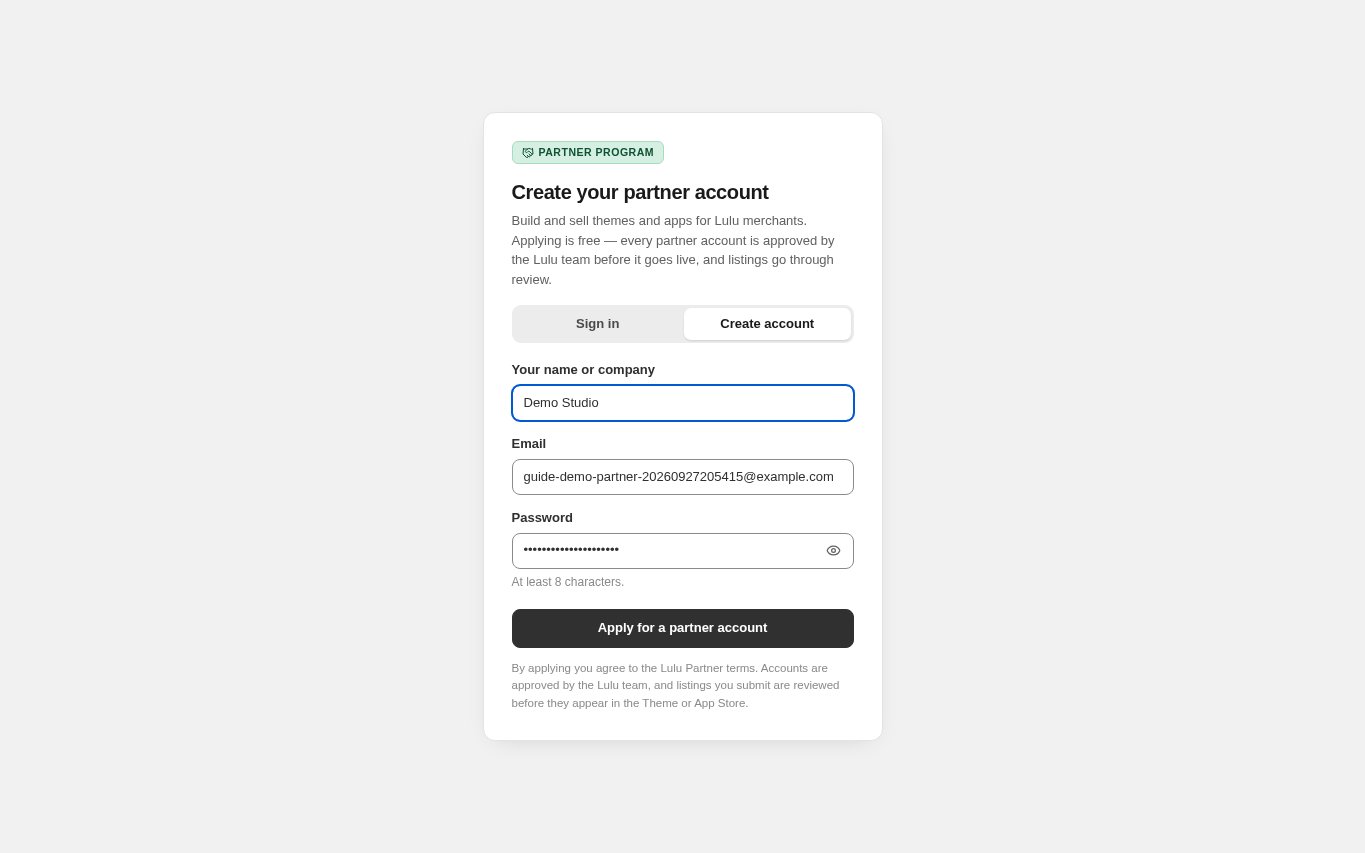
Type your name or company, your email and a password. Select the eye icon if you want to check the password you typed.
- Use a business email you control; it becomes your partner sign-in.
- One partner account covers both themes and apps. You do not choose a type.
Send the application
Select Apply for a partner account. By applying you agree to the Lulu Partner terms shown under the button.
- The button reads Sending application… while it works.
- You can send at most three applications a minute from one network. If you see a “too many requests” message, wait a minute.
Read the Application received message
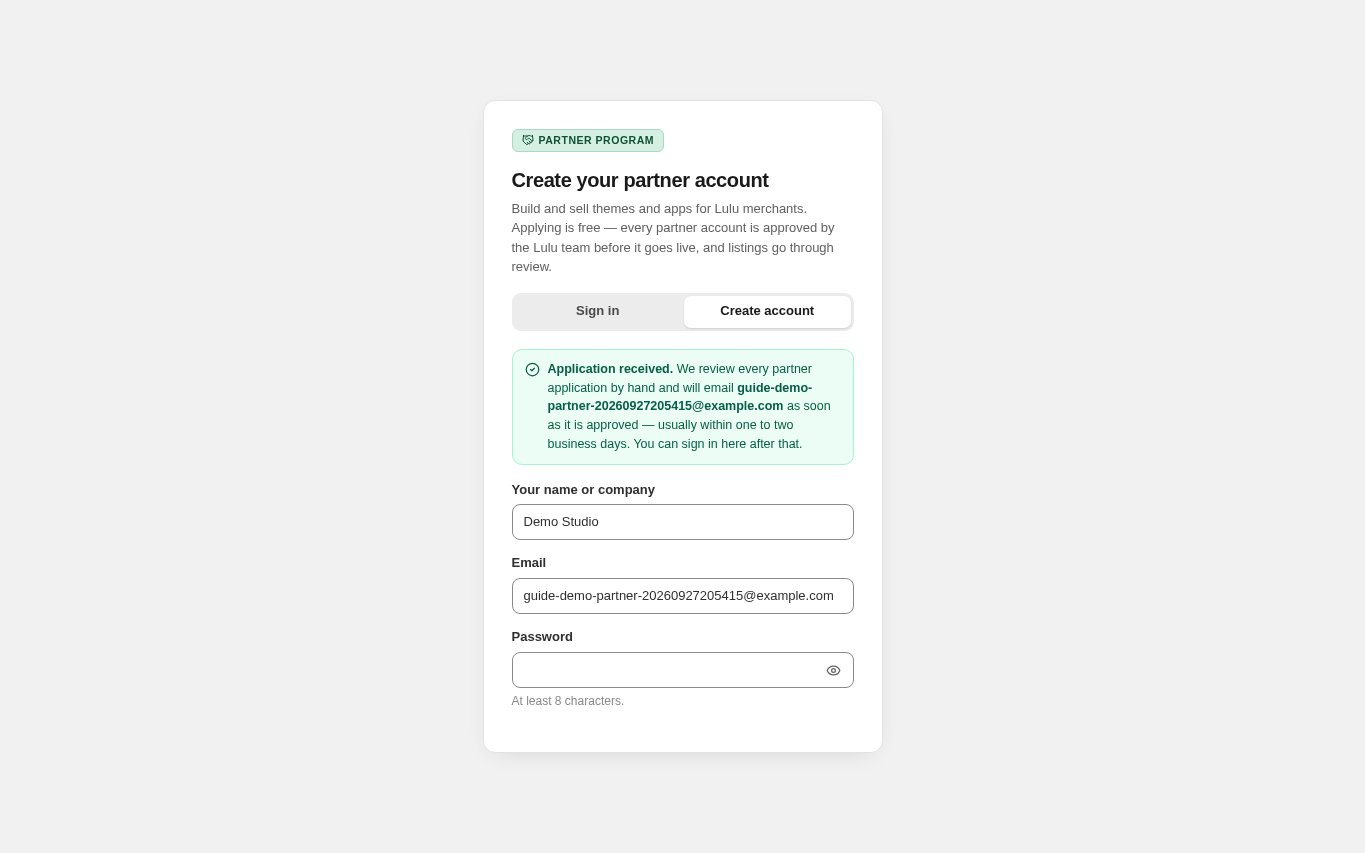
A green banner confirms: Application received. We review every partner application by hand and will email you as soon as it is approved — usually within one to two business days.
- You are not signed in yet. There is no email verification link to click; the Lulu team's approval is the check.
- You also get an email with the subject “We received your partner application”.
- The Lulu team is told about your application automatically.
Signing in while you wait
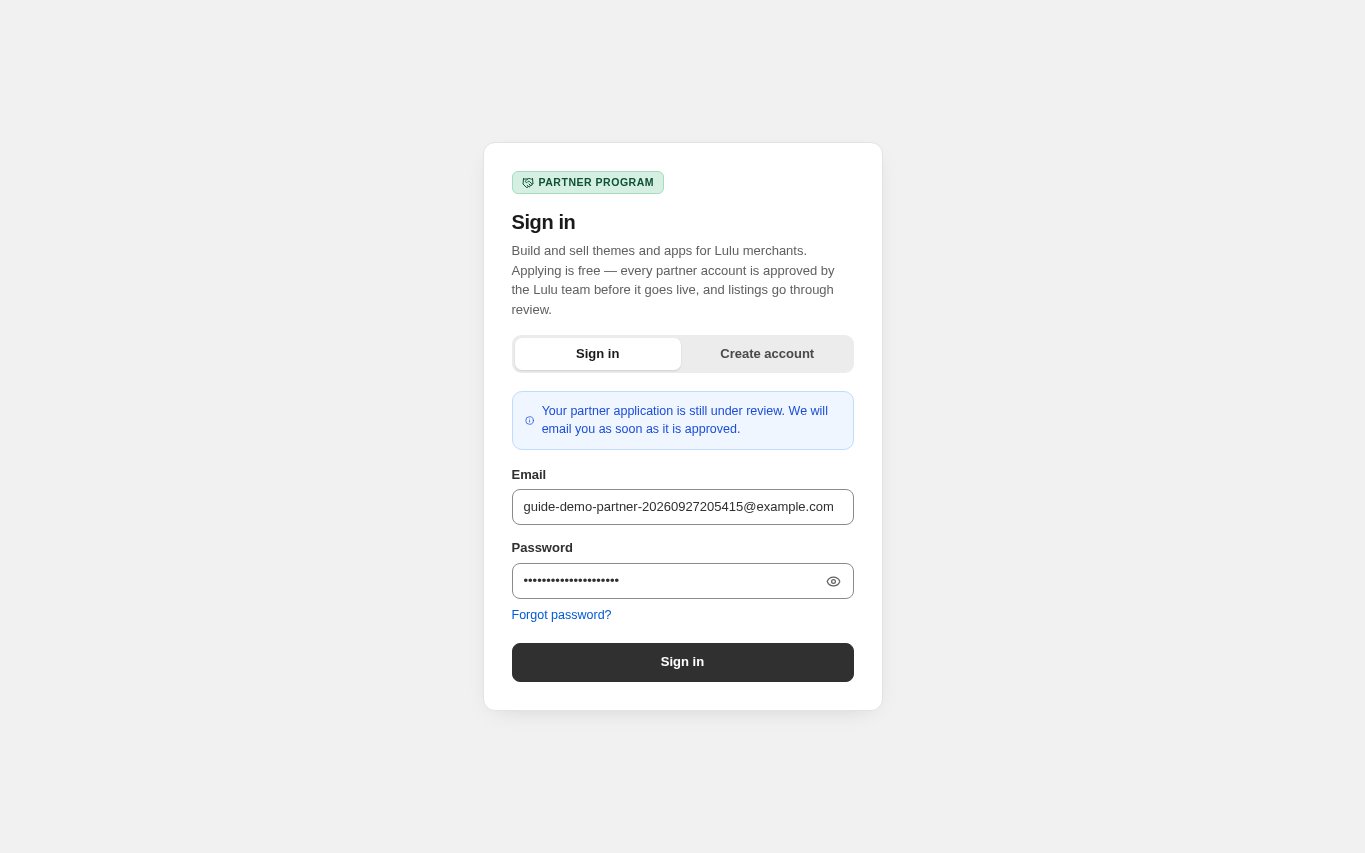
If you try to sign in before a decision, the portal does not open. A blue notice says: Your partner application is still under review. We will email you as soon as it is approved.
- This notice only appears after a correct password, so it also confirms your password works.
- A rejected or suspended account sees a general “Incorrect email or password” message instead.
Watch for the decision email
When the Lulu team decides, you receive one email.
- Approved: subject “Your partner account is approved”, with a Sign in to the Partner Dashboard button.
- Not approved: subject “About your partner application”. It can include a note from the reviewer, for example what to add before applying again.
- No email after two business days? Check your spam folder, then contact Lulu support with the email you applied with.
Sign in after approval
Go back to partners.lulu.us.com, stay on the Sign in tab, enter your email and password, and select Sign in. You land on the partner Dashboard.
- Signing in again later works the same way. If you are already signed in, the portal opens the Dashboard straight away.
- Use Sign out in the top-right corner when you finish on a shared computer.
Know what approval unlocks
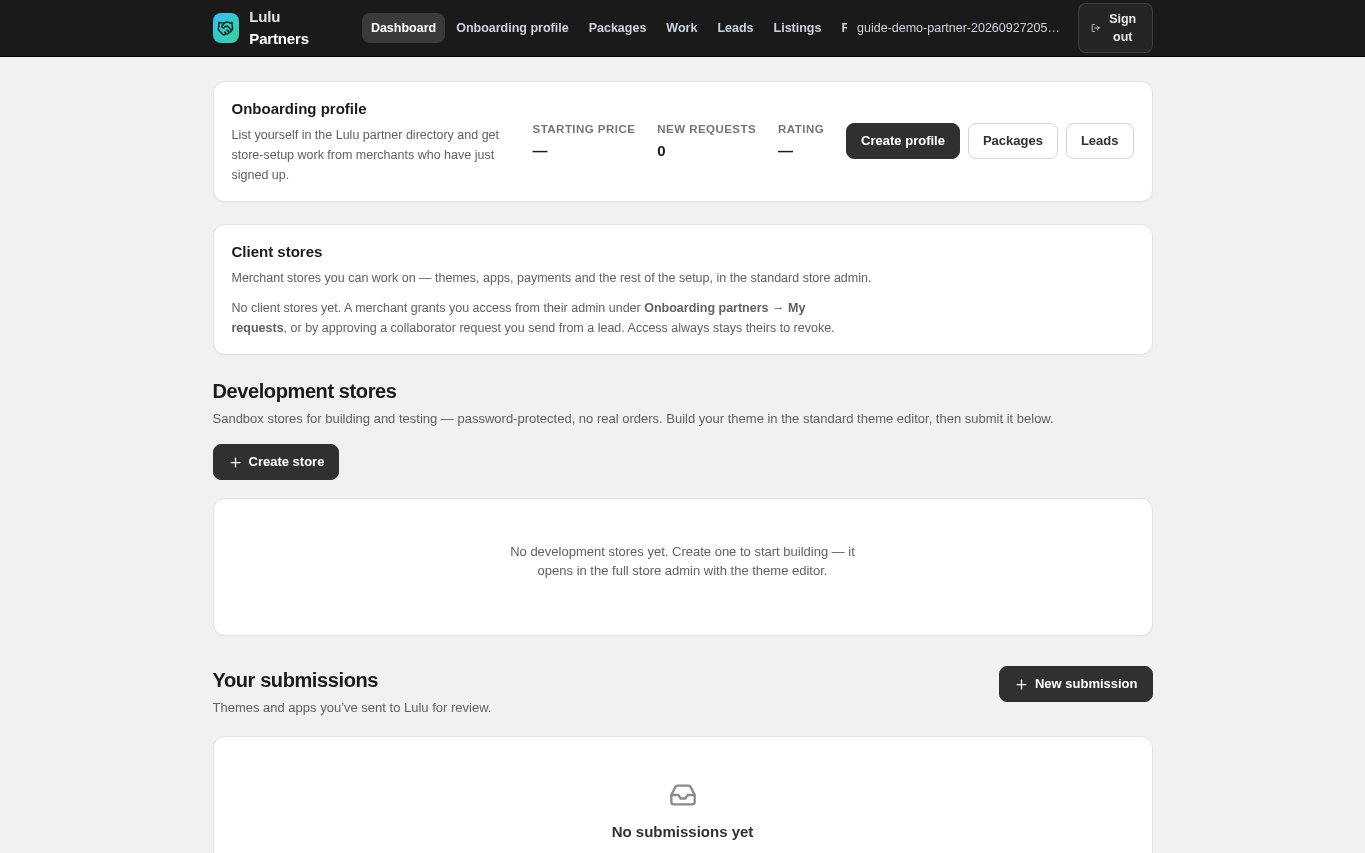
The top bar now links to Dashboard, Onboarding profile, Packages, Work, Leads, Listings and Reviews.
- Dashboard: create dev stores and client transfer stores, and send theme and app submissions for review.
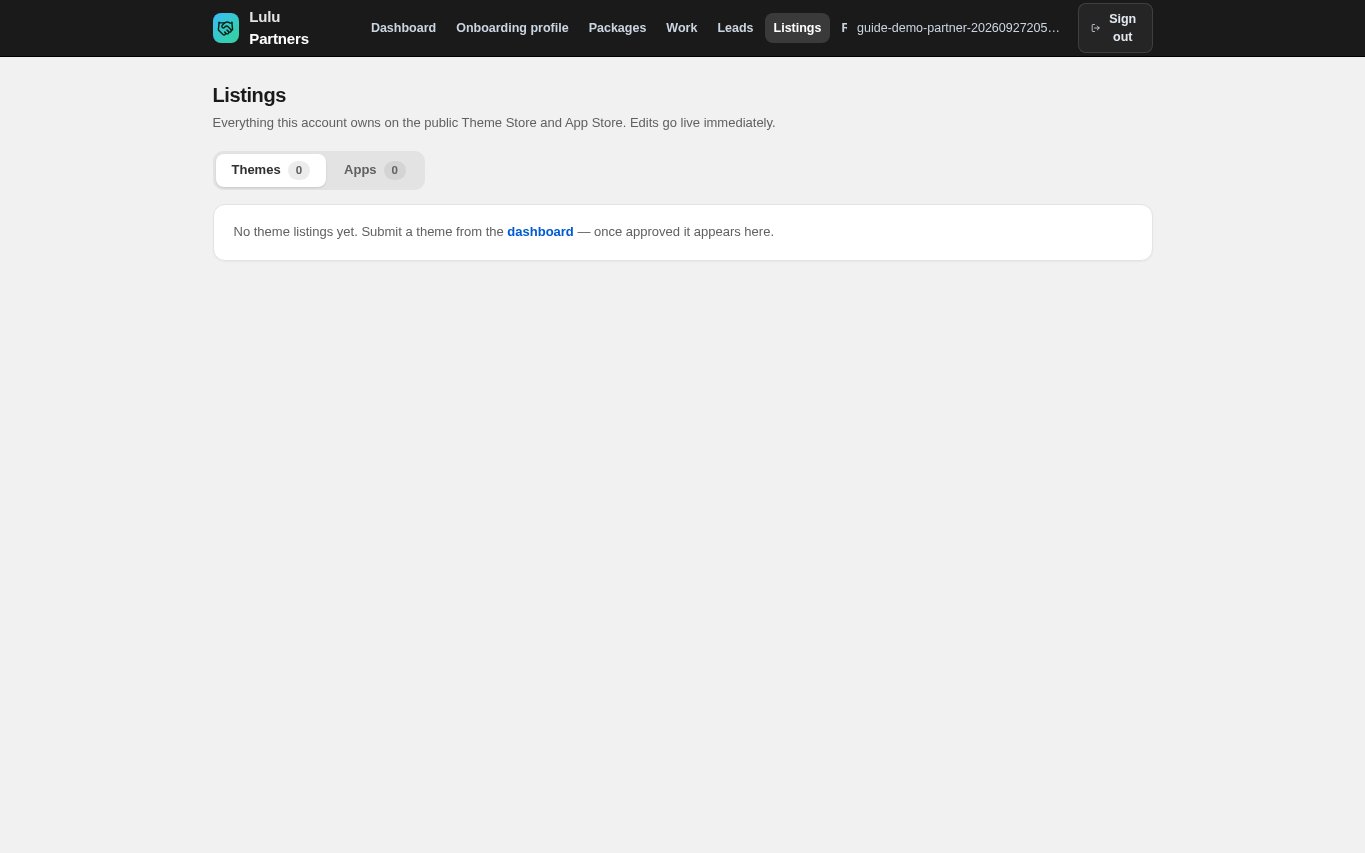
- Listings: edit the themes and apps you have published. It is empty until your first submission is approved.
- Reviews: read and answer what merchants say about your listings.
- Onboarding profile, Packages, Work and Leads are for partners who also offer store-setup services to merchants.
- Approval opens your account. Every theme or app you submit is still reviewed separately before it appears in the Theme Store or App Store.
Reset a forgotten password
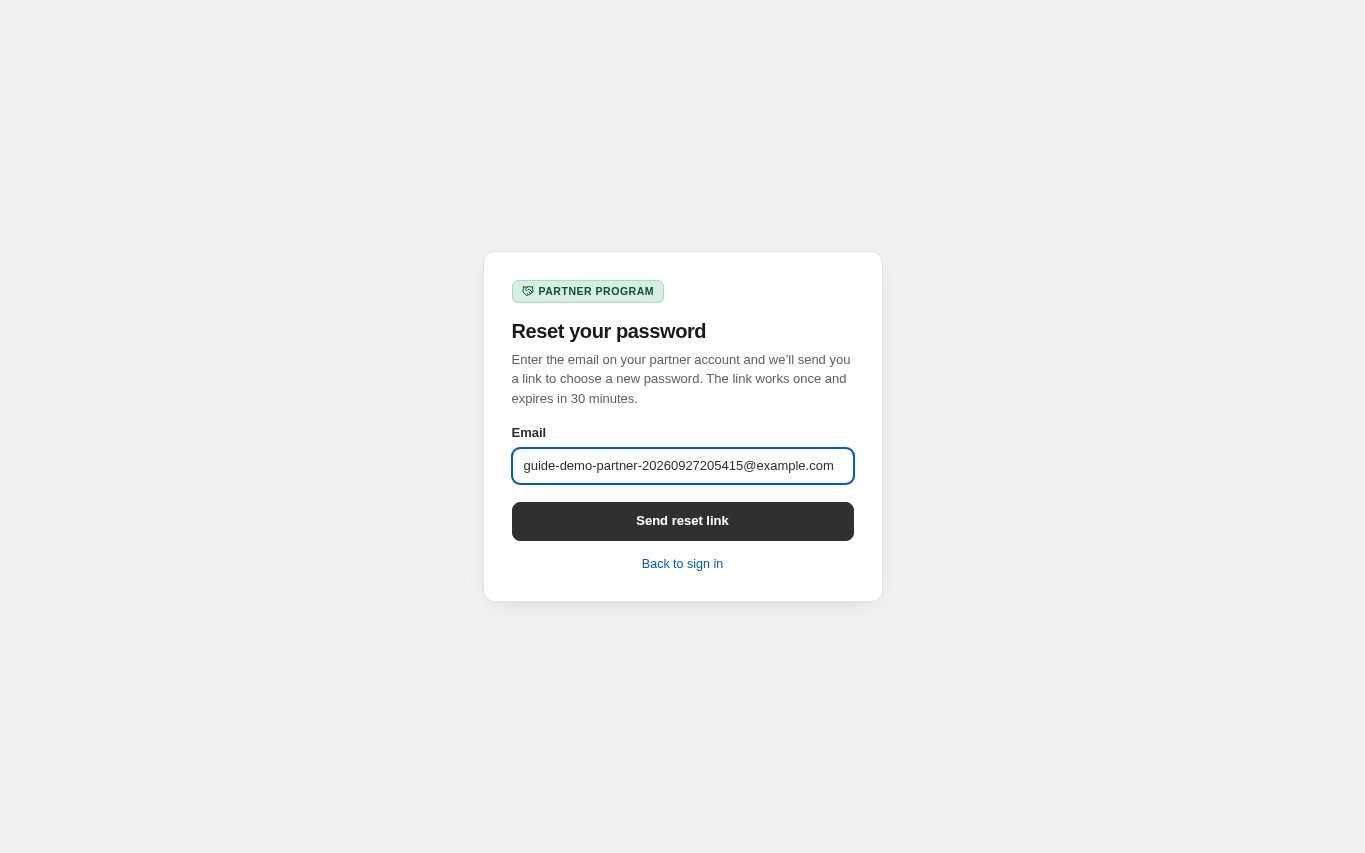
On the Sign in tab select Forgot password?, enter the email on your partner account and select Send reset link.
- The page always answers “If that email has a partner account, a reset link is on its way.” It never confirms whether an address is registered.
- The link works once and expires in 30 minutes. Choosing a new password signs you out everywhere else.
- Select Back to sign in to return to the sign-in form.
CHECK YOUR WORK
You’re ready when…
- You applied at partners.lulu.us.com with an email you check.
- You saw the Application received banner.
- You received the approval email.
- You can sign in and see the partner Dashboard.
IF SOMETHING DOESN’T LOOK RIGHT
Troubleshooting
I applied but I cannot sign in.
Your application is still under review. The sign-in form shows a blue under-review notice after a correct password. Wait for the approval email; there is nothing else to confirm.
The email field says the address is already registered.
A partner account, or an earlier application, already uses that email. Use Sign in, or Forgot password? if you do not remember the password. The form gives the same answer for every existing application, whatever its status.
Sign in says “Incorrect email or password” but I am sure the password is right.
The same message is shown for a wrong password and for an application that was not approved or an account that was suspended. Use Forgot password? first; if that does not help, contact Lulu support with your partner email.
My application was not approved.
Read the note in the “About your partner application” email, fix what it asks for, and contact Lulu support. The team can approve the same application later; you do not need a new email address.
Do I need a verification link?
No. Partner applications have no email-verification step. The manual approval by the Lulu team replaces it.