Prepare the copy and choose where the page should appear in navigation.
Add a page
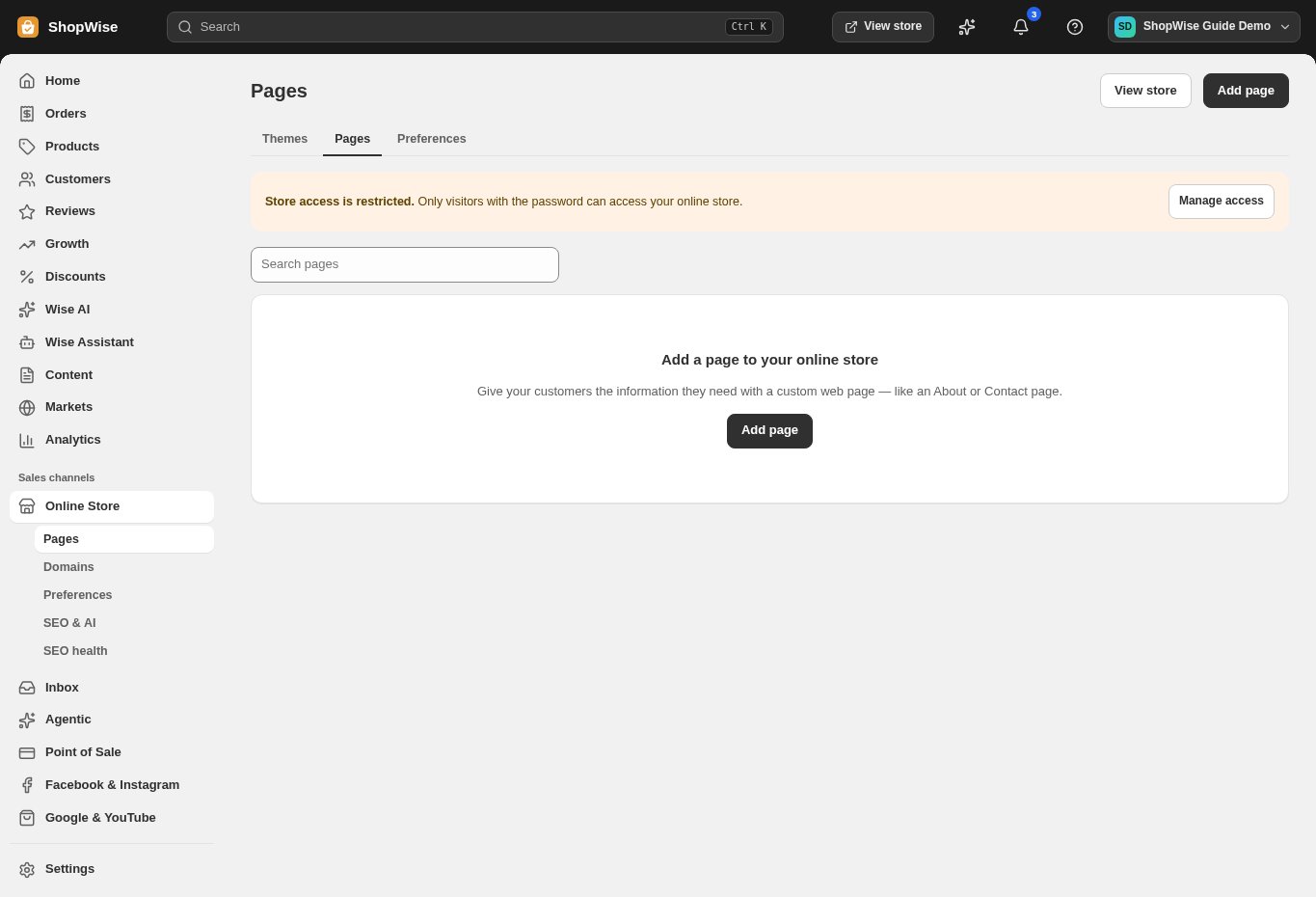
Open Online Store → Pages → Add page. Enter a clear title such as About us or Delivery information.
- Start with one customer question per page.
Write and review
Enter the page content and review its handle and visibility controls.
- Use short paragraphs and descriptive links.
- If entering HTML, use trusted content and check the rendered result.
Save and view
Save the page and use its View on store link. Read the page on desktop and a phone.
- Check links, headings, images, and contact details.
Add navigation
Open Content → Menus and link the page from the appropriate header or footer menu.
- Saving a page alone does not make it easy for customers to discover.
CHECK YOUR WORK
You’re ready when…
- The page opens at the intended URL.
- A menu links to the page.
IF SOMETHING DOESN’T LOOK RIGHT
Troubleshooting
Why can’t visitors find my page?
Check visibility and add a menu link. If the entire storefront is password protected, visitors also need store access.
Why is a control missing or unavailable?
Confirm that you are in the correct store and that your role allows this action. Optional apps and channels may require installation, a plan, or activation. Share the screen name and error with support if access is still unclear.