You need permission to view products. Editing, importing, and exporting can require additional access.
Choose the right status view
Open Products and use All, Active, Draft, or Archived. Keep unfinished products in Draft so preparation work is easy to find.
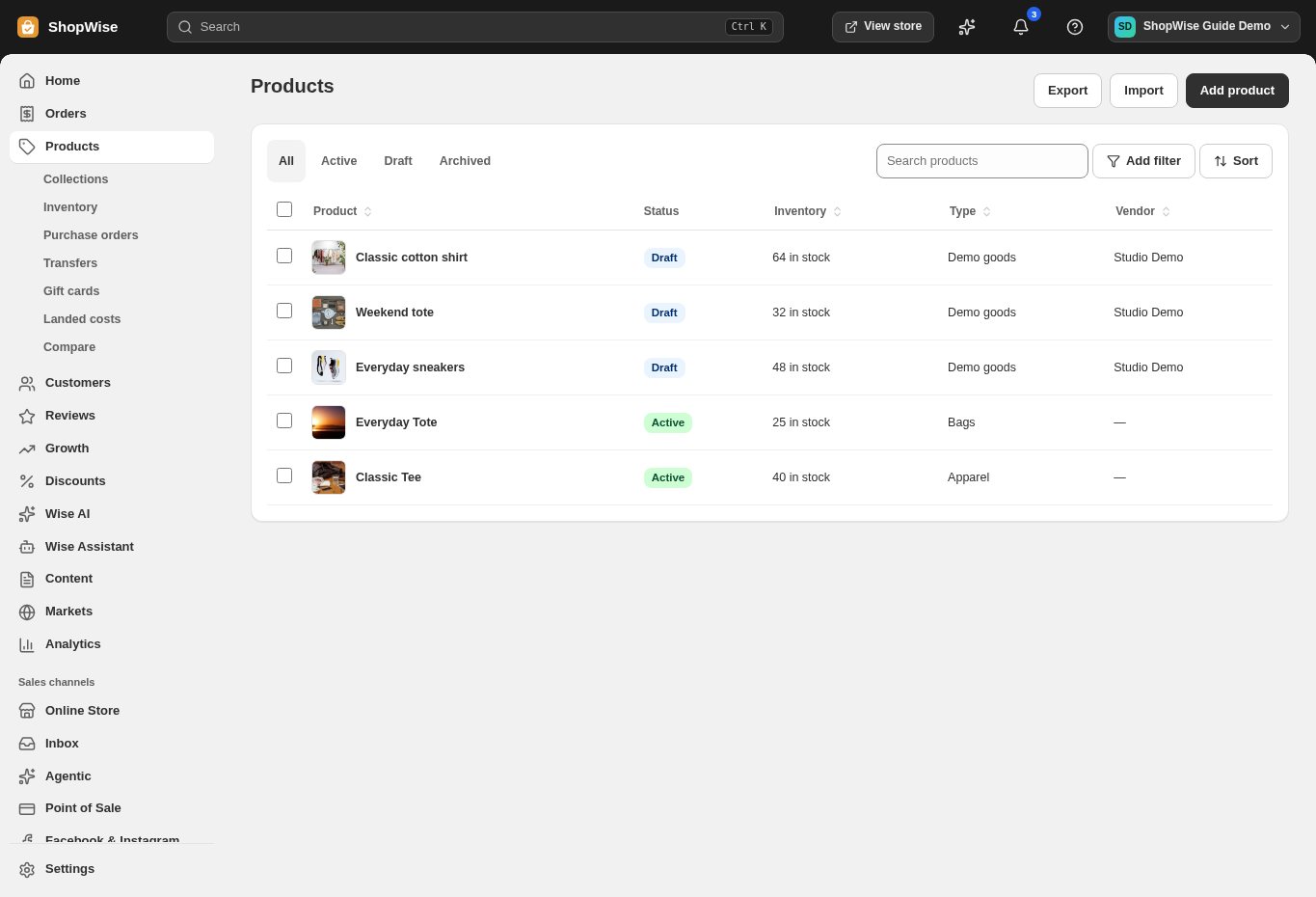
Search and filter
Use Search products to find a title. Add filter lets you narrow the list using the available fields. Sort changes the ordering of the results. Clear filters if an expected product is missing.
Organize the storefront
Use Collections under Products to group items in a way customers understand. Review product type, vendor, and tags for consistent naming. Check collections from the storefront before promoting them.
Import carefully
Use Import for supported product data and review the required file format. Start with a small test batch, check variants and images, then import the rest. Export a backup before a large catalog change.
CHECK YOUR WORK
You’re ready when…
- Check each variant’s title, SKU, price, and availability.
- Preview the product or collection on desktop and mobile.
- Keep unfinished products in Draft until their details are ready.
IF SOMETHING DOESN’T LOOK RIGHT
Troubleshooting
I cannot find this page or action.
Check the store shown at the top of the admin. On a phone, open the navigation menu first. Ask the store owner to confirm your permissions and whether the feature is available for this store.
My change is not visible in the storefront.
Confirm the change was saved, then open the correct storefront in a separate tab. Check product status and the published theme. A preview or draft can differ from the live store.
What should I send support?
Send your store address, the page you were using, the steps you took, and the exact error text. Include a screenshot with private customer details hidden. Do not share passwords, API keys, or full payment information.