Use the partner account that owns the listing. Saves are live immediately and are not re-reviewed.
Open the listing editor
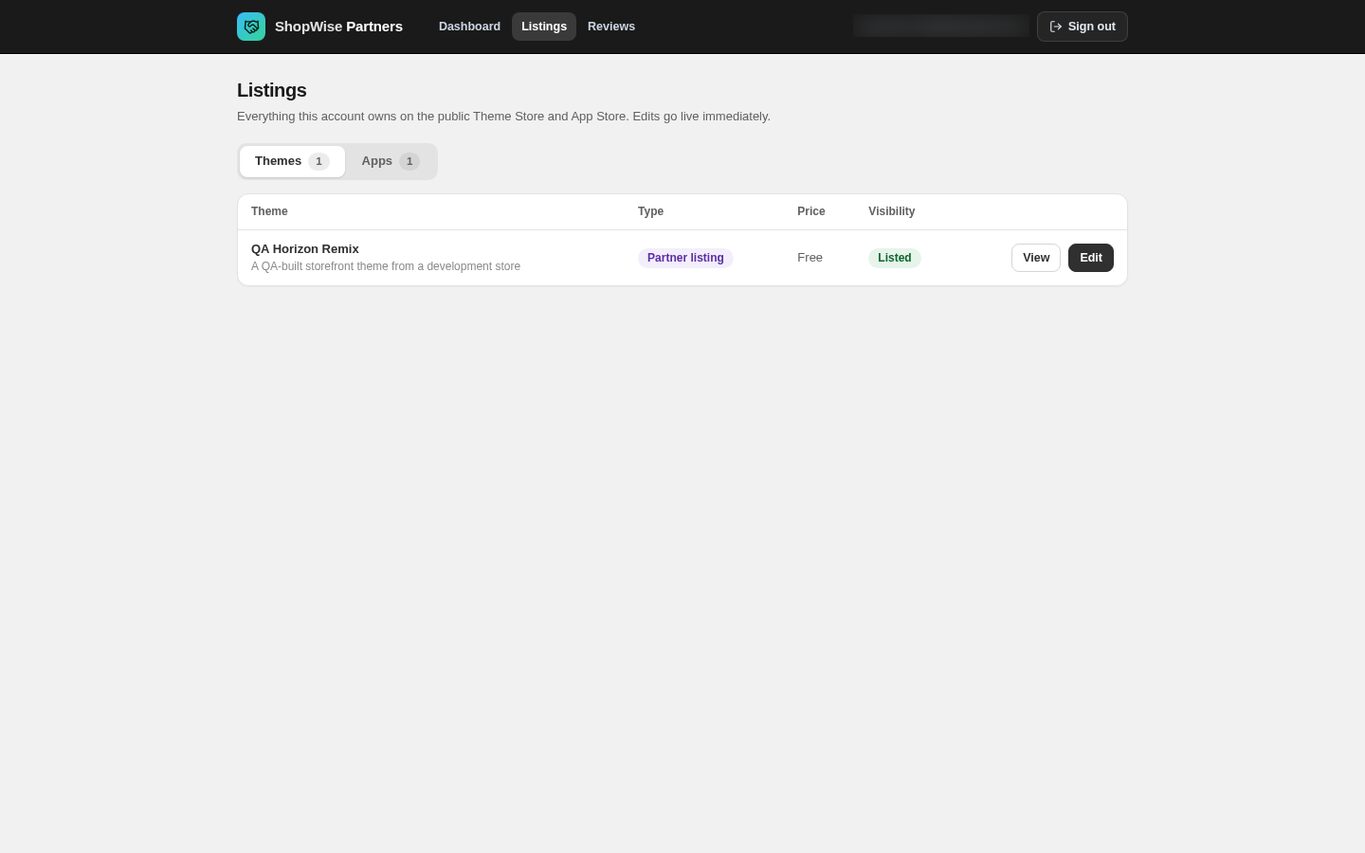
In the partner portal open Listings, stay on the Themes tab and choose Edit on your theme. View opens the public listing page.
- The Type column shows whether a row is a partner listing or a built-in Lulu theme.
- The Visibility column shows Listed or Unlisted.
Update the listing copy
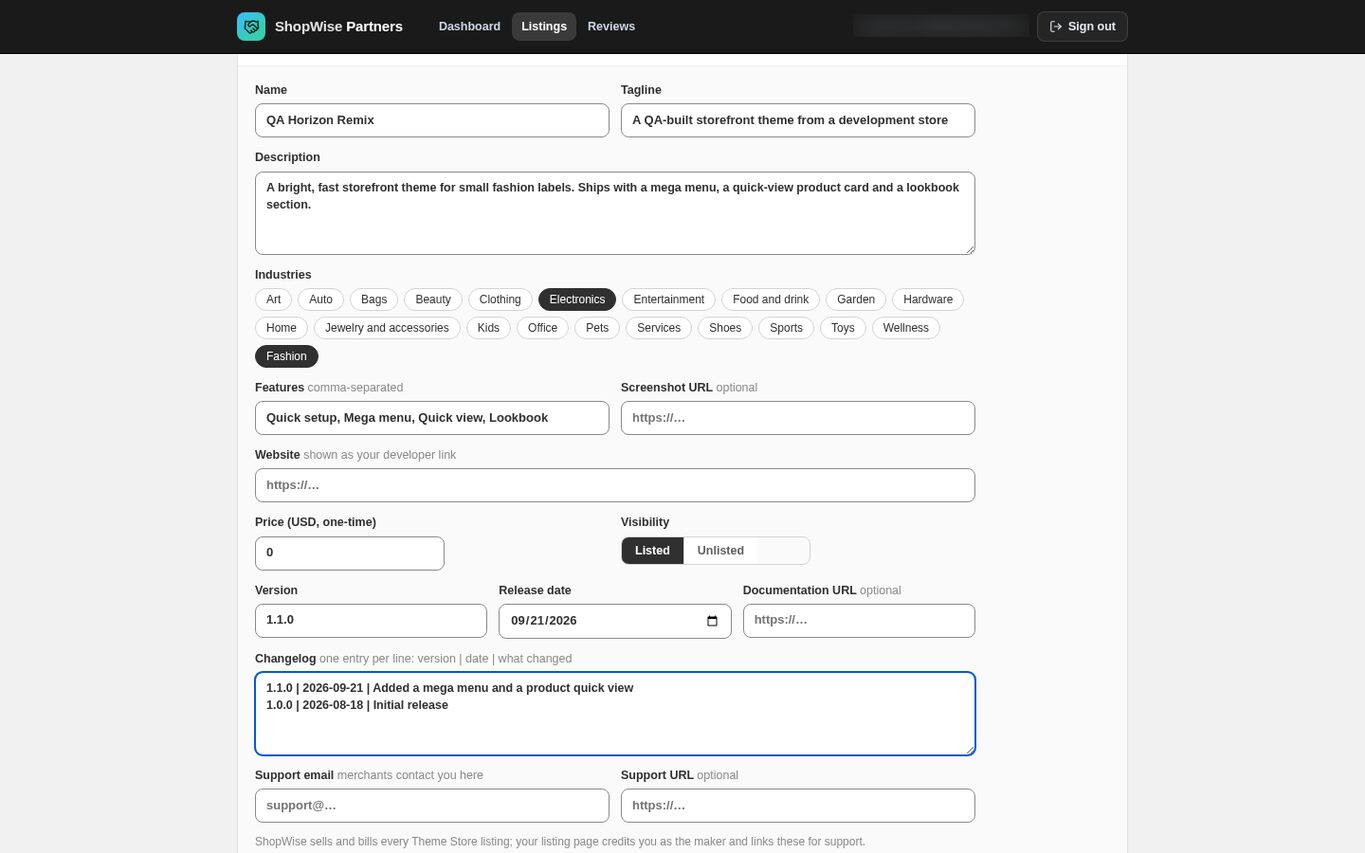
Review Name, Tagline, Description, Industries, Features and Screenshot URL, then Website, Price (USD, one-time) and Visibility.
- Industries are chips; click to toggle. Features is comma-separated.
- Screenshot URL takes an https:// URL or a /media path. Host your imagery yourself.
- Visibility switches between Listed and Unlisted.
- Price is a one-time USD amount; Lulu sells and bills every Theme Store listing and credits you as the maker.
Record the release
Fill in Version, Release date, Documentation URL, Changelog, Support email and Support URL, then choose Save changes.
- Version uses a number such as 1.2.0.
- Changelog takes one entry per line in the form version | date | what changed, up to thirty entries.
- This block is what a merchant reads on the listing page before installing, and it is the only place an existing merchant learns what changed.
Replace the published package
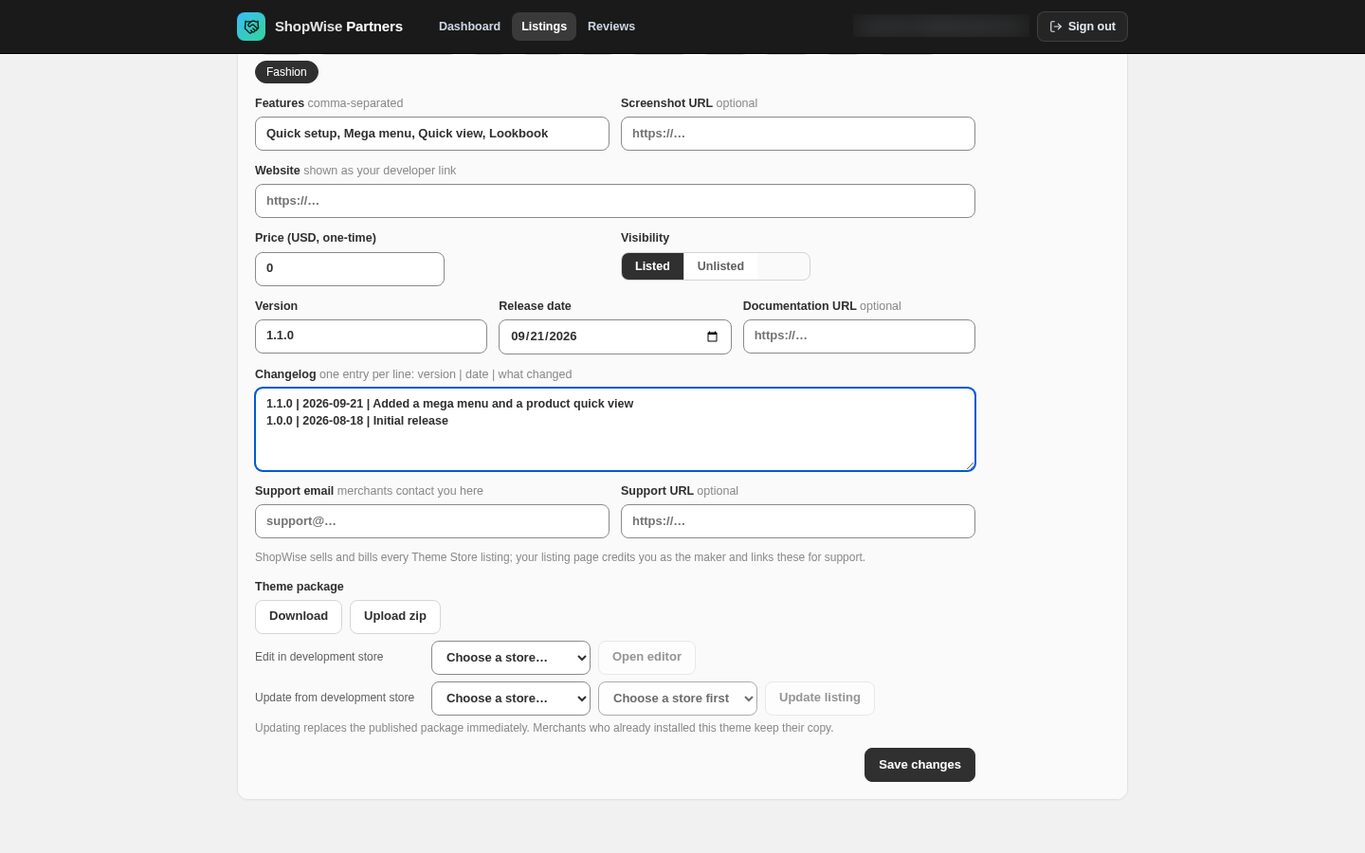
Under Theme package use Download to keep a copy of the current package, then either Upload zip with a tested export, or pick a store under Edit in development store and choose Open editor to work on it in the real editor.
- Open editor installs the published package on your development store as a fresh draft and signs you in to the editor.
- Opening the editor alone releases nothing.
Publish the edited theme back
Under Update from development store choose the store and the theme you edited, then choose Update listing. The package is rebuilt on the server from that theme.
- Saving listing copy and replacing the package are separate actions.
- A theme package has no stored release history and no rollback, so download the current package before replacing it.
Check how merchants receive it
Install the theme fresh in a development store and confirm the update is there.
- A package change affects new installations only.
- A merchant who already installed the theme owns a copy inside their own store; Lulu never overwrites it or their customizations.
- Version and changelog are how existing merchants find out there is something newer.
CHECK YOUR WORK
You’re ready when…
- Listing copy, version and changelog match the release.
- A fresh installation contains the update.
- You have a copy of the package you replaced.
IF SOMETHING DOESN’T LOOK RIGHT
Troubleshooting
Why didn’t an existing merchant theme change?
Installed themes are copies owned by each store. A package update reaches new installations; it is not an automatic overwrite of existing copies.
Why can’t I edit the price on this row?
Built-in Lulu catalog themes have their pricing defined in the product itself, so the price field is refused on those rows. Only standalone partner listings set their own price.
Why is a control missing or unavailable?
Confirm that you are in the correct store and that your role allows this action. Optional apps and channels may require installation, a plan, or activation. Share the screen name and error with support if access is still unclear.
Keep going
- Theme editor: sections, blocks, and templates →
- Partners: upload and submit a theme →
- Partners: build a theme in a development store and export it →