Issuing a gift card creates spendable value. Verify the amount and recipient before creating it.
Create a gift card
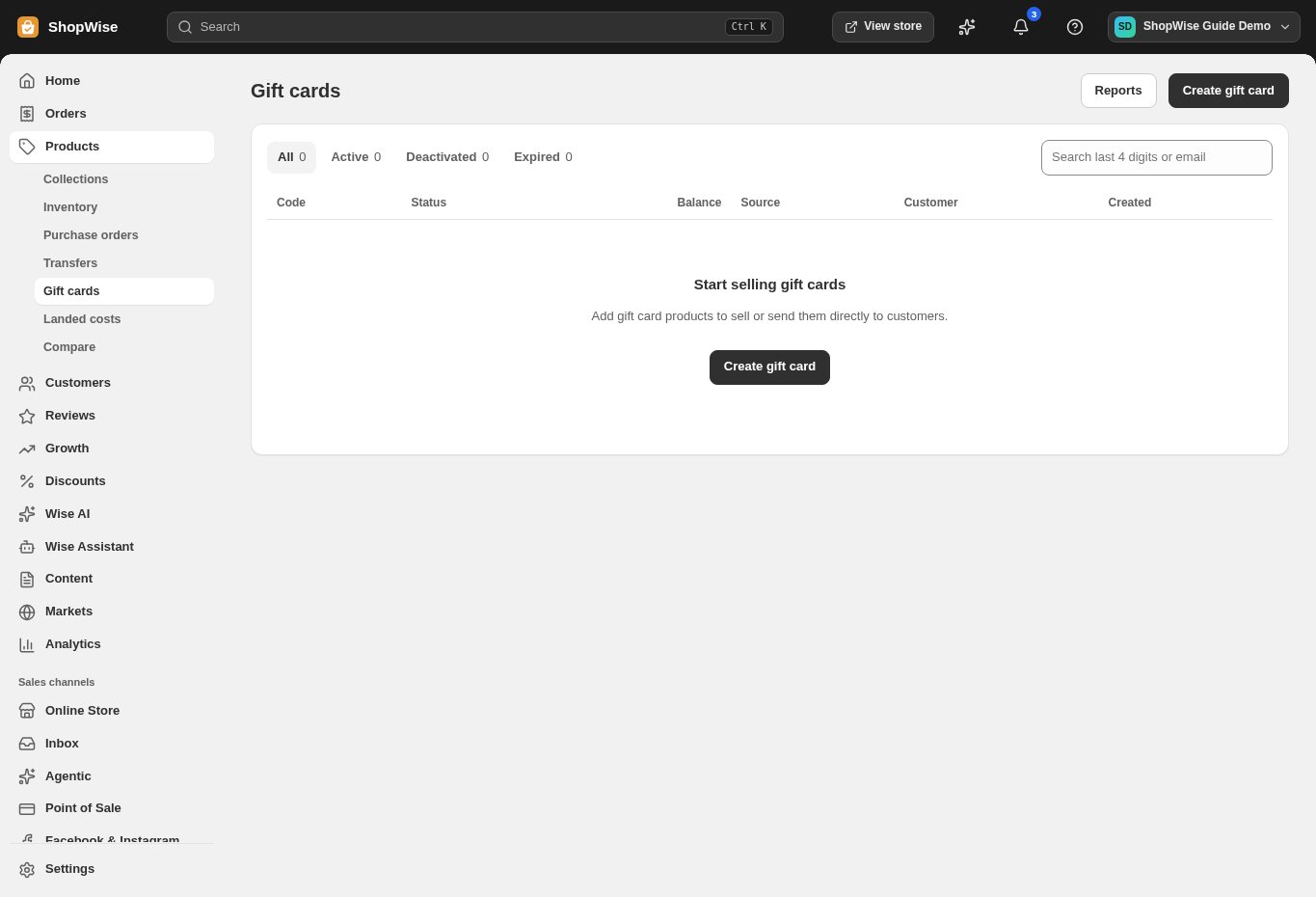
Open Products → Gift cards → Create gift card. Enter the Initial value in the store currency.
- Review the optional expiration date shown in the form.
Identify the recipient
Select a customer if appropriate and add an internal note explaining why the card is being issued.
- Internal notes are for staff.
- Check that the recipient is the intended customer.
Save the code securely
Create the gift card and copy the code from the confirmation screen. Deliver it privately to the recipient.
- Do not include live gift card codes in screenshots or public support messages.
Monitor use
Return to Gift cards to search by the last four digits or customer email. Open Reports to review issuance and redemptions.
- Check the remaining balance and status before replacing a card.
CHECK YOUR WORK
You’re ready when…
- The initial value and recipient are correct.
- The code has been delivered privately.
IF SOMETHING DOESN’T LOOK RIGHT
Troubleshooting
Why does a customer’s gift card fail?
Check its status, expiration if configured, and remaining balance. Verify the code privately without posting it publicly.
Why is a control missing or unavailable?
Confirm that you are in the correct store and that your role allows this action. Optional apps and channels may require installation, a plan, or activation. Share the screen name and error with support if access is still unclear.