1. Review the fit
Fashion-Nova-style cross-sell on every product page: a "See similar styles" thumbnail row with a Shop Similar pop-up (hand-pick the products in Admin → Products → Similar products, or let automatic recommendations fill the row), plus "Bundle & save" cards with one-click add for any active bundle that includes the product. Switch both blocks on in the theme editor's Product details settings. This app has available functionality. Check the live listing for the features supported by each plan.
2. Check requirements
Check these requirements before installing.
- Enable in the theme editor. Curate similar products after installing.
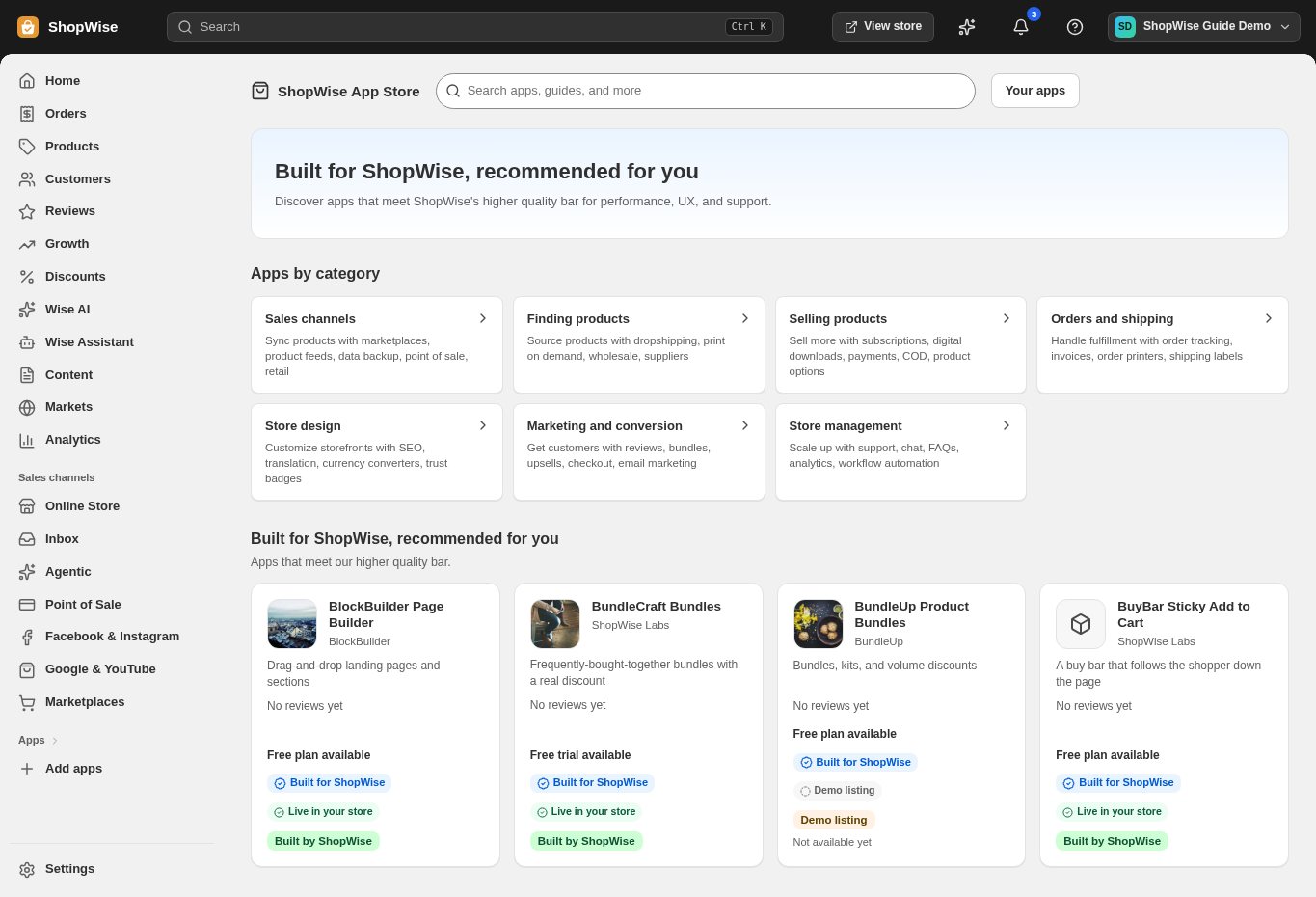
3. Choose and install
Sign in to the store where you want to use the app. Review its requested access and choose a plan that fits your usage. Paid plans and provider charges are separate from your store package.
4. Configure and preview
Open the app from your admin and complete its setup. If it adds a storefront component, enable the appropriate app block or section in your theme. Preview on desktop and mobile before publishing.
5. Test the customer journey
Use sample products or a test order to check the result. Review app usage and plan limits before increasing traffic. Contact the app’s support team through the listing if the result differs from what you expected.