Prepare the destinations you serve, product weights, package information, and the rates or thresholds you want to offer.
Open Shipping and delivery
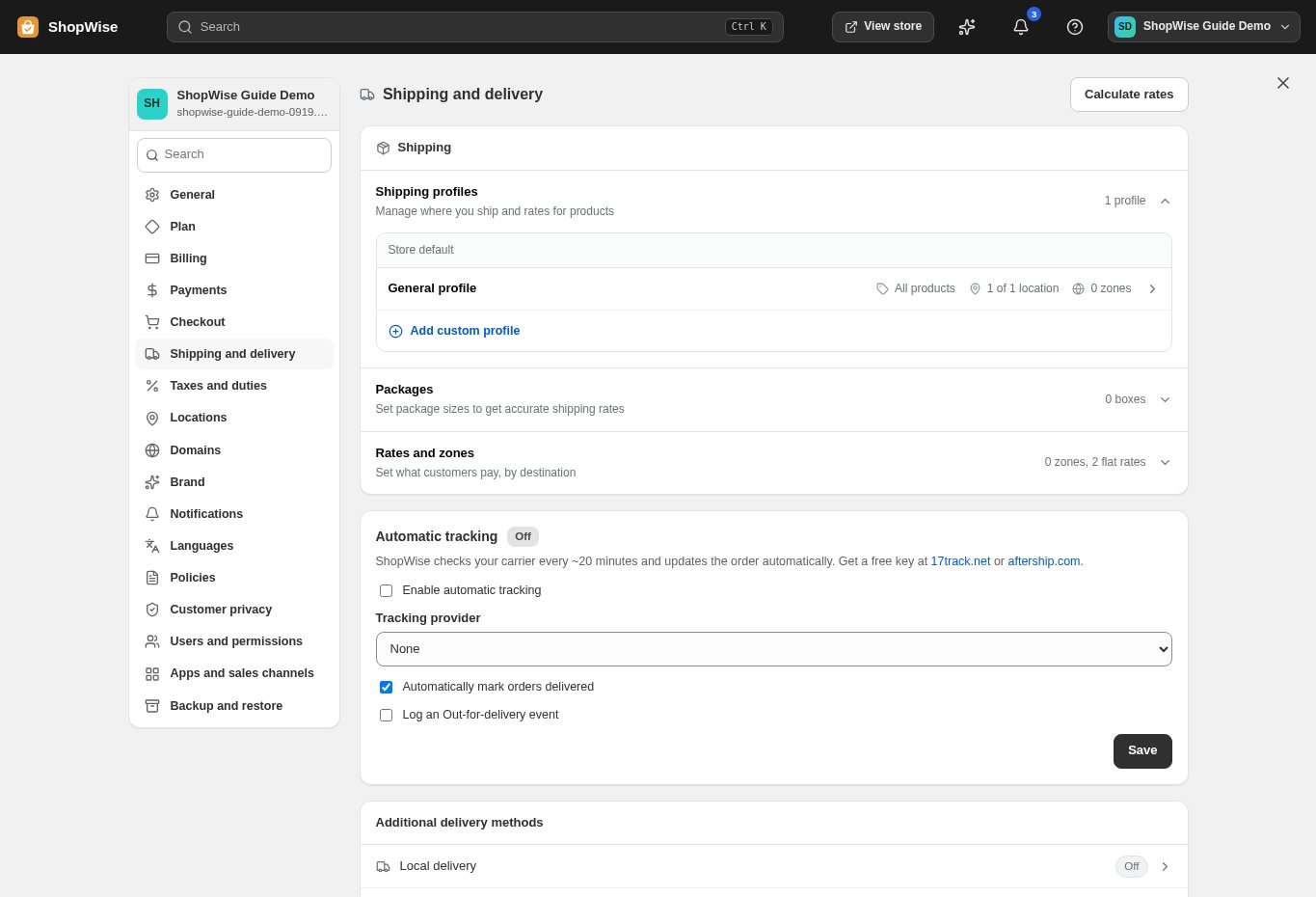
Go to Settings, then Shipping and delivery. The Shipping card brings together profiles, packages, and rates and zones.
Review the shipping profile
Open the General profile or the relevant product profile. Check the products and locations assigned to it. Use separate profiles only when your products need different delivery rules.
Configure zones and rates
Open Rates and zones to review destinations and available rates. Add the supported fixed, weight, or order-based rules you need, and save changes. Check how any free-shipping threshold interacts with discounts.
Check pickup, tracking, and test addresses
Review the additional delivery methods that fit your business. Automatic tracking requires a supported tracking provider. Test checkout with an address inside and outside your delivery zones before launch.
CHECK YOUR WORK
You’re ready when…
- Confirm your provider account and store settings are ready.
- Test a supported address and payment method end to end.
- Check the resulting order status before treating an order as paid or shipped.
IF SOMETHING DOESN’T LOOK RIGHT
Troubleshooting
I cannot find this page or action.
Check the store shown at the top of the admin. On a phone, open the navigation menu first. Ask the store owner to confirm your permissions and whether the feature is available for this store.
A customer sees no delivery option.
Test the same country, region, and postal code. Check whether the products belong to the expected shipping profile and whether the cart meets the rate conditions. Also check pickup or local delivery restrictions if you use them.
What should I send support?
Send your store address, the page you were using, the steps you took, and the exact error text. Include a screenshot with private customer details hidden. Do not share passwords, API keys, or full payment information.