Replies are public and show your partner account name. Get the merchant's agreement before asking for store access.
Read your reviews
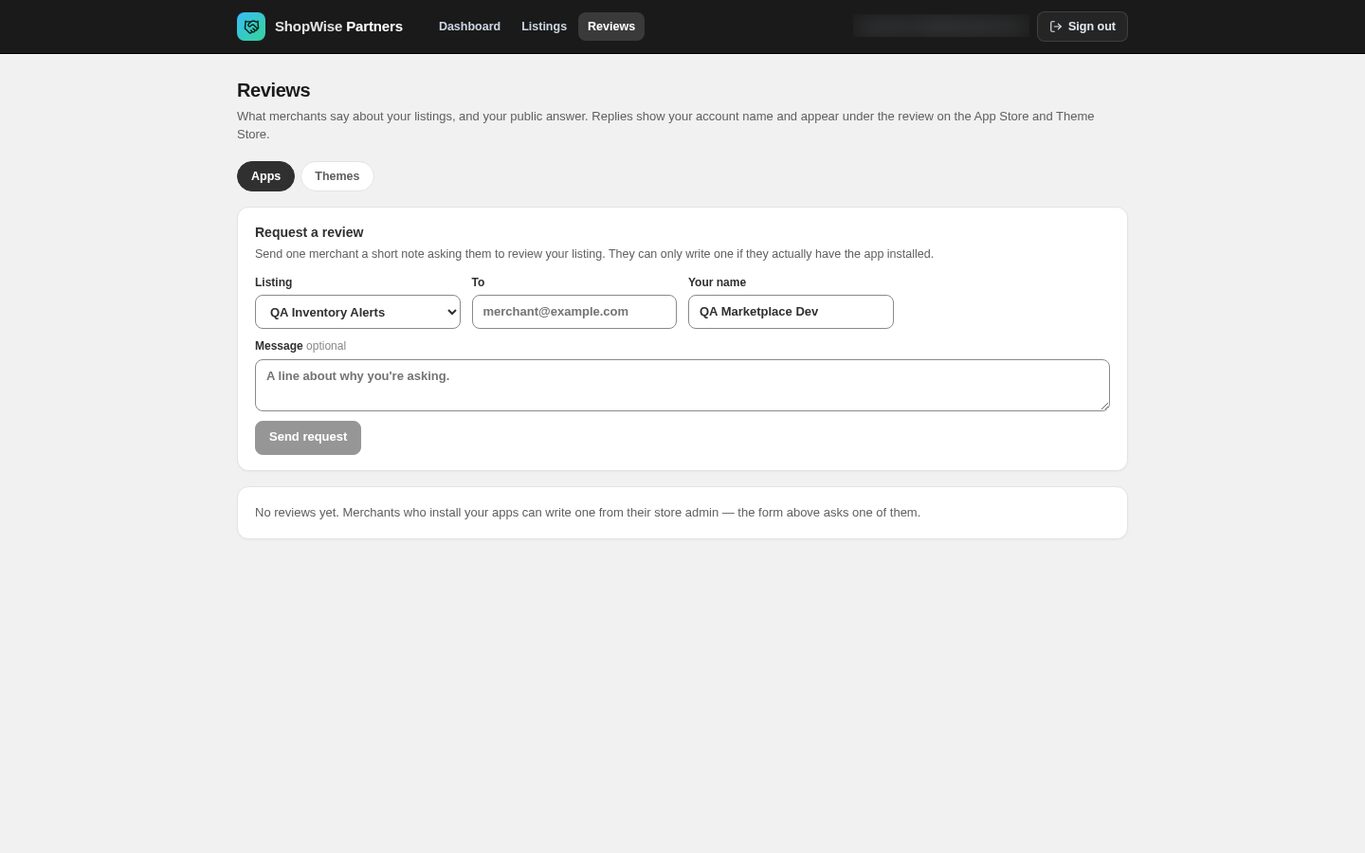
Open Reviews in the partner portal and switch between the Apps and Themes tabs. Reviews are listed newest first with the store name, rating and date.
- Only merchants who installed your app, or have your theme in their library, can write one.
Reply in public
Use the reply control on a review. The reply appears under that review on the App Store or Theme Store with your account name, and can be edited later.
- Keep the reply about the issue raised.
- Never include customer data, order details or credentials in a public reply; move private troubleshooting to your support channel.
Ask a merchant for a review
In Request a review choose the Listing, enter the merchant's email address in To, add Your name and an optional Message, then choose Send request. They receive a link to the review form.
- Send it to a merchant you already work with.
- They can only write a review if they actually have the app installed or the theme in their library.
Get collaborator access to a merchant store
Ask the merchant to create a collaborator request code in their admin under Settings → Users and to approve your access. You then enter their admin as a Collaborator, not as the owner.
- The partner portal currently has no page for sending a collaborator request; arrange it with the merchant and Lulu support.
- The merchant can suspend or remove that access at any time, and a suspended collaborator cannot re-enter.
- Development stores need none of this — they are already yours.
Work within the approved scope
After approval, confirm which store you are in and which actions your role allows. Make design changes on a draft theme and agree the release with the merchant.
- Ask the merchant to remove your access when the engagement ends.
CHECK YOUR WORK
You’re ready when…
- Review replies contain no private data.
- Merchant access is explicitly approved and limited to the task.
IF SOMETHING DOESN’T LOOK RIGHT
Troubleshooting
Why can’t I open a merchant’s admin?
The collaborator access may be pending, suspended, or may lack the permissions the task needs. Ask the store owner to review it under Settings → Users.
Why did my review request fail?
The address must be a valid email and the form is rate limited. Check the address, wait a moment and try again; contact support if it keeps failing.
Why is a control missing or unavailable?
Confirm that you are in the correct store and that your role allows this action. Optional apps and channels may require installation, a plan, or activation. Share the screen name and error with support if access is still unclear.
Keep going
- Add team members and review access →
- Partners: account and development stores →
- Partners: edit app listings and restore versions →