



WhatsApp Sales & Recovery
Sell and follow up on WhatsApp, included free
1. Review the fit
Connect your WhatsApp Business number, send invoices to customers on WhatsApp and let customers opt in to WhatsApp updates. Chat button, order confirmations, abandoned-cart recovery and shipping updates on WhatsApp are coming next. Some functionality is available, while other capabilities may still be planned. Review the live listing before relying on a particular workflow.
2. Check requirements
Check these requirements before installing.
- Requires an external service. Connect your own WhatsApp Business (Cloud API) number in Settings → Notifications and send draft-order invoices to customers on WhatsApp; customers can opt in to WhatsApp marketing from their account, and your WhatsApp link shows in the store footer. Not built yet: a floating WhatsApp chat button, WhatsApp order confirmations, abandoned-cart recovery and shipping updates on WhatsApp (these go by email today), product enquiries, and the ChatWise integration.
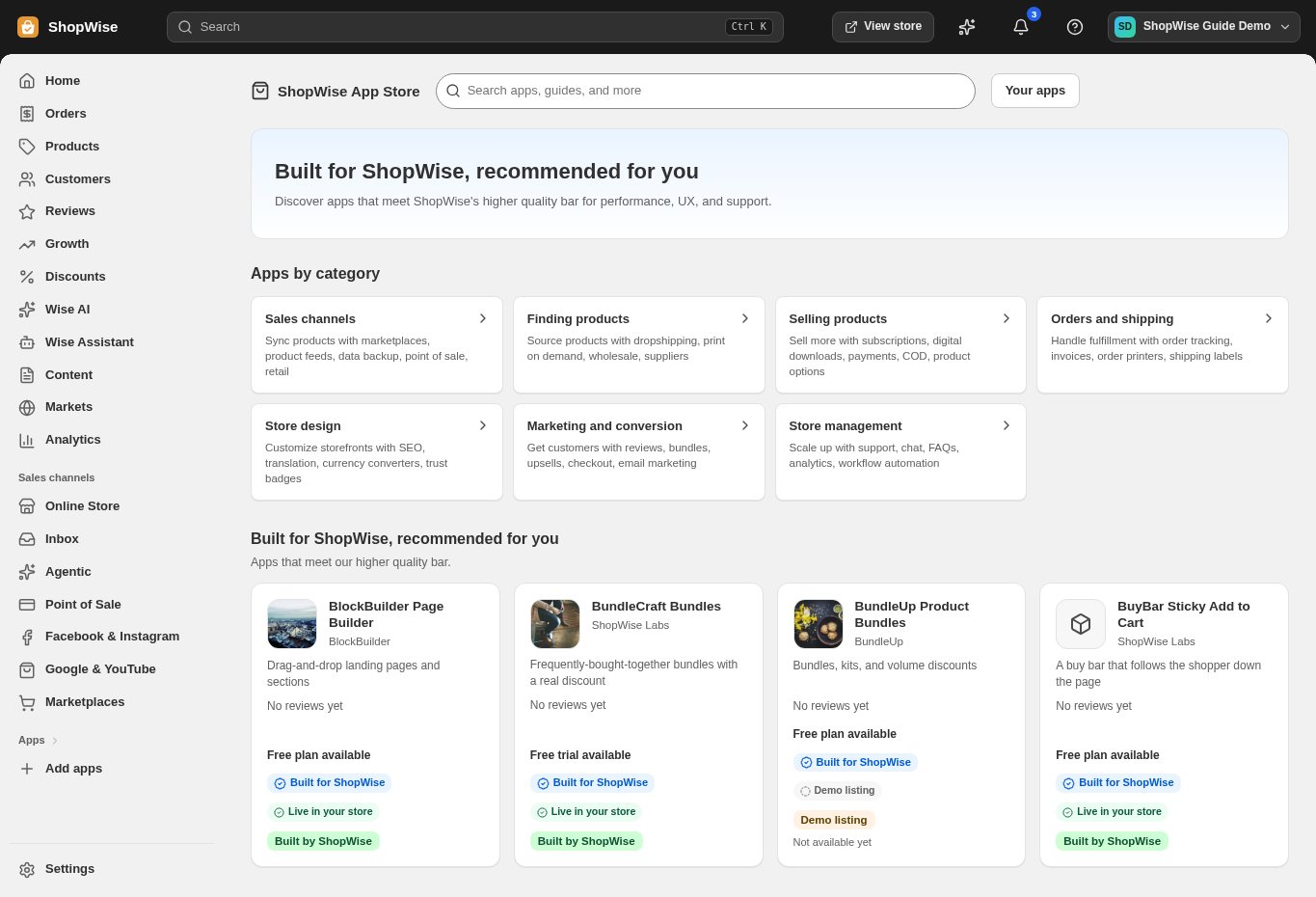
3. Choose and install
Sign in to the store where you want to use the app. Review its requested access and choose a plan that fits your usage. Paid plans and provider charges are separate from your store package.
4. Configure and preview
Open the app from your admin and complete its setup. If it adds a storefront component, enable the appropriate app block or section in your theme. Preview on desktop and mobile before publishing.
5. Test the customer journey
Use sample products or a test order to check the result. Review app usage and plan limits before increasing traffic. Contact the app’s support team through the listing if the result differs from what you expected.