Work on a duplicate draft theme when you want to keep a redesign off the live store.
Open the right theme
Go to Online Store → Themes and open the editor for the theme you intend to change. Confirm its name and whether it is live or draft.
- Use the theme actions to Duplicate first if you need a safe working copy.
- Changes saved to the live theme can affect customers.
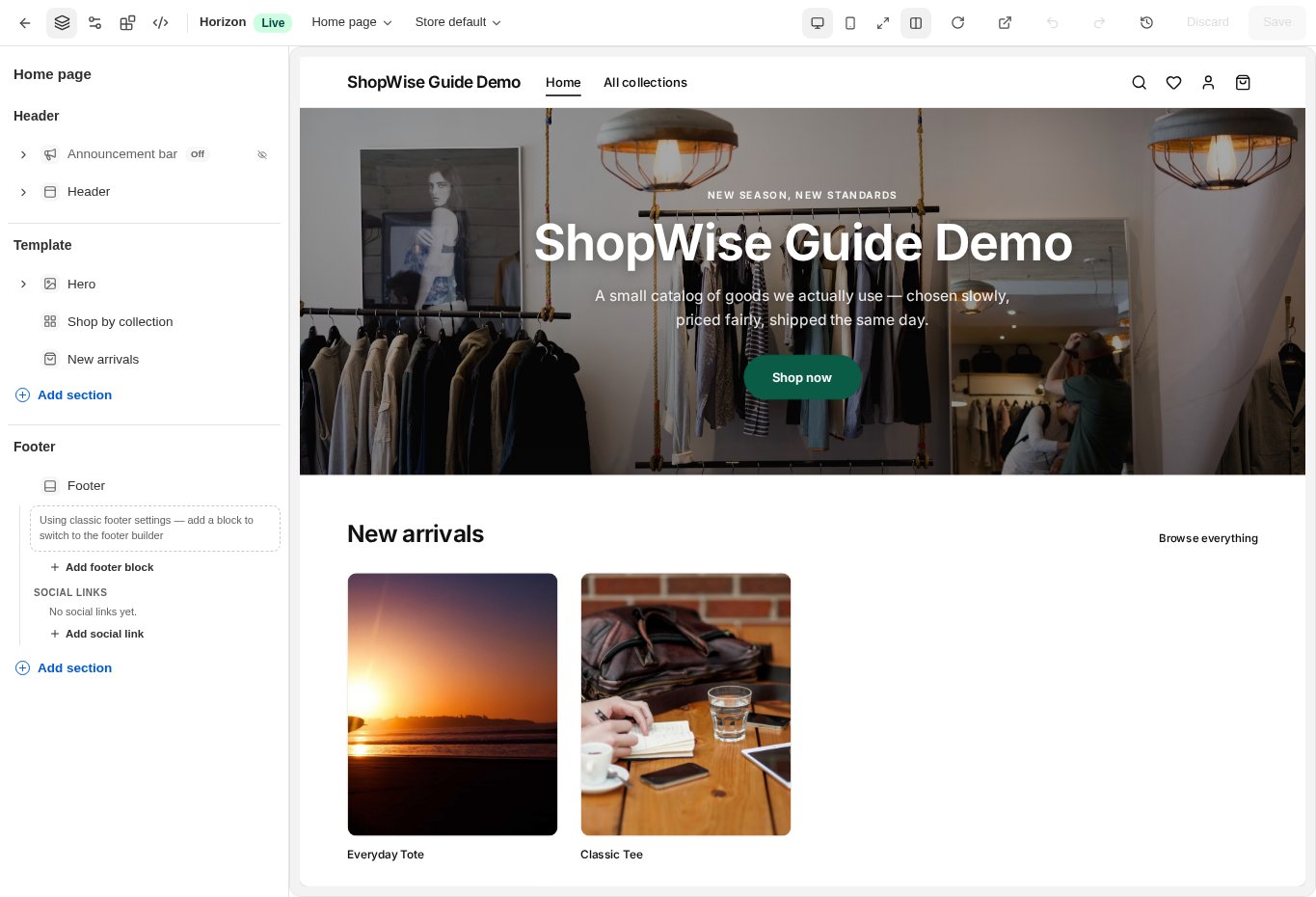
Select a template
Use the template selector at the top of the editor to choose the home page or the relevant product, collection, page, or article template.
- Use New template when you need a separate layout supported by the selector.
- Preview a representative resource for that template.
Edit sections and blocks
In Sections, select an existing section to open its inspector. Edit its text, media, products, or other supported fields. Use Add section to insert another section.
- Use reorder controls to change the page sequence.
- Open a section’s blocks to add or reorder supported items.
- Hide an element to test a layout before deciding to remove it.
Review header and footer
Open Header or Footer in the section tree. Review navigation, branding, and the footer builder controls.
- Use Content → Menus to change the linked menu’s items.
- Check long menu labels on mobile.
Preview and save
Switch between desktop and mobile previews, then Save. Use Undo or Redo to correct recent editor changes.
- Ctrl/Cmd+Z undoes; Ctrl/Cmd+Shift+Z redoes.
- Check that the Saved confirmation appears.
- Open the storefront preview to test links, product selection, and cart behavior.
CHECK YOUR WORK
You’re ready when…
- The correct template contains the intended sections.
- Both mobile and desktop previews have been checked.
- Your changes show a saved confirmation.
IF SOMETHING DOESN’T LOOK RIGHT
Troubleshooting
Why does the page I’m viewing not change?
Confirm the theme, template, and preview resource. You may be editing a draft or an alternate template that the page does not use.
Why is a control missing or unavailable?
Confirm that you are in the correct store and that your role allows this action. Optional apps and channels may require installation, a plan, or activation. Share the screen name and error with support if access is still unclear.
Keep going
- Choose and preview a theme →
- Theme editor: colors, fonts, and app embeds →
- Theme code: custom CSS, JavaScript, and version history →