Install the app before expecting its embed or block to appear in the theme editor.
Open Theme settings
In the theme editor select Theme settings. Review the available color, typography, layout, and other controls.
- The available tokens and controls depend on the theme.
- Use consistent text and background colors with readable contrast.
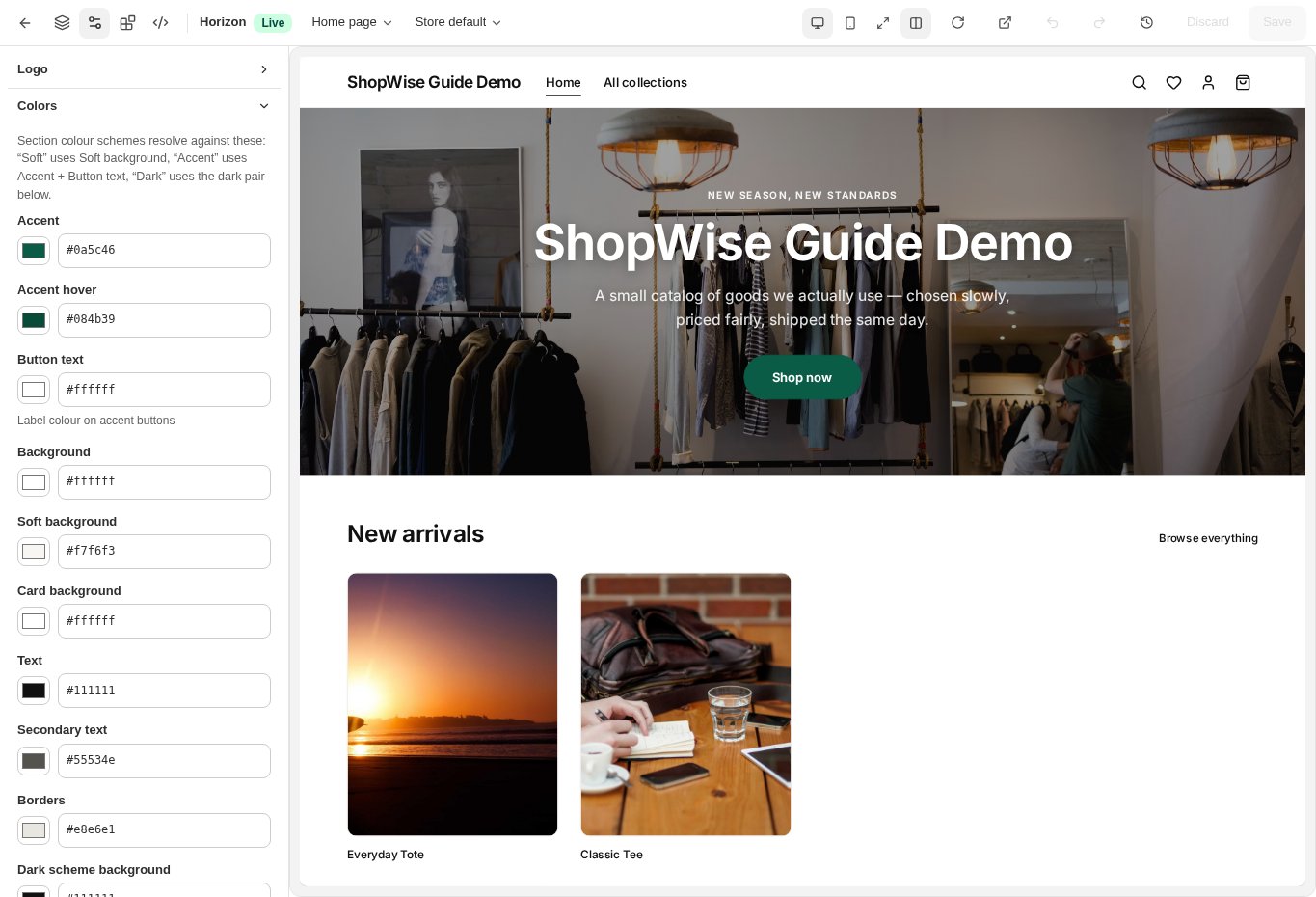
Check global and local styling
Change a setting, then preview several templates. A section can have its own settings in addition to global theme settings.
- Check buttons, links, headings, and form fields.
- Use the mobile preview to catch wrapping and cramped layouts.
Enable app components
Choose Apps in the editor to review available embeds. Enable and configure the relevant installed component. For an app section, use the supported section or block picker.
- Not every app has a storefront component.
- An installed app can still need its own configuration.
Save and test
Save the theme and test the customer action provided by the app, such as adding a bundle to cart.
- Confirm the app’s plan and usage limits in the app itself.
- If you remove an app, recheck pages that used its component.
CHECK YOUR WORK
You’re ready when…
- Global styles are readable on multiple templates.
- Enabled app components work in the storefront.
IF SOMETHING DOESN’T LOOK RIGHT
Troubleshooting
Why is my installed app missing from Apps?
The app may not supply an embed, may require another type of theme section, or may need activation. Review its setup guide and listing requirements.
Why is a control missing or unavailable?
Confirm that you are in the correct store and that your role allows this action. Optional apps and channels may require installation, a plan, or activation. Share the screen name and error with support if access is still unclear.