Free themes publish immediately. Premium themes can be tried and customised free and are paid for only when you publish. You need the online-store permission.
Open Online Store and visit the Theme Store
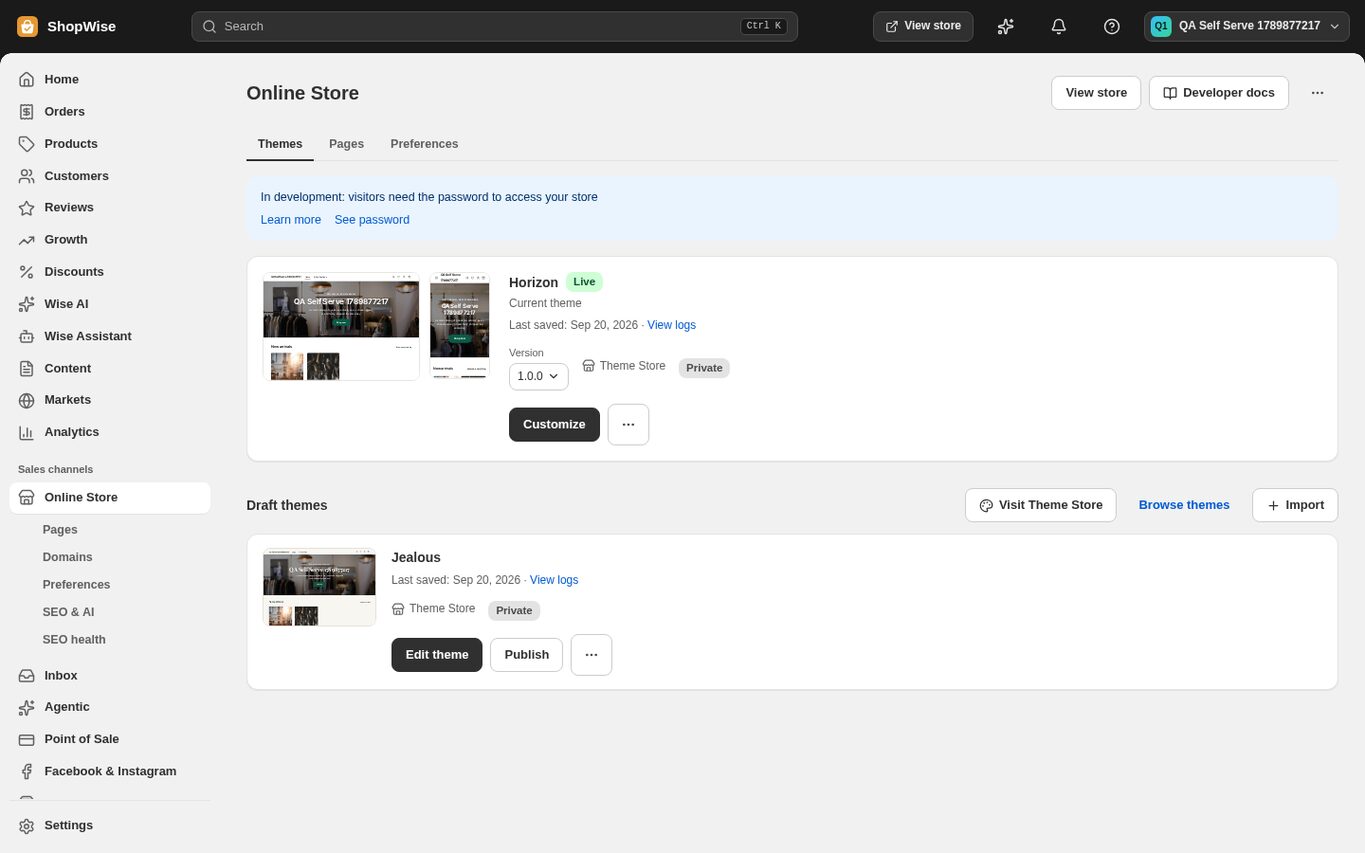
Online Store shows your current Live theme and a "Draft themes" section. Click "Visit Theme Store" (or "Browse themes"), filter by industry, price or feature and open a theme.
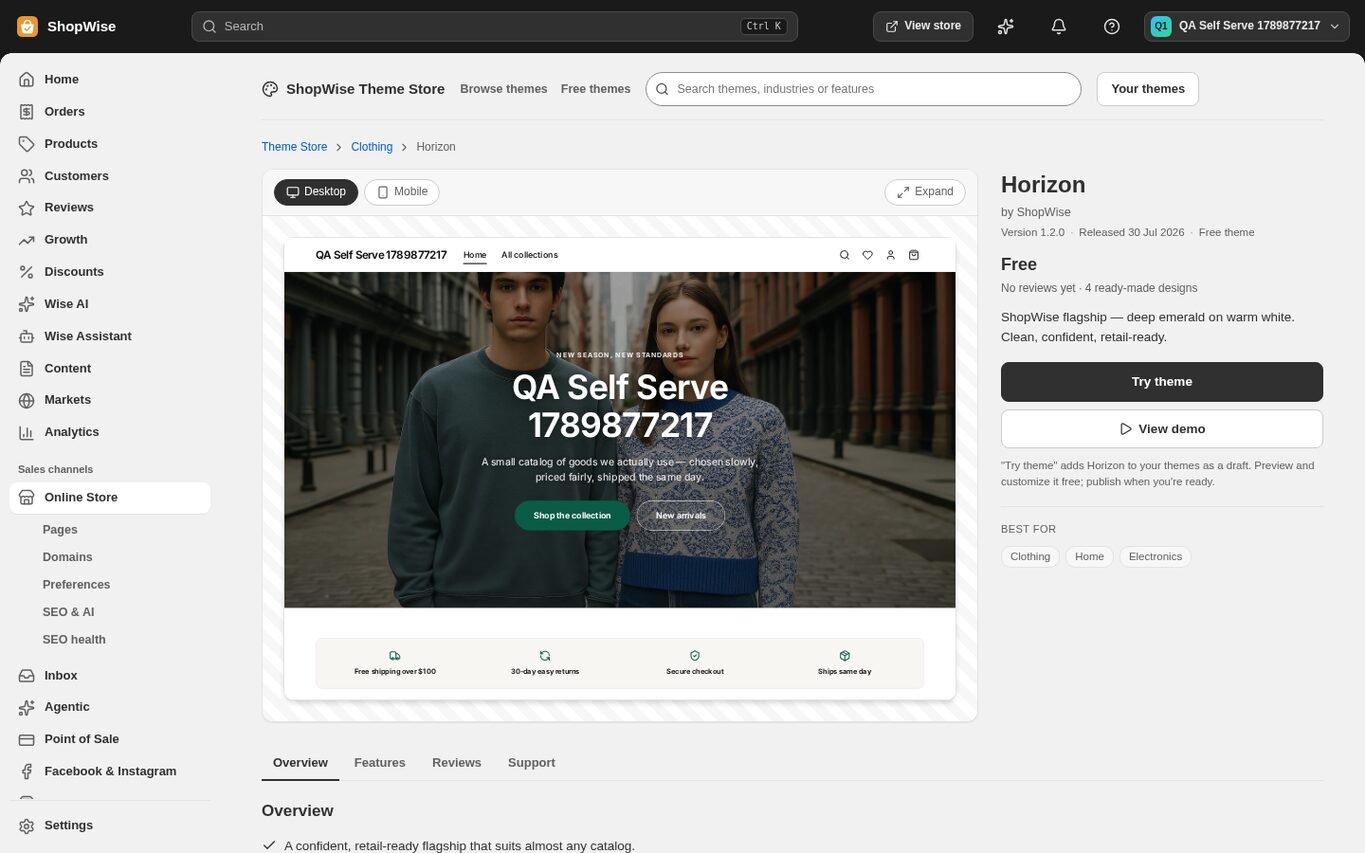
Click "Try theme"
The theme is added to your drafts and you return to Online Store. Trying a theme is always free, including premium themes.
Customise the draft
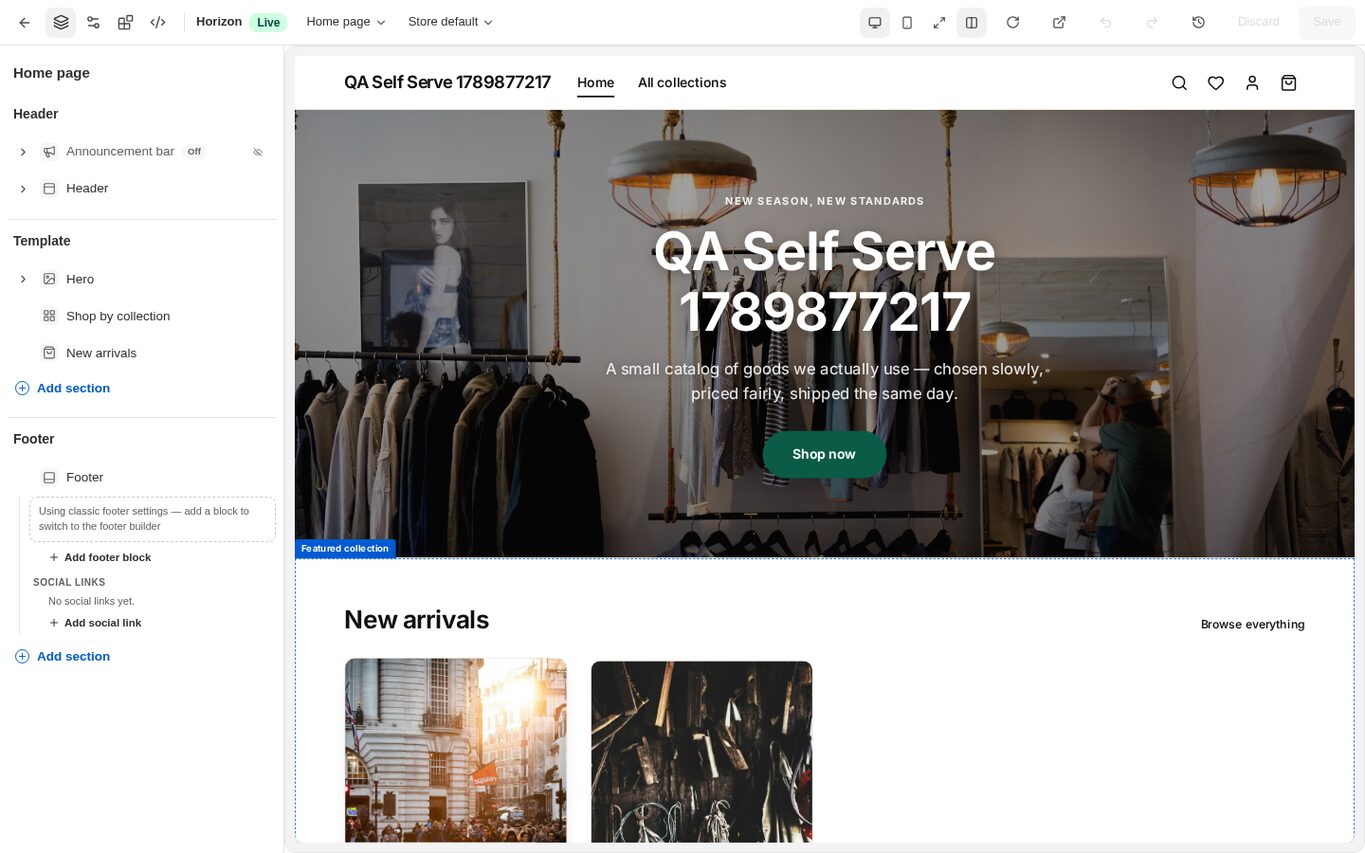
Click "Edit theme" to open the theme editor and change sections, colours, fonts and pages. Changes save to the draft only; your live shop is untouched until you publish.
Publish a free theme
Click "Publish" on the draft. It becomes your Live theme and the previous theme moves to drafts so you can switch back at any time.
Buy a premium theme, then publish
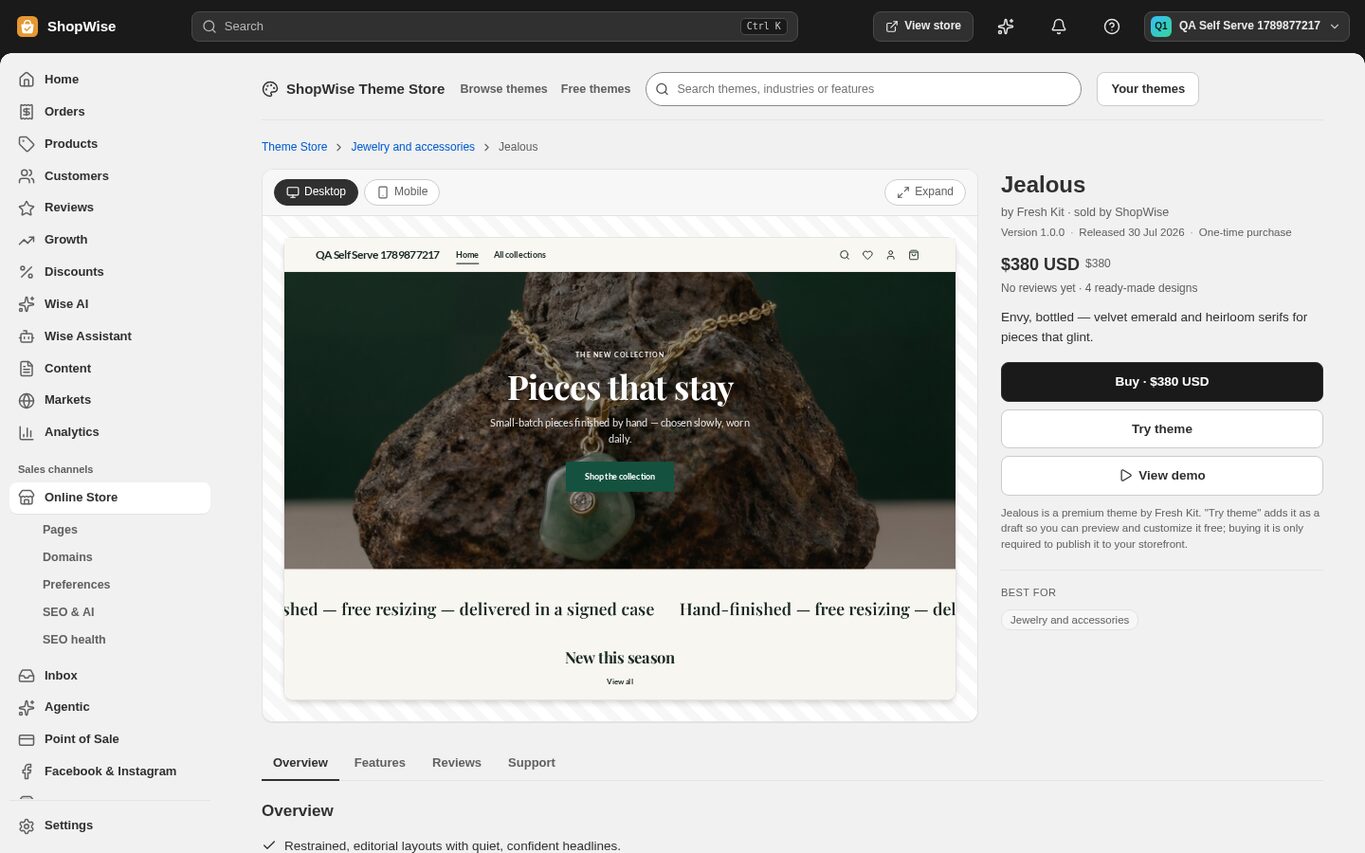
Publishing a premium draft is refused until you buy it ("Buy this theme to publish"). Open the theme's page in the Theme Store, click "Buy", pay in the payment window, then publish the draft. You own the theme for this store permanently, including future versions.
CHECK YOUR WORK
You’re ready when…
- The theme you want shows as Live under Online Store.
- Your storefront reflects the published draft.
- For a premium theme, the purchase shows on the theme's page and under Settings > Billing.
IF SOMETHING DOESN’T LOOK RIGHT
Troubleshooting
Publish says "Buy this theme to publish".
The draft is a premium theme you have not bought yet. Buy it from its Theme Store page, then publish. You can keep customising it free in the meantime.
The payment window says the payment could not start, or closes without a result.
Nothing was charged and your current package, theme or app tier stays exactly as it was. Try again in a few minutes. If it keeps failing, the platform's card payment provider is not live yet for this region: contact support with your store address and what you were paying for, and the team will complete the activation with you.
I cannot find this page or action.
Check the store shown at the top of the admin. On a phone, open the navigation menu first. Ask the store owner to confirm your permissions and whether the feature is available for this store.
What should I send support?
Send your store address, the page you were using, the steps you took, and the exact error text. Include a screenshot with private customer details hidden. Do not share passwords, API keys, or full payment information.
Keep going
- Open your Lulu store: from signup to going live →
- Choose and preview a theme →
- Theme editor: sections, blocks, and templates →
- Theme editor: colors, fonts, and app embeds →