Confirm POS access, a stock location, and the staff who will use the register.
Complete the setup checklist
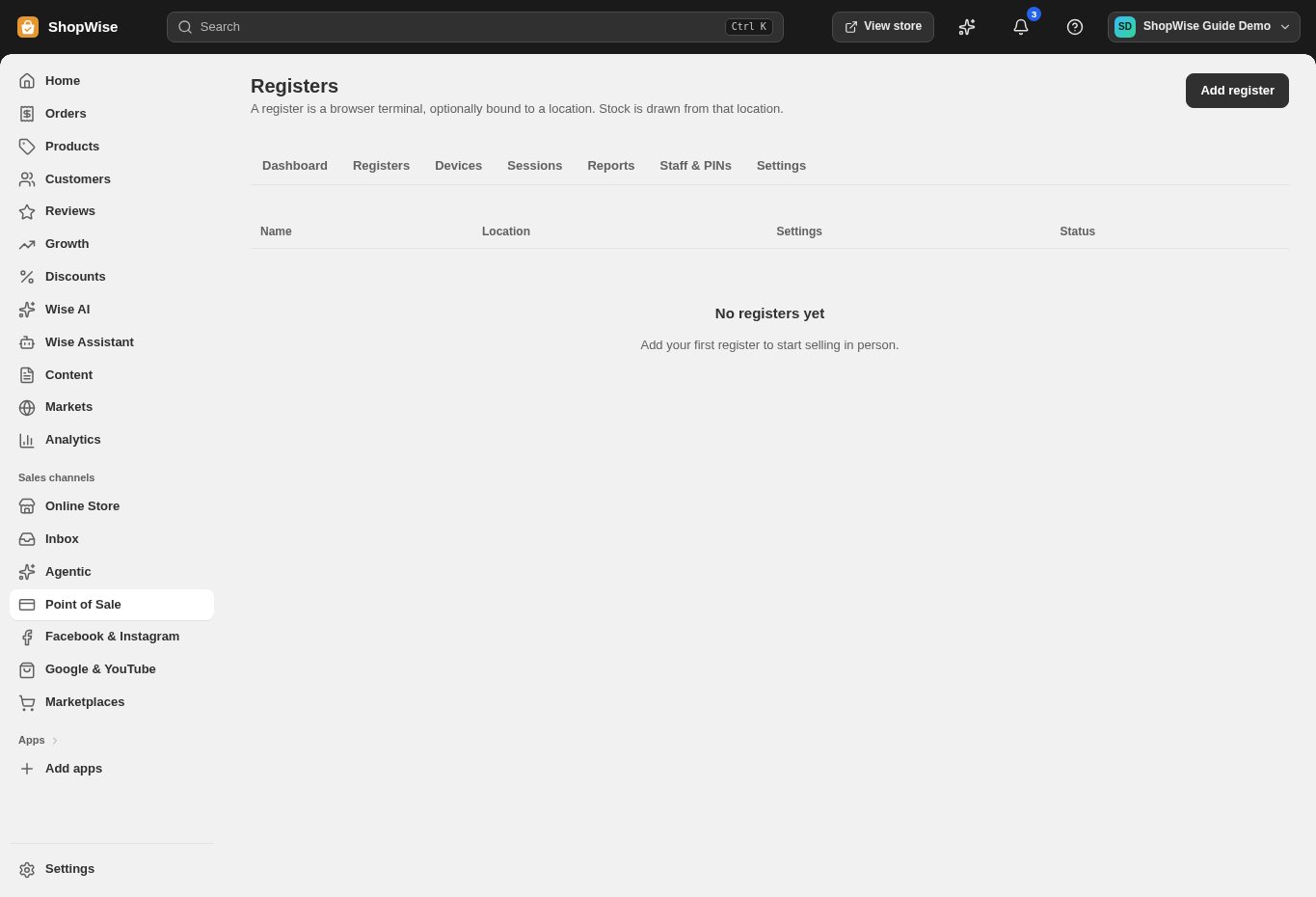
Open Point of Sale. Review the setup checklist and choose Registers → Add register.
- Name the register and bind it to the intended location.
Pair a device
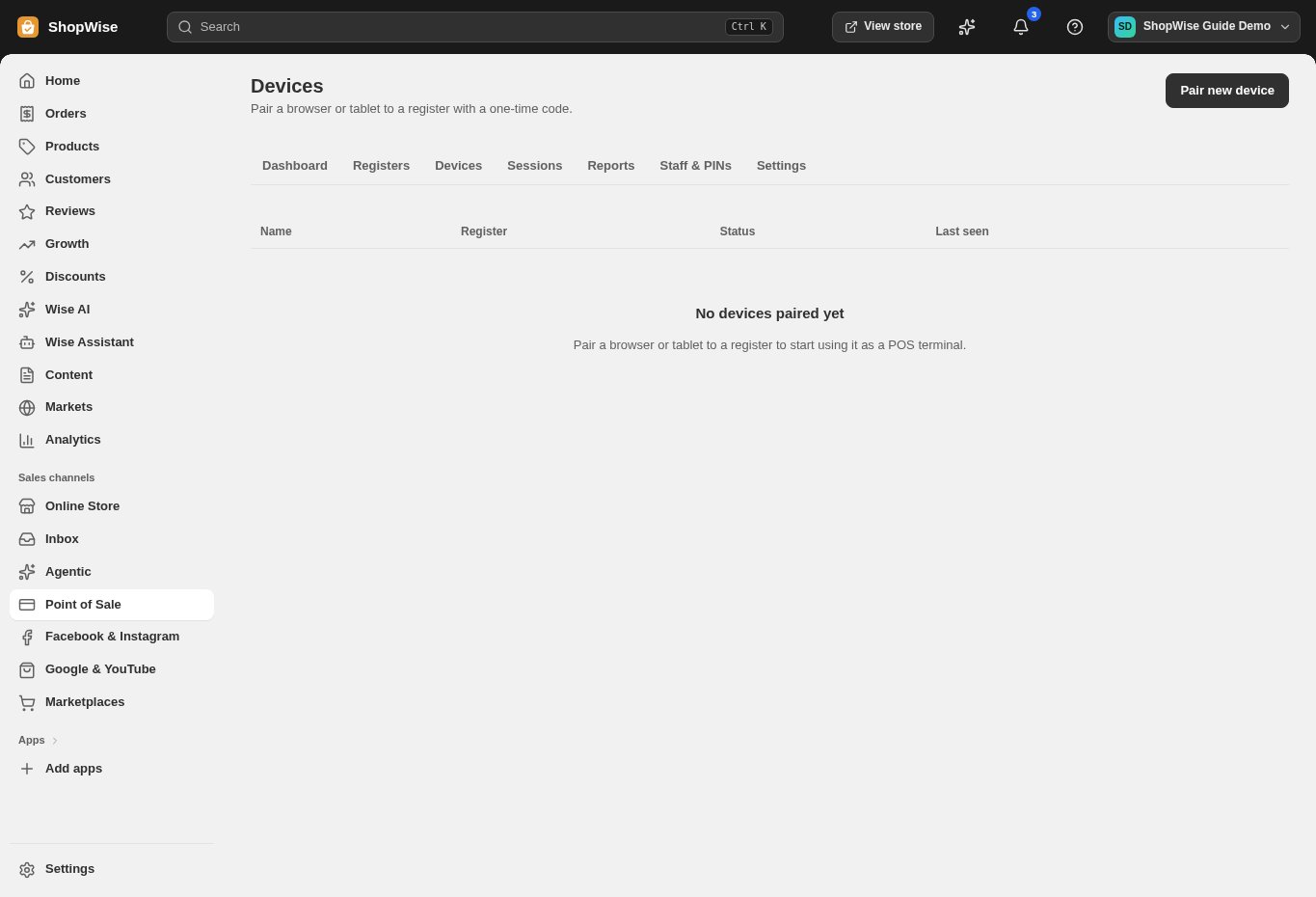
Open Devices → Pair new device. Use the one-time pairing code on the intended browser or tablet.
- Keep pairing codes private.
- Revoke or re-pair a device when it changes hands.
Set staff and receipt options
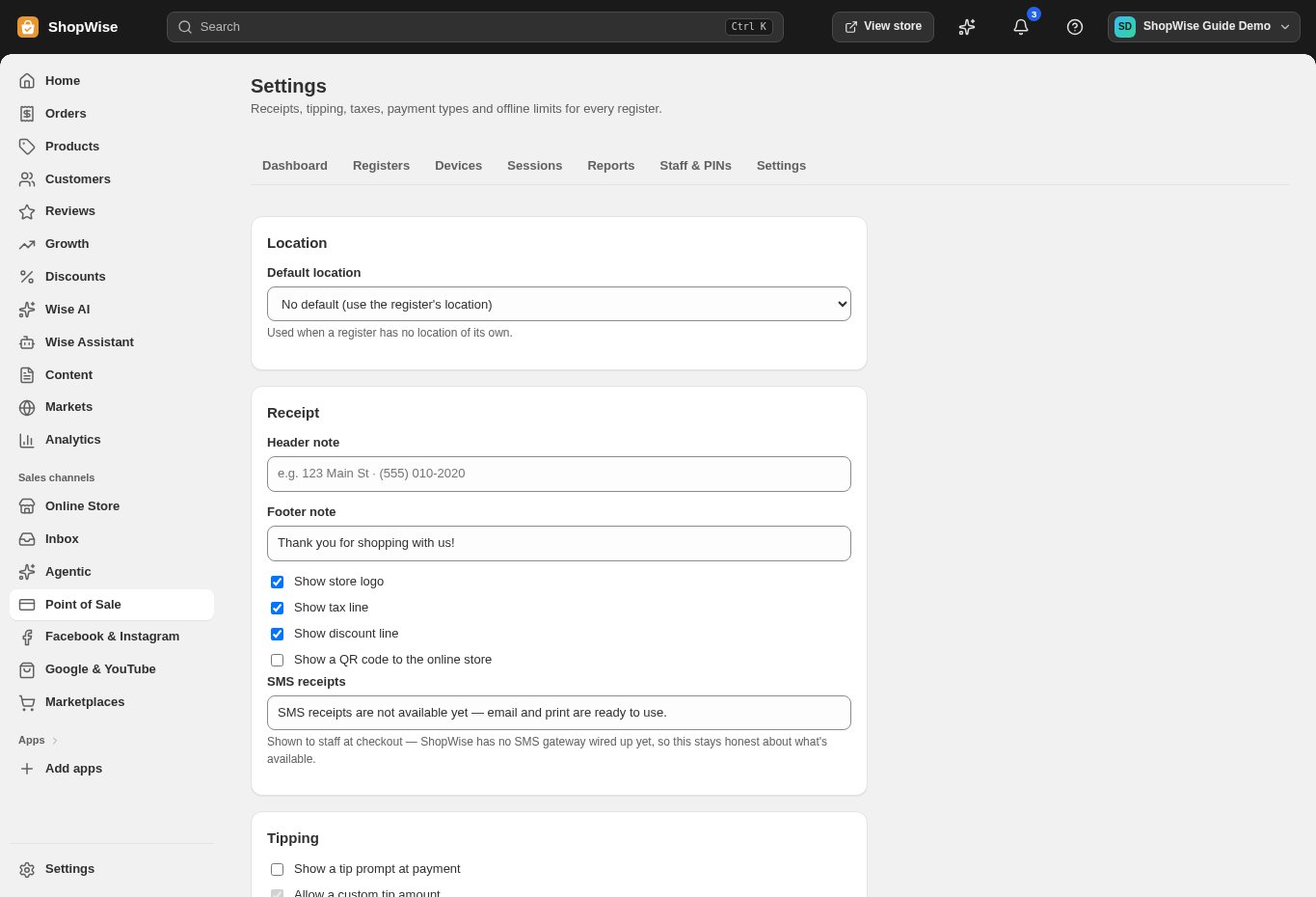
Use Staff & PINs to set authorized staff PINs. Open Settings to review receipts, tipping, taxes, payment types, and offline limits.
- Each staff member should use their own access.
- Verify the receipt business details.
Test the register
Choose Open register and test the selling workflow with approved test arrangements. Review Sessions and Reports afterward.
- Check stock comes from the correct location.
- Recording a tender does not itself connect a card terminal.
CHECK YOUR WORK
You’re ready when…
- The register, device, and staff are configured.
- A test receipt and stock change have been verified.
IF SOMETHING DOESN’T LOOK RIGHT
Troubleshooting
Why can’t a device open a register?
Check pairing status, the register’s availability, and the staff PIN. Review any existing open drawer session before opening another.
Why is a control missing or unavailable?
Confirm that you are in the correct store and that your role allows this action. Optional apps and channels may require installation, a plan, or activation. Share the screen name and error with support if access is still unclear.