Check your staff permissions and the store’s fulfillment process. The orders below are manually created demonstration orders, not real purchases.
Open the order list
Select Orders in the admin navigation. Review the order number, customer information, totals, and payment and fulfillment statuses. Use the available tabs and filters to focus the queue.
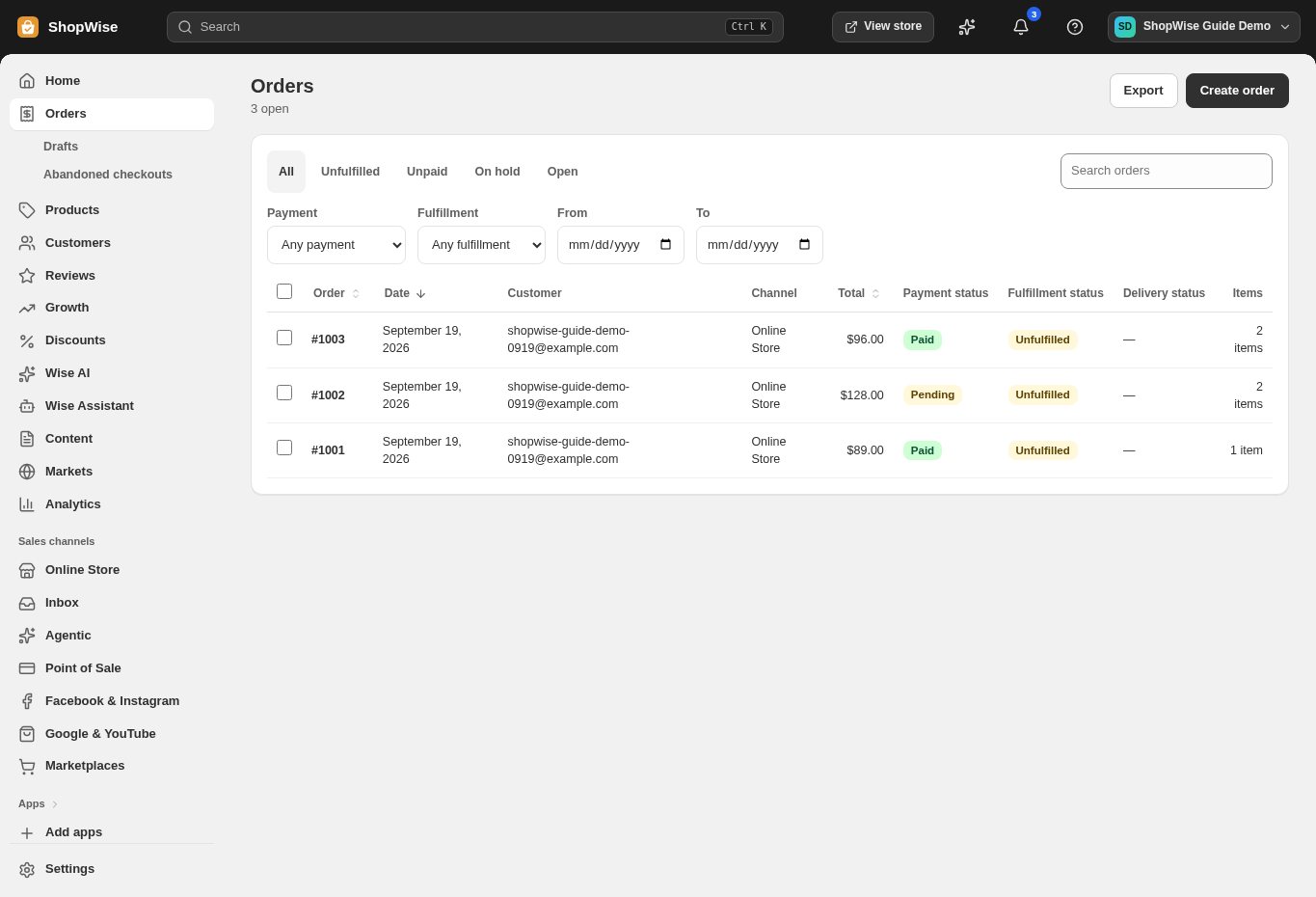
Open an order and verify it
Select the order number to review the items, quantities, delivery information, and payment details. A pending payment is different from a paid order. Confirm your store’s policy before shipping an unpaid order.
Record fulfillment
Use the fulfillment controls available on the order, choose the quantities being sent, and add carrier and tracking details where applicable. Review the information before saving or sending a customer notification.
Handle follow-up from the order
Return to the order to check status, notes, refunds, or returns as your permissions and payment method support them. Reconcile actual provider refunds with the order record.
CHECK YOUR WORK
You’re ready when…
- Open the correct order or customer record.
- Check payment and fulfillment separately.
- Review the saved result before sending a customer an update.
IF SOMETHING DOESN’T LOOK RIGHT
Troubleshooting
I cannot find this page or action.
Check the store shown at the top of the admin. On a phone, open the navigation menu first. Ask the store owner to confirm your permissions and whether the feature is available for this store.
An order is paid but still unfulfilled.
Payment and fulfillment are separate states. Check which items remain unfulfilled and who is responsible for shipping them. Add fulfillment only after the relevant items are ready and the shipment details are correct.
What should I send support?
Send your store address, the page you were using, the steps you took, and the exact error text. Include a screenshot with private customer details hidden. Do not share passwords, API keys, or full payment information.