You need access to the domain’s DNS settings at your registrar. Keep a record of existing DNS records before making changes.
Open Domains
Go to Settings, then Domains. Your managed lulu.us.com address appears here. Choose Connect existing domain to begin.
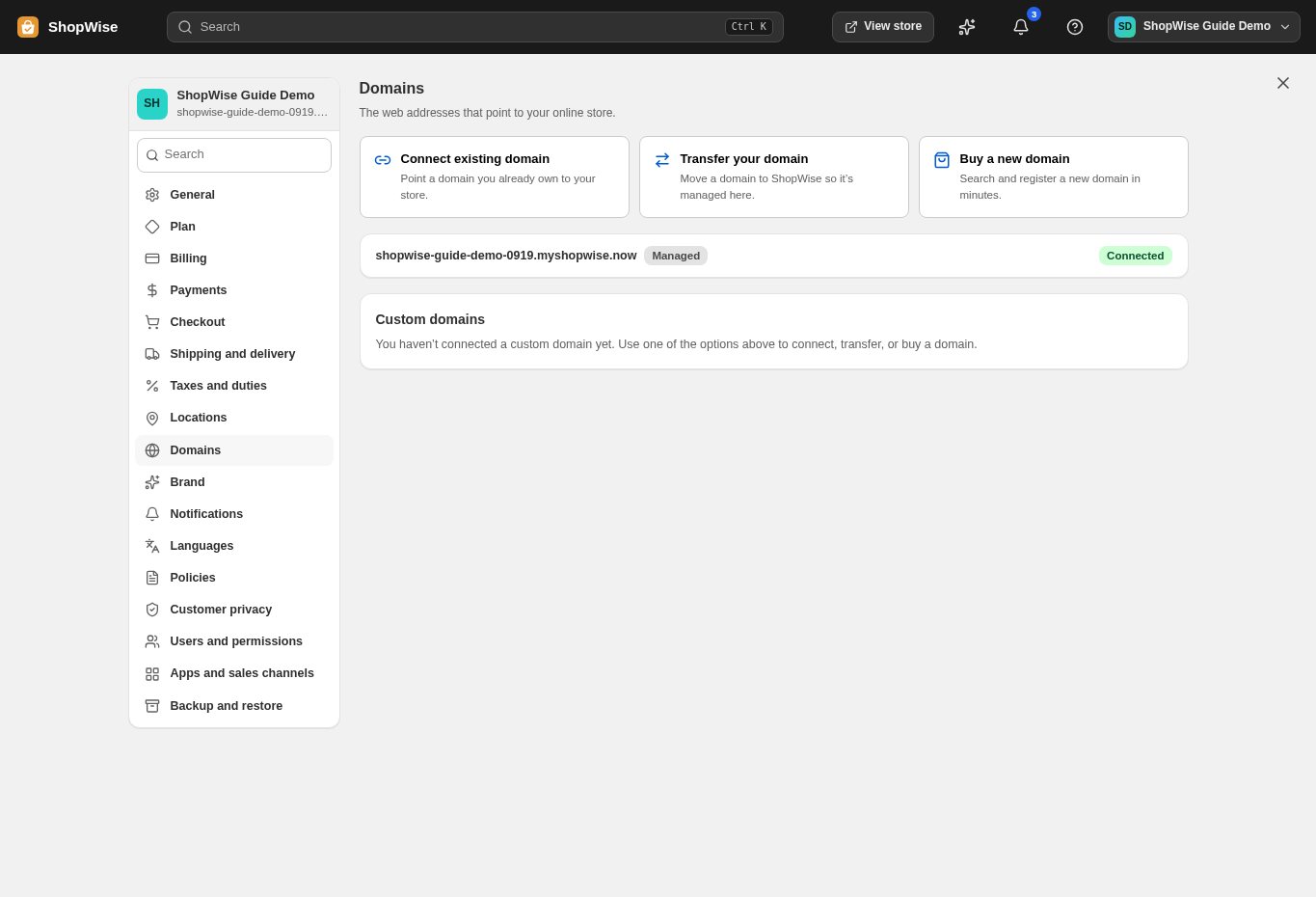
Enter your domain
Enter the domain you want customers to use. Follow the connection instructions shown for your domain. Copy the exact record names and values from the setup rather than using values from a screenshot.
Update DNS at your registrar
Add or update only the records requested by the setup. Do not remove unrelated email records. DNS propagation and certificate provisioning can take time; review the connection status before switching your main address.
Verify the customer journey
Open the domain in a private browser window and check the storefront and checkout. Keep your previous setup available until you have confirmed the new address works. Registration and renewal charges remain separate from domain connection.
CHECK YOUR WORK
You’re ready when…
- Confirm you are editing the intended store and theme.
- Test links and layout in a separate storefront tab.
- Check the same pages on a phone before announcing the change.
IF SOMETHING DOESN’T LOOK RIGHT
Troubleshooting
I cannot find this page or action.
Check the store shown at the top of the admin. On a phone, open the navigation menu first. Ask the store owner to confirm your permissions and whether the feature is available for this store.
My domain still does not open the store.
Compare the records at your DNS provider with the exact values shown in Lulu. Check for conflicting records on the same hostname. DNS changes can take time; avoid repeatedly replacing records while a change is being verified.
What should I send support?
Send your store address, the page you were using, the steps you took, and the exact error text. Include a screenshot with private customer details hidden. Do not share passwords, API keys, or full payment information.