A Printful account with prepared designs and products. Lulu dropshipping must be activated and configured before live orders.
Confirm activation first
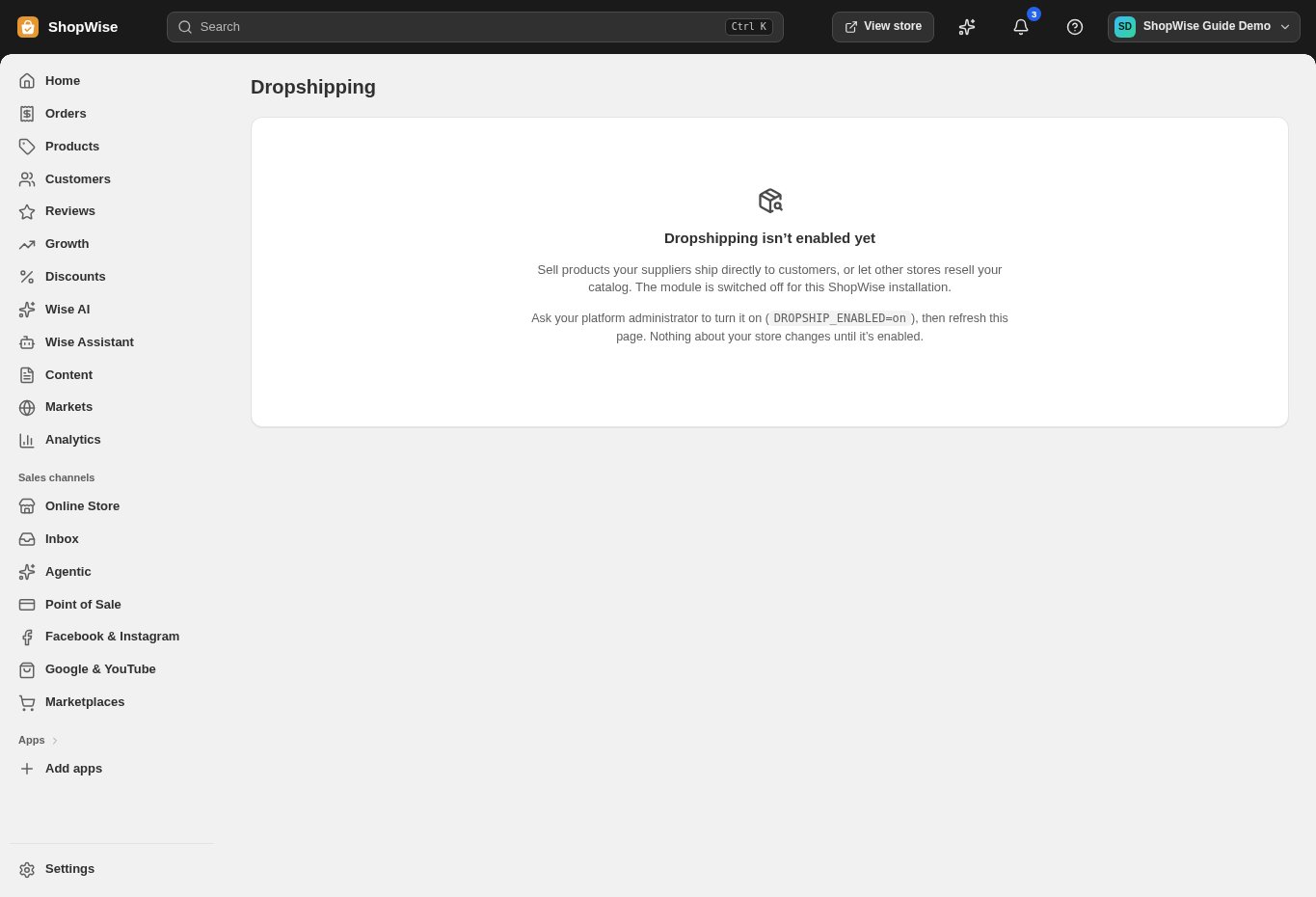
Open Dropshipping in your admin. If it shows the activation message pictured here, contact the team with your store address and the provider you want to use.
Prepare your provider catalog
Prepare your products and design files in Printful. Review variant options and order samples where appropriate before offering the range in your storefront.
Authorize the correct connection
Arrange Printful authorization and map the intended product variants. Confirm billing and production readiness before sending orders.
Review the storefront listings
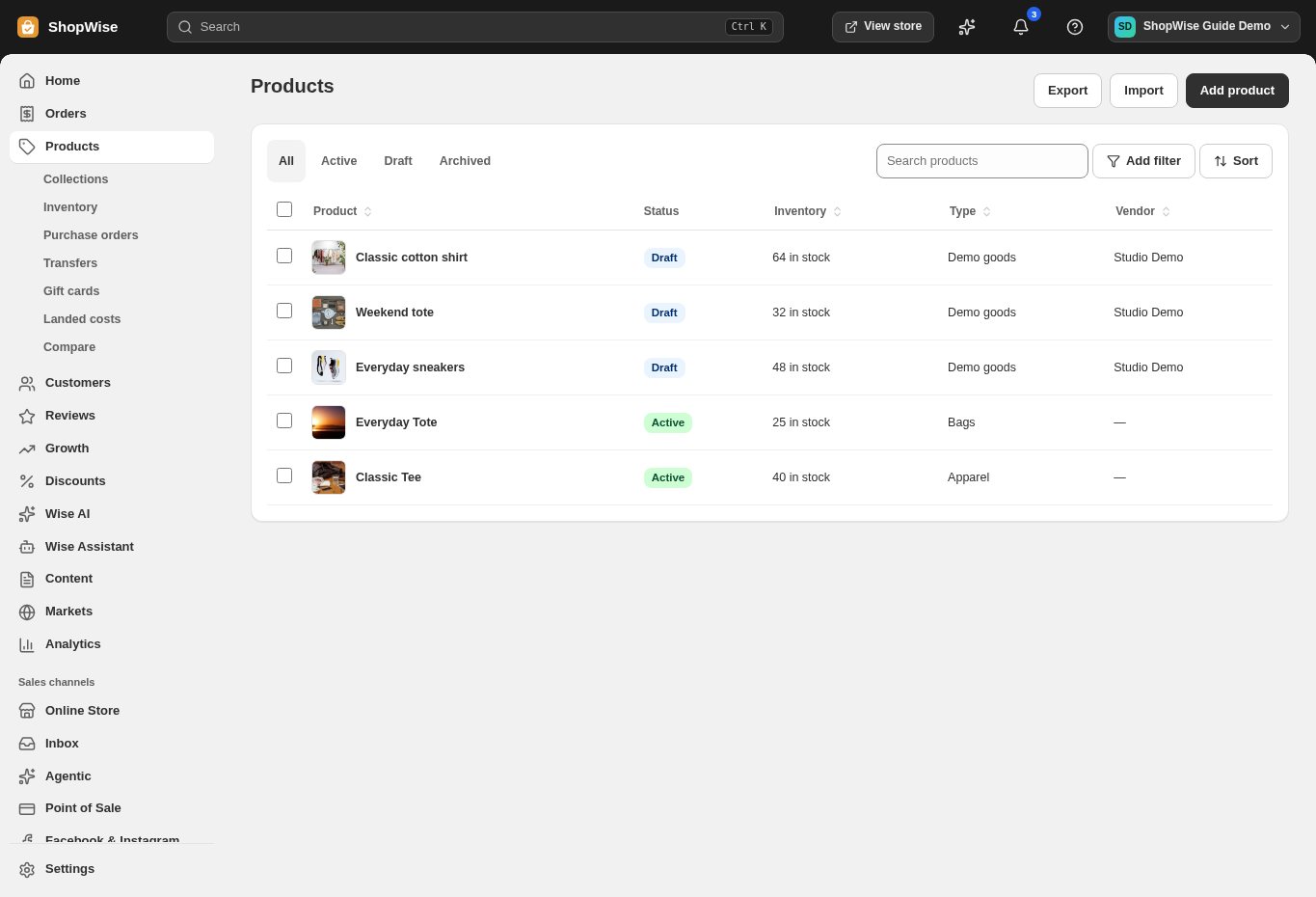
Check each mapped product in Products. Confirm the title, images, variants, price, and availability. Keep unfinished listings in Draft until the details and fulfillment route are confirmed.
Set delivery and support expectations
Publish delivery and return information that reflects this provider’s actual terms for your products and markets. Product, production, fulfillment, and shipping charges are separate from Lulu.
Verify with a test order
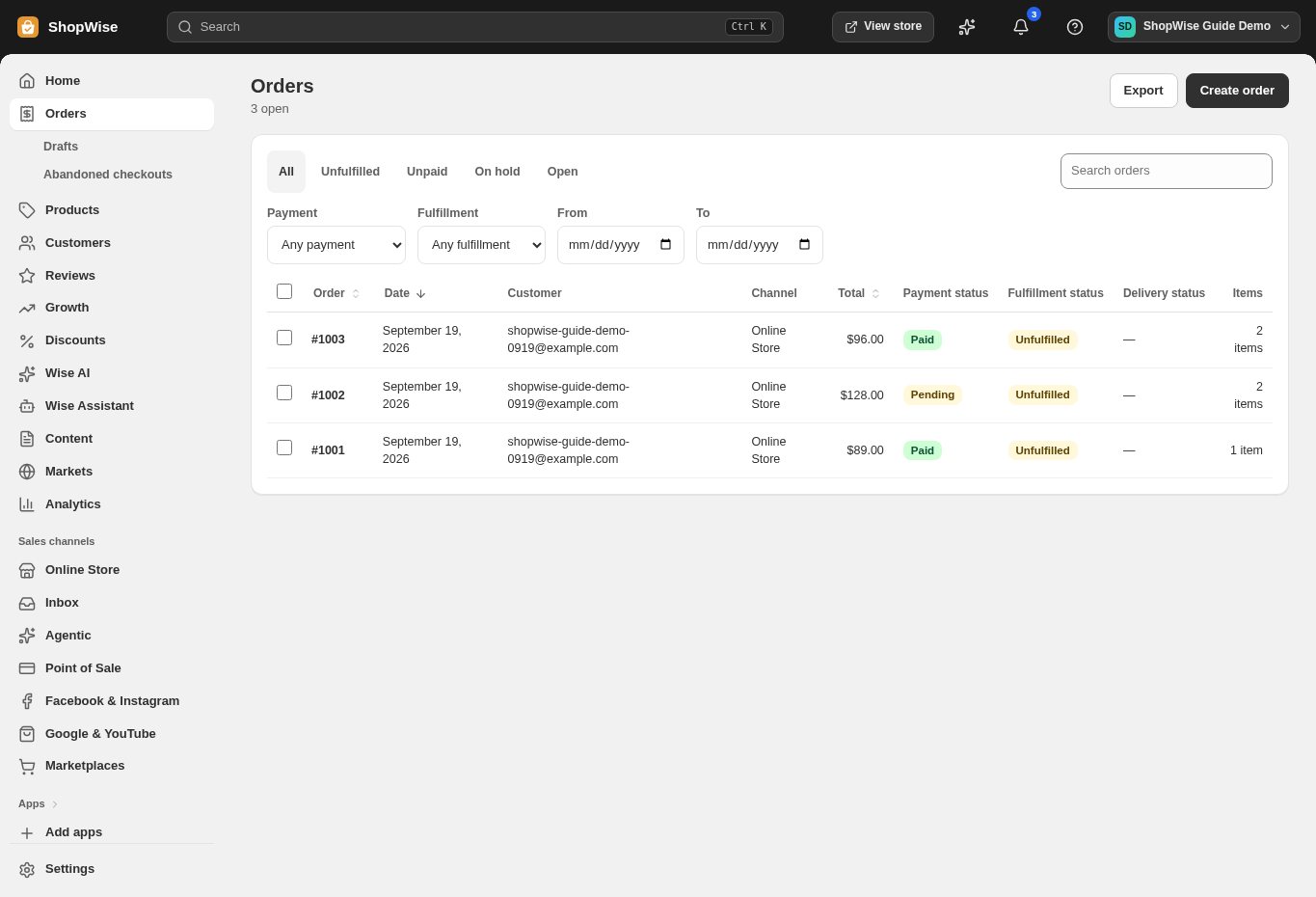
Use an agreed test procedure to check payment, provider acceptance, fulfillment, and tracking. Review the resulting Lulu order and provider record together before opening the range to customers.
CHECK YOUR WORK
You’re ready when…
- Confirm activation, provider permissions, and product mapping.
- Review supplier costs, retail prices, and delivery expectations.
- Complete a test order before promoting supplier-fulfilled products.
IF SOMETHING DOESN’T LOOK RIGHT
Troubleshooting
Can I just enter my provider username and start selling?
No. Confirm provider approval or API permissions, account authorization, store activation, and variant mapping with the team. A provider account alone does not complete the connection.
The provider account is connected but an item fails.
Check the exact product and variant identifiers, account/shop selection, stock or production availability, destination, and provider billing status. Share the error and references with support before retrying.