Have the Lulu order number and supplier reference ready. Do not place a duplicate order while the original result is uncertain.
Confirm the customer order
Open Orders and inspect the order’s payment and fulfillment states. An unpaid or pending order should not be treated as ready for supplier fulfillment.
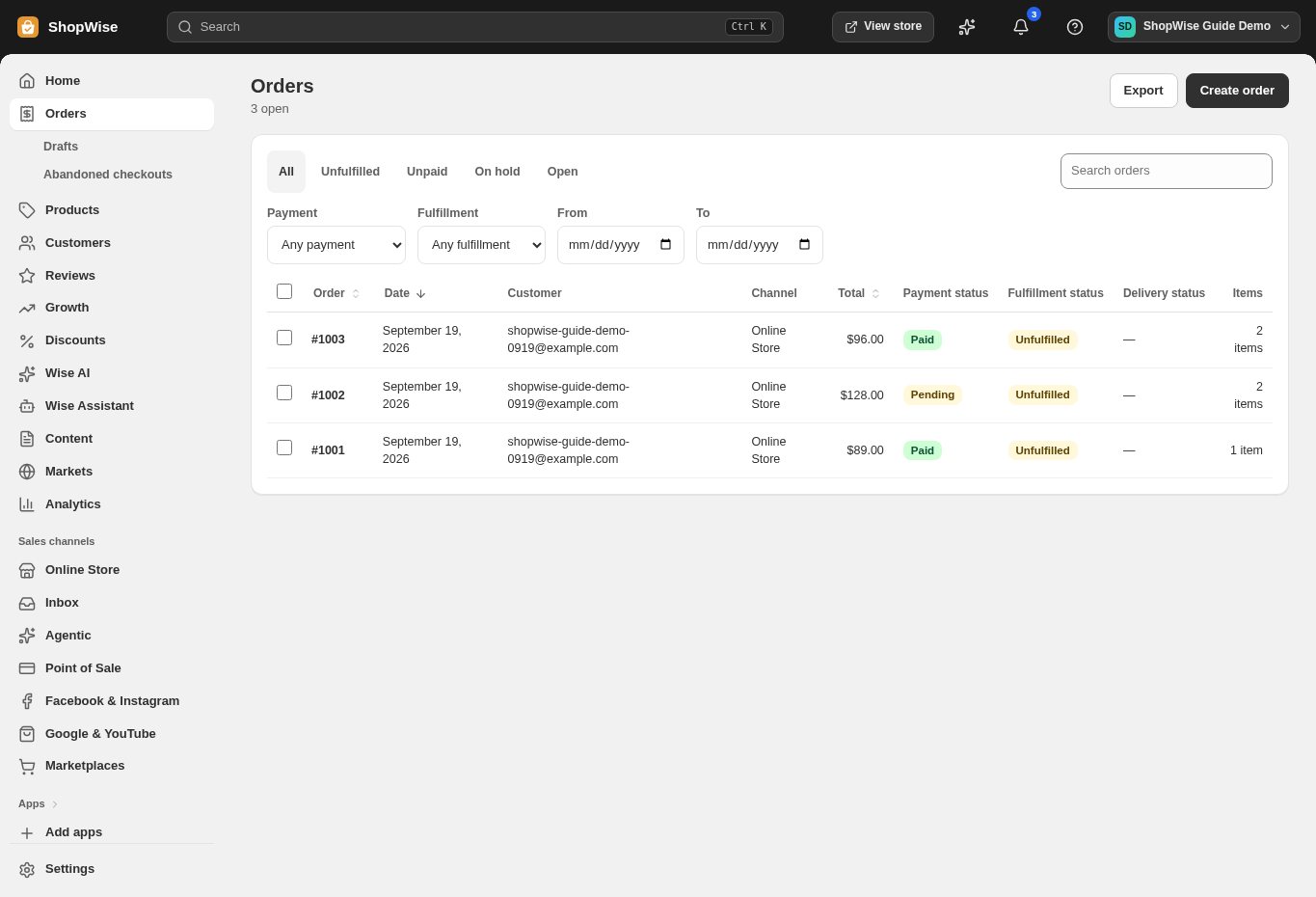
Check the supplier record
Confirm the intended supplier is Active. A Paused supplier stops routing new orders; do not reactivate one until its service or account issue is resolved.
Check item mapping and availability
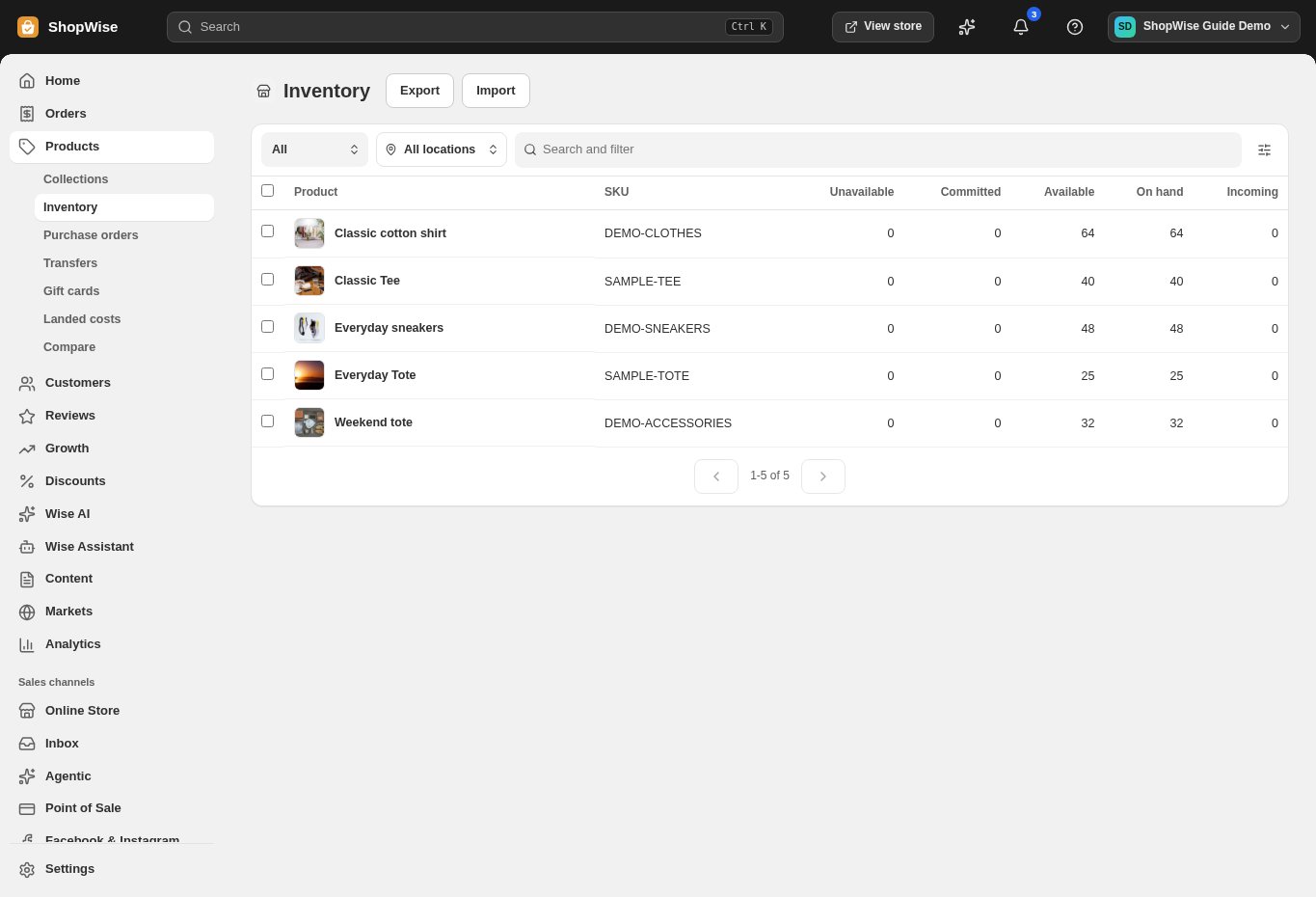
Compare the ordered variant with the supplier’s product identifier, SKU, options, and availability. A similar title is not enough to identify the correct item.
Review the fulfillment handoff
Open the dropshipping fulfillment-order view when available. Note the status, supplier reference, and error message. If the provider accepted the order but Lulu did not receive confirmation, ask the team to reconcile it before retrying.
Track the shipment and support the customer
Use available tracking and the provider’s order record to confirm shipment progress. Update the customer with verified information; do not promise a delivery date based only on a generic supplier estimate.
Escalate with useful evidence
Send the store address, order number, provider, reference, and exact error to support. Hide private addresses and credentials in screenshots. Coordinate returns under the provider’s process rather than assuming a refund cancels a shipment.
CHECK YOUR WORK
You’re ready when…
- Confirm activation, provider permissions, and product mapping.
- Review supplier costs, retail prices, and delivery expectations.
- Complete a test order before promoting supplier-fulfilled products.
IF SOMETHING DOESN’T LOOK RIGHT
Troubleshooting
There is no tracking yet.
Check whether the supplier has shipped the order. Tracking may arrive after dispatch or through the next supported update; an accepted order is not necessarily shipped.
The customer requested a refund after dispatch.
Review the order, shipment, and provider’s return process together. A payment refund and a parcel return are separate actions; confirm both responsibilities before proceeding.