



Drop Shipping
Sell supplier products without holding stock
1. Review the fit
Connect your supplier account (AliExpress, CJdropshipping, Printful, Printify, Zendrop and more), search the catalog from your admin and import products with their variants, images and cost. Your pricing rules set the retail price, stock and supplier cost stay in sync, orders go to the supplier (automatically where the supplier has an order API, otherwise as a ready-to-copy task) and tracking comes back onto the order. You pay the supplier for products and shipping. Needs the Dropshipping module to be switched on for your Lulu installation. Some functionality is available, while other capabilities may still be planned. Review the live listing before relying on a particular workflow.
2. Check requirements
Check these requirements before installing.
- Requires your own supplier account (AliExpress, CJ, Printful…). Real, built-in dropshipping — it needs your own supplier account (AliExpress, CJdropshipping, Printful, Printify, Zendrop and others) and the Dropshipping module switched on for this Lulu installation. Once connected: search the supplier catalog from your admin and import products with variants, images and cost; pricing rules set the retail price; stock and supplier cost refresh on a schedule; orders are sent to the supplier (automatically where the supplier has an order API, otherwise as a ready-to-copy task) and tracking numbers come back onto the right order. Reports estimate margin and profit by order, product, supplier and category, and on Enterprise across the stores in your store group and by staff member. Your plan’s synced-product limit (Launch 250, Growth 2,500, Scale 10,000, Enterprise 50,000 active synced products) is shown on the Dropshipping page and enforced when you import or un-archive a product; products you already have keep syncing even if you are over it.
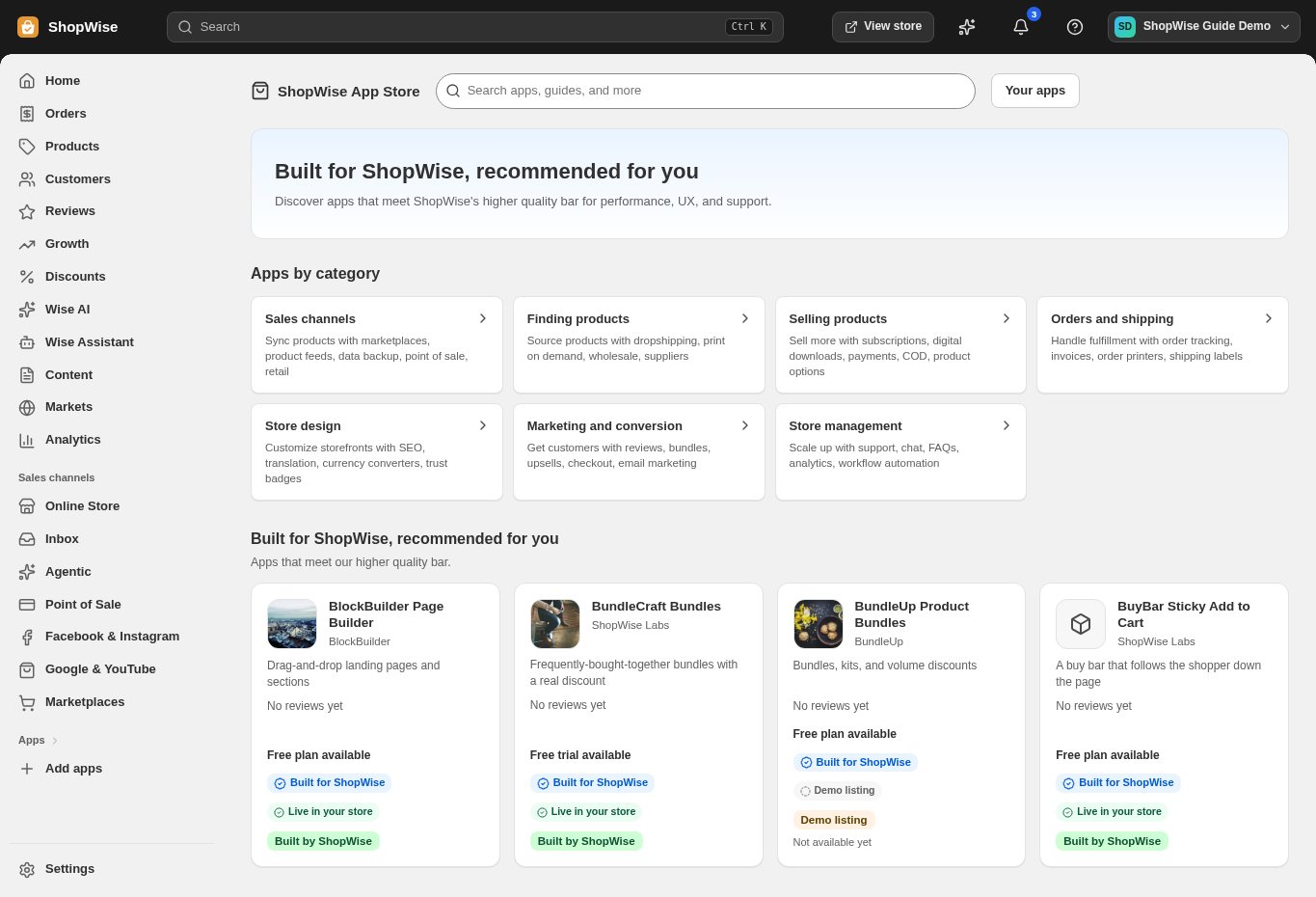
3. Choose and install
Sign in to the store where you want to use the app. Review its requested access and choose a plan that fits your usage. Paid plans and provider charges are separate from your store package.
4. Configure and preview
Open the app from your admin and complete its setup. If it adds a storefront component, enable the appropriate app block or section in your theme. Preview on desktop and mobile before publishing.
5. Test the customer journey
Use sample products or a test order to check the result. Review app usage and plan limits before increasing traffic. Contact the app’s support team through the listing if the result differs from what you expected.