Prepare your logo files and reviewed translations.
Review Brand
Open Settings → Brand and add or review the brand assets and fields available there.
- Use clear logo artwork that works on light and dark backgrounds.
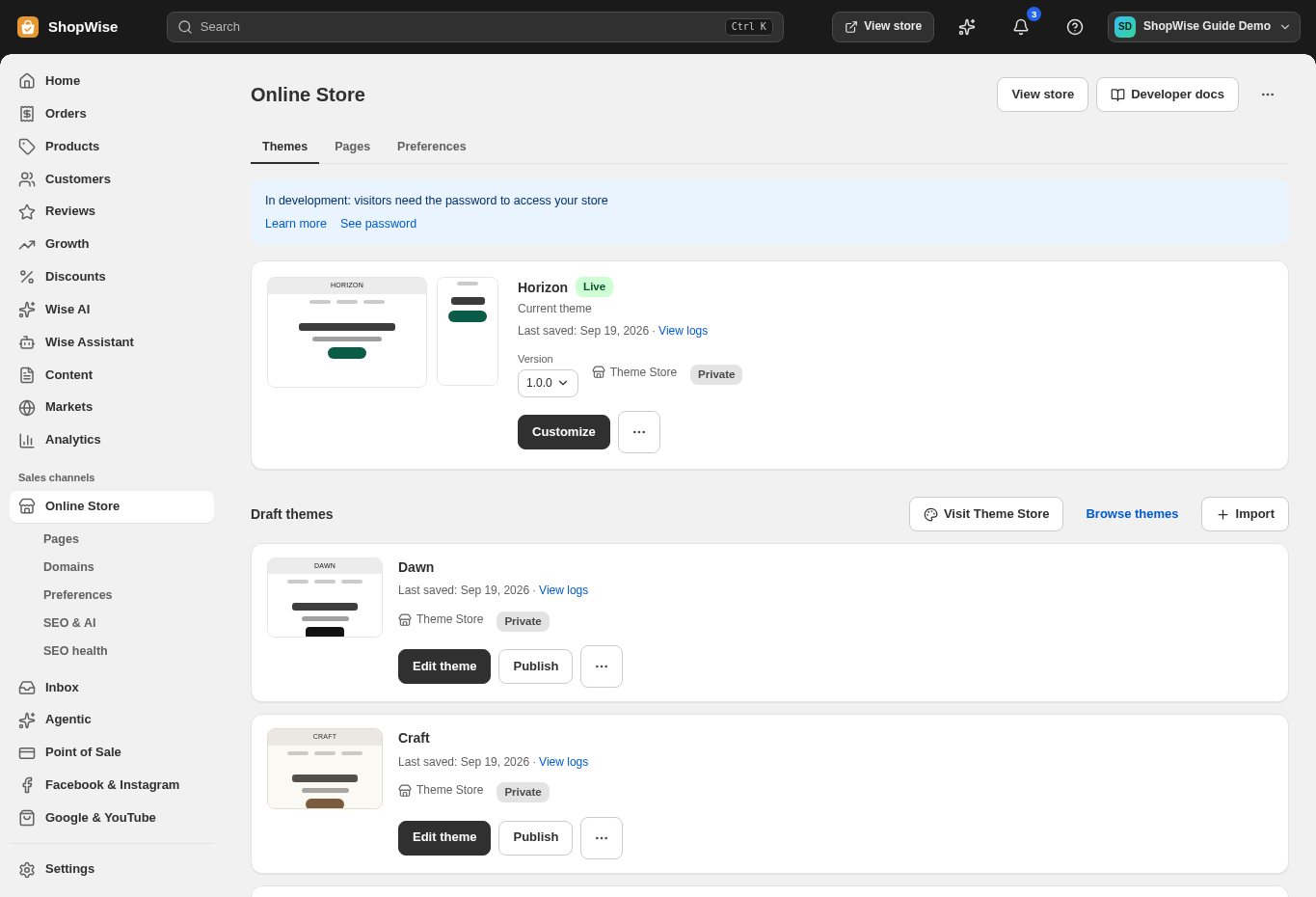
Check the theme
Open your theme editor and confirm how the logo, colors, and other brand choices appear.
- Some theme sections have their own settings; a brand record does not replace a preview.
Review Languages
Open Settings → Languages and inspect the supported language controls.
- Only enable languages you can support with complete customer-facing content.
- Do not assume enabling a language automatically translates every page or app.
Test customer journeys
Preview the storefront, navigation, product pages, and checkout in the intended language.
- Check long labels on a narrow phone screen.
CHECK YOUR WORK
You’re ready when…
- Brand assets are clear across screen sizes.
- Enabled languages have reviewed content.
IF SOMETHING DOESN’T LOOK RIGHT
Troubleshooting
Why is some text still in another language?
It may come from product content, a theme section, or an app. Review each source and ask support about fields without a translation control.
Why is a control missing or unavailable?
Confirm that you are in the correct store and that your role allows this action. Optional apps and channels may require installation, a plan, or activation. Share the screen name and error with support if access is still unclear.