



Become an onboarding partner — and how the platform approves you
For agencies and freelancers who set stores up for merchants: apply for a partner account, build your onboarding profile, submit it for review, and see how the Lulu team approves, asks for changes, publishes, unlists or suspends it.
Download this guide: PDF · Word (.docx)
On this page
- 1. Partner: Create a partner account
- 2. Partner: Complete and submit your application
- 3. Partner: Answer a request for information
- 4. Admin: Approve the partner account
- 5. Partner: Sign in and open your onboarding profile
- 6. Partner: Start your profile
- 7. Partner: Fill in the basics
- 8. Partner: Add your logo, cover image and services
- 9. Partner: Add contact details, team and social links
- 10. Partner: Show your work
- 11. Partner: Add at least one package
- 12. Partner: Submit the profile for review
- 13. Partner: While your profile is in review
- 14. Admin: Review the onboarding profile
- 15. Admin: Ask for changes with a note
- 16. Partner: Fix what was asked and submit again
- 17. Admin: Publish the profile
- 18. Partner: Your profile is live
- 19. Partner: Check your public page
- 20. Admin: Feature, unlist or suspend later
- Completion checklist
- Troubleshooting
Onboarding partners are agencies and freelancers who set stores up for Lulu merchants: theme and design, products, payments, shipping, migration — everything until the store is live. Merchants find you in the public partner directory at partners.lulu.us.com/experts and send you requests, and you answer them in the partner portal. Merchants can pay for your packages and offers through Lulu — the payment is held until they accept your work and the platform keeps a commission — so a request is never a reason to ask for payment outside the platform. Anyone with a business email can apply, and there are two approvals: first the Lulu team approves your partner ACCOUNT (the same account app and theme developers use), then it reviews your public ONBOARDING PROFILE before it appears in the directory. Steps marked "Partner:" are done by you in the partner portal; steps marked "Admin:" are done by a platform administrator in the platform console at app.lulu.us.com/super. Have ready: your business name, a square logo (JPG, PNG or WebP, up to 5 MB), an optional wide cover image, a short description of what you do, and the price of at least one package. The screenshots come from a demonstration account called "Demo Onboarding Studio".
Partner: Create a partner account
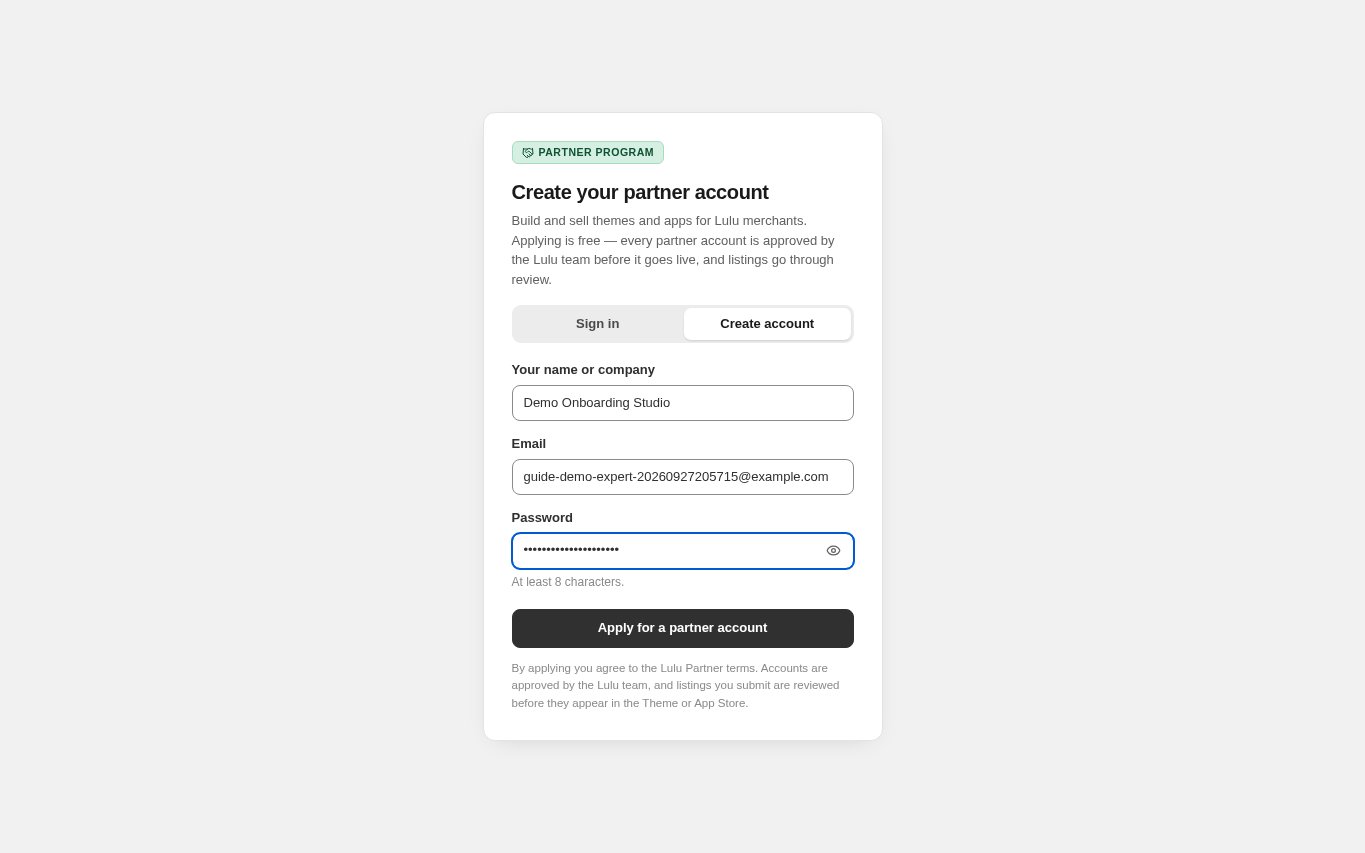
Go to partners.lulu.us.com/partners and click the "Create account" tab. Enter "Your name or company", your "Email" and a "Password" of at least 8 characters, then click "Apply for a partner account". You are signed straight in to your application and we email you a link to verify your address. There is no separate signup for onboarding partners: you use the same partner account as app and theme developers, and you choose the onboarding work later by creating an onboarding profile. Applying is free.
- Use an email address you read — every decision and every merchant request is emailed.
- Use your business name as it should appear to the Lulu team; merchants see the name you set on your profile later.
Partner: Complete and submit your application
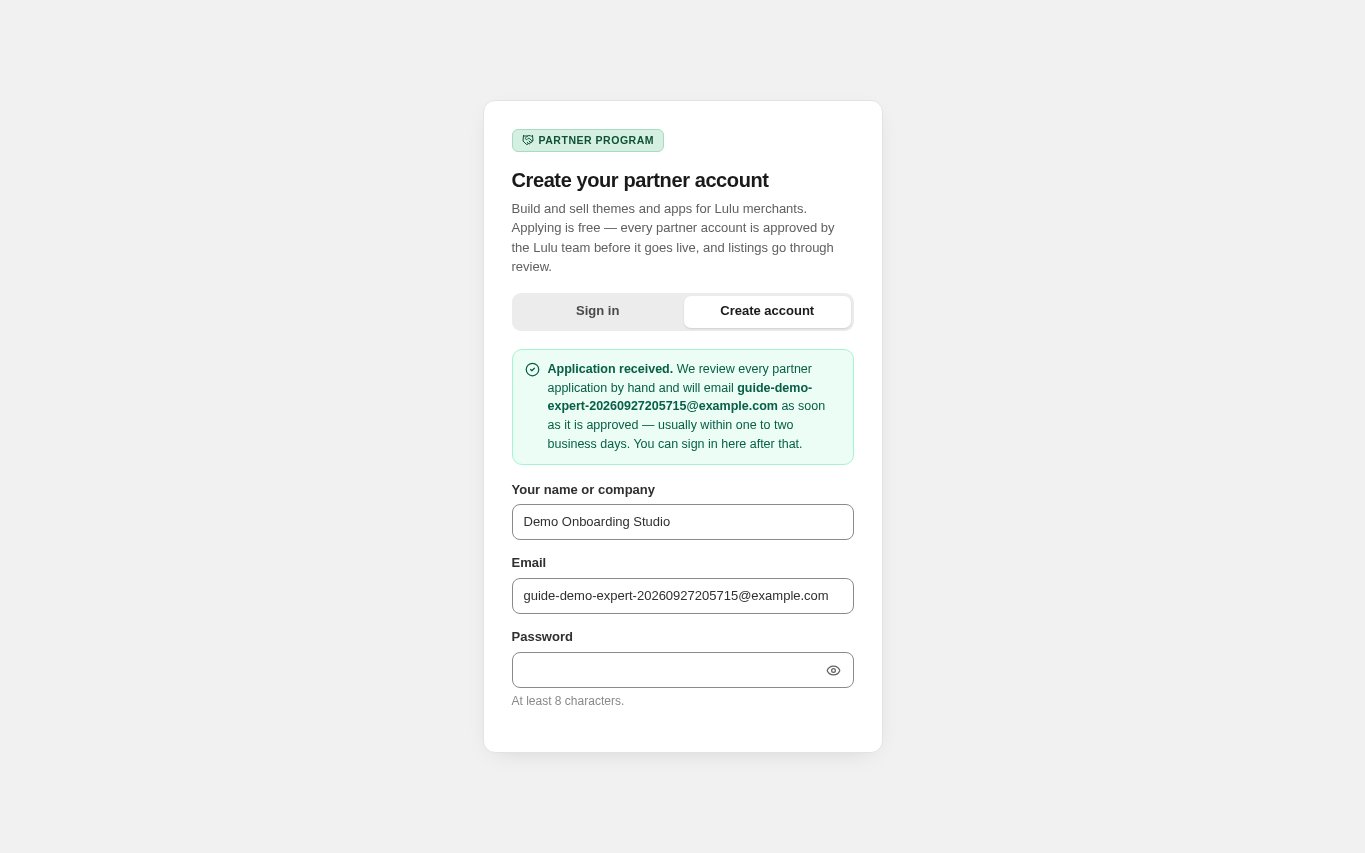
On "Your partner application", choose the Partner Program, the Reseller Program or both, then enter your legal name, whether you apply as a business (with its registration number) or as an individual, your address and country, a contact name and phone number, and your relevant experience; a website is optional. Resellers also add the support contact customers should use and confirm they completed the reseller training. Open the link in the verification email, read and accept the program agreement, then click "Submit application". You receive an email confirming we received it; our team reviews every application by hand, usually within one to two business days. Joining the Partner Program has no minimum number of customers. The Reseller Program needs at least 10 active attributed stores before you can apply, unless our team invites you; until then "Reseller Program" can't be ticked and the page shows your count.
Partner: Answer a request for information
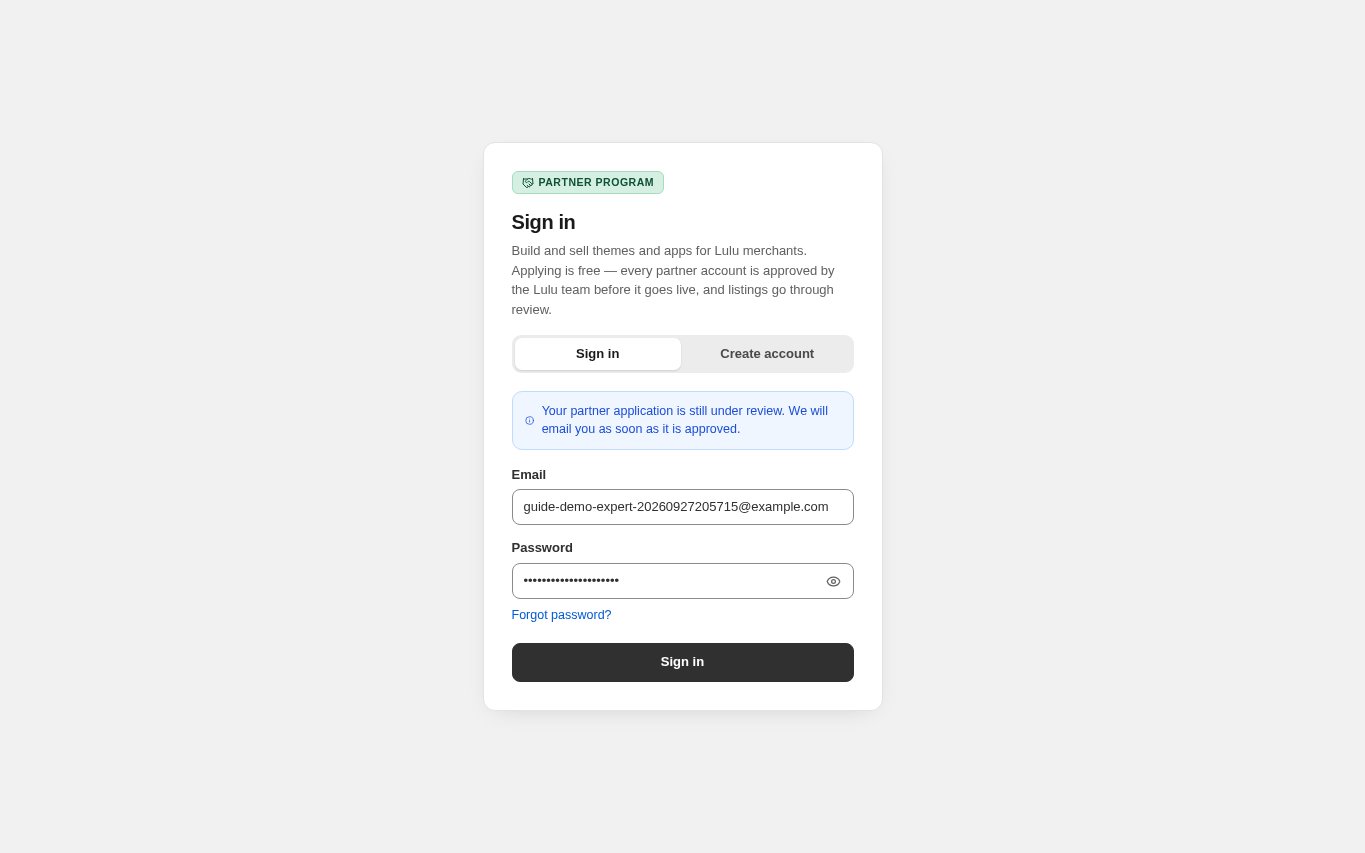
If we need more details, you receive an email "More information needed" and the application shows "Information requested" with what we need. Sign in, answer in "Your answer to our request" and click "Send response". You get an email when the application is approved or not approved. While it is in review, signing in opens your application, not the partner dashboard.
Admin: Approve the partner account
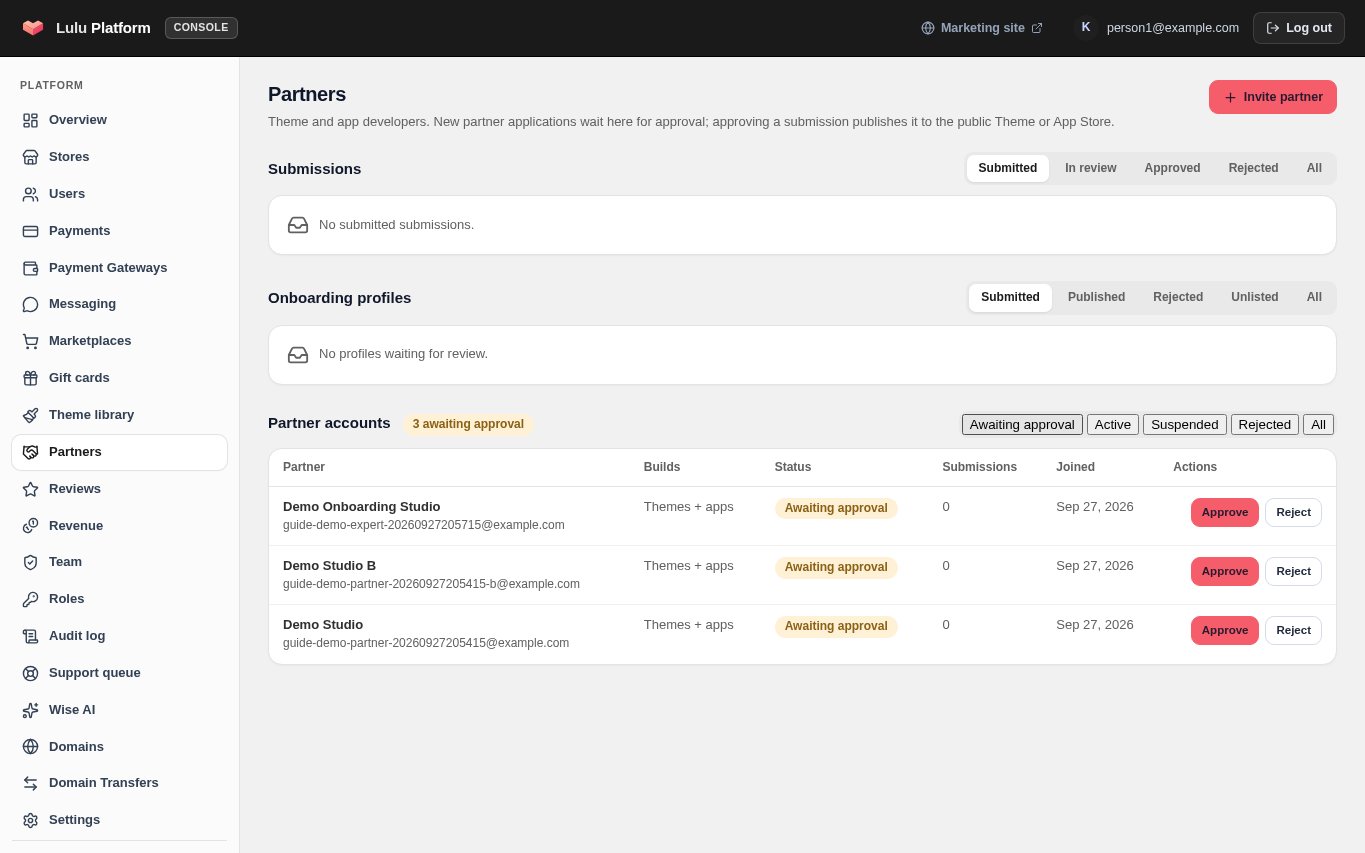
Platform administrators receive an email when an application is submitted or answered. In the platform console open "Partners" → "Applications", click "Review", check the organisation, agreement and (for resellers) the training, then choose Approve, Request information or Reject and write the reason. The reason stays internal; only the message you write for the applicant is emailed.
- Filters: Awaiting approval, Active, Suspended, Rejected, All.
- A rejected application can still be accepted later with "Approve after all".
Partner: Sign in and open your onboarding profile
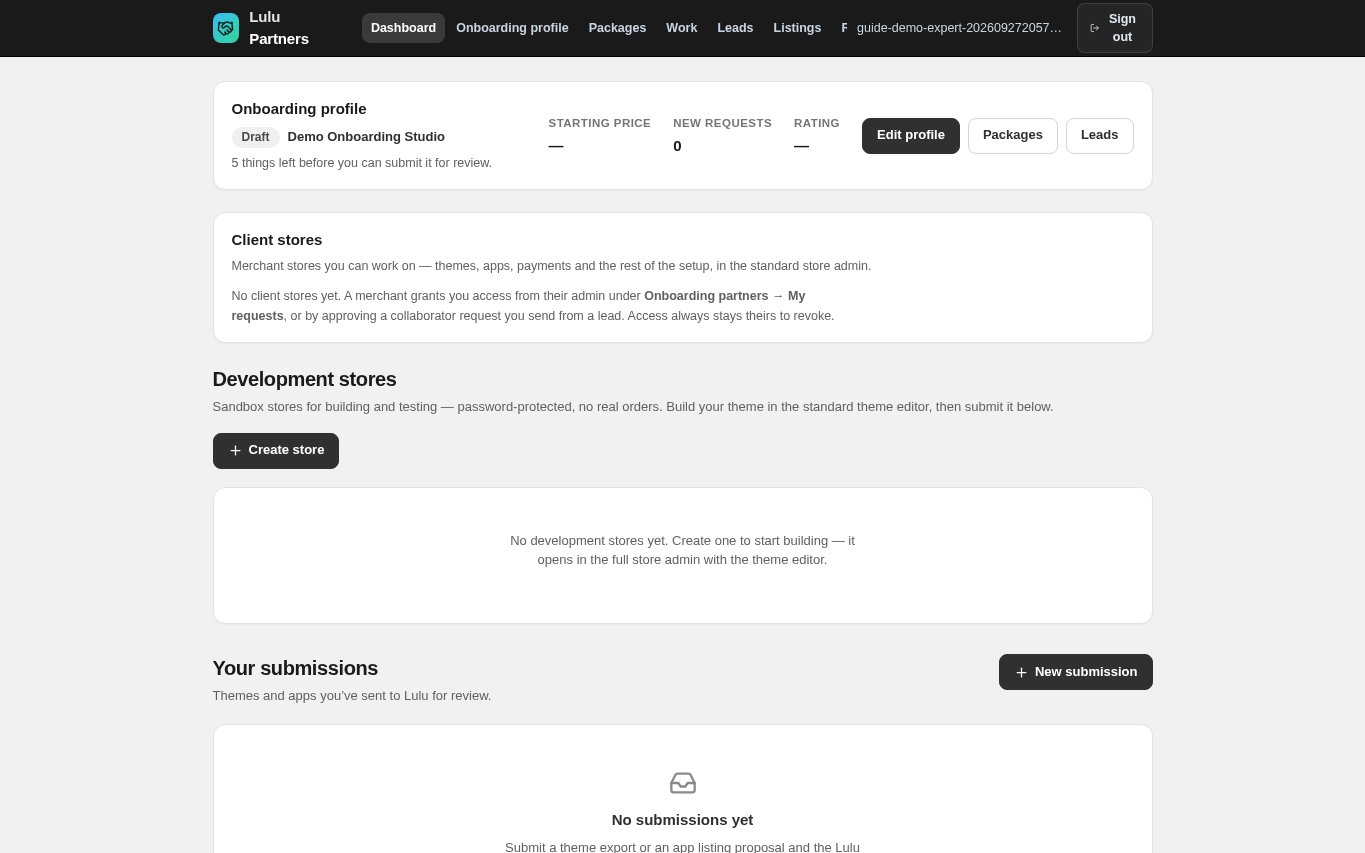
Once approved, sign in at partners.lulu.us.com/partners. The Dashboard starts with the "Onboarding profile" card: its status, your starting price, new requests and your rating. Click "Create profile" (or "Edit profile" once you have started), or use "Onboarding profile" in the top menu.
- Also on the Dashboard: "Client stores" (merchant stores you were given access to) and "Stores" (your dev stores for building and testing, and client transfer stores you build for a client and transfer).
Partner: Start your profile
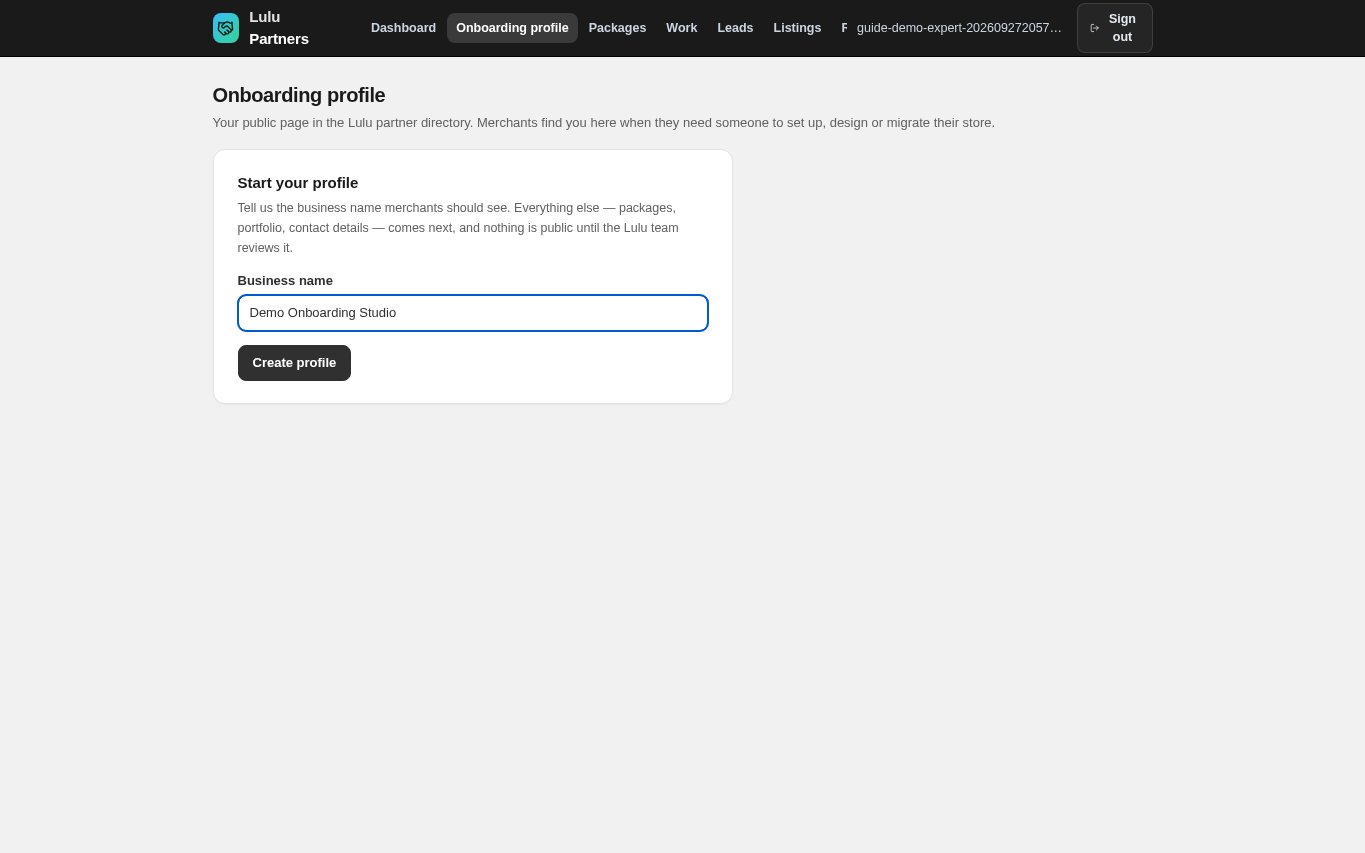
On the Onboarding profile page, enter the "Business name" merchants should see and click "Create profile". The profile starts as a Draft: nothing is public until the Lulu team reviews it.
Partner: Fill in the basics
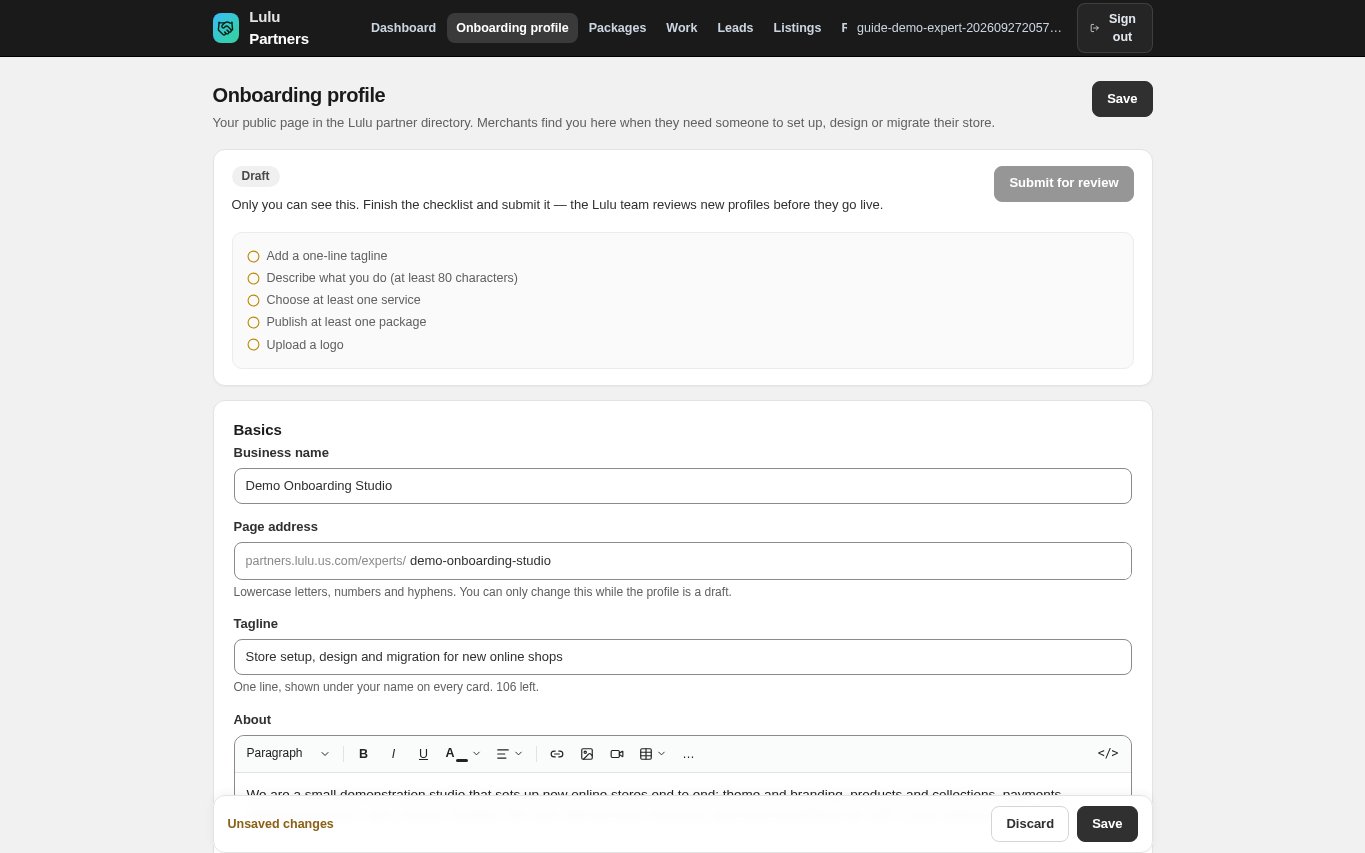
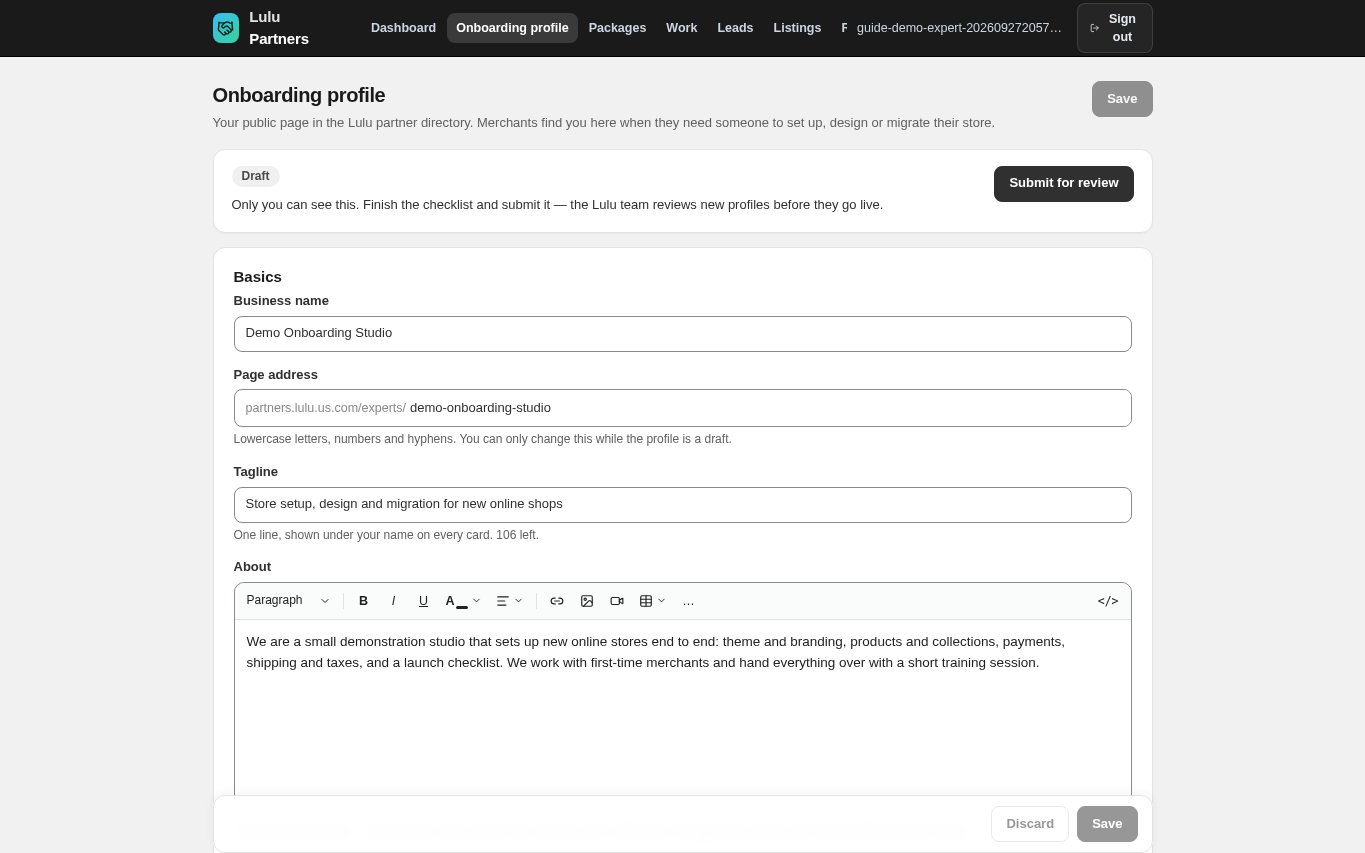
Under "Basics" complete the "Business name", the "Page address" (partners.lulu.us.com/experts/your-address — lowercase letters, numbers and hyphens, 3 to 40 characters), a one-line "Tagline" (at least 10 characters, up to 160) and "About" (at least 80 characters: what you do, who you do it for, how you work). The status box at the top lists what is still missing before you can submit.
- The page address can only be changed while the profile is a draft; it is fixed once the profile has been reviewed.
- Some platform words cannot be used as an address; the page tells you if one is reserved.
Partner: Add your logo, cover image and services
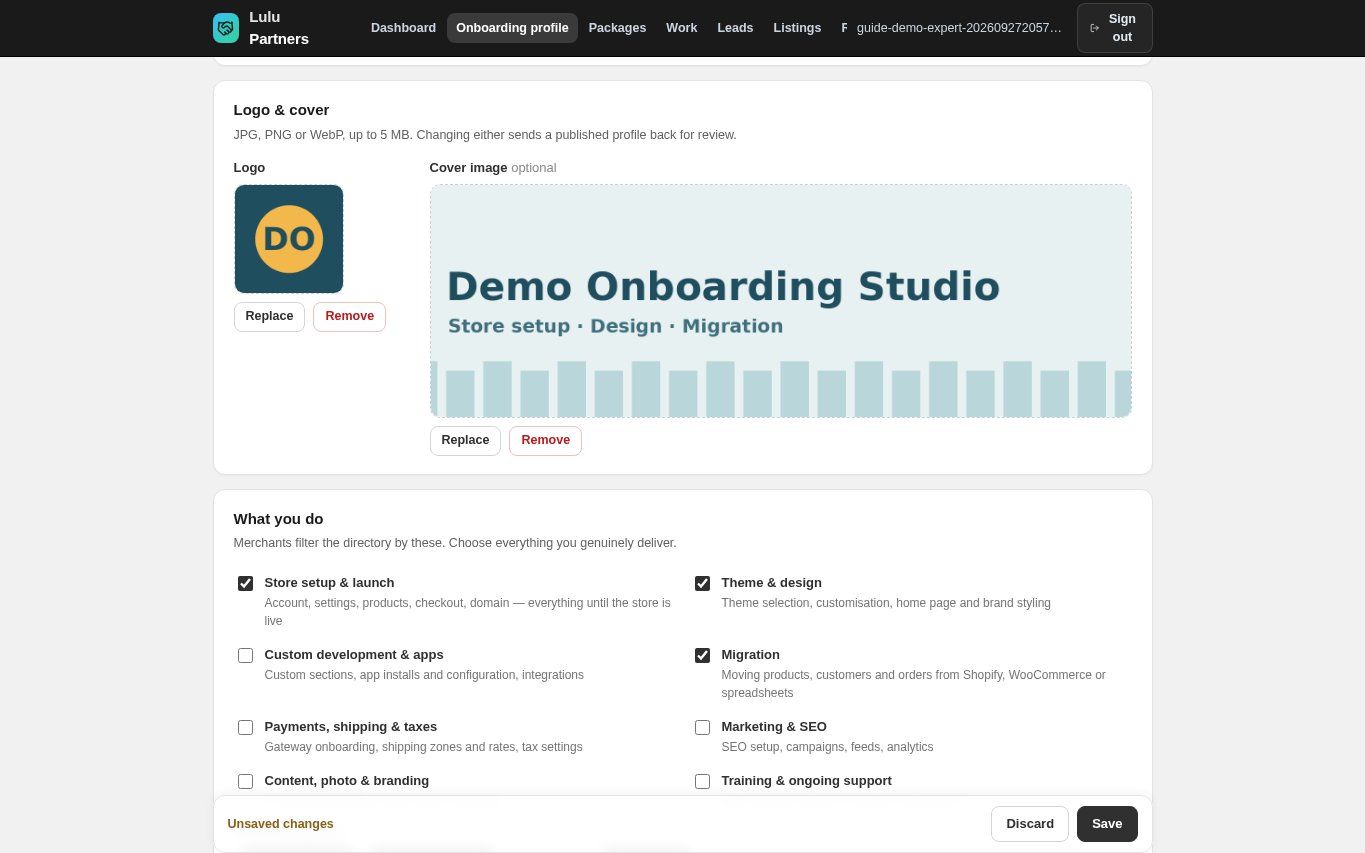
Under "Logo & cover" click "Upload" to add a logo (required) and, optionally, a wide cover image — JPG, PNG or WebP up to 5 MB. Under "What you do" tick every service you genuinely deliver: Store setup & launch, Theme & design, Custom development & apps, Migration, Payments, shipping & taxes, Marketing & SEO, Content, photo & branding, Training & ongoing support. Merchants filter the directory by these. Then pick up to 4 "Industries" and every "Languages" you work in.
Partner: Add contact details, team and social links
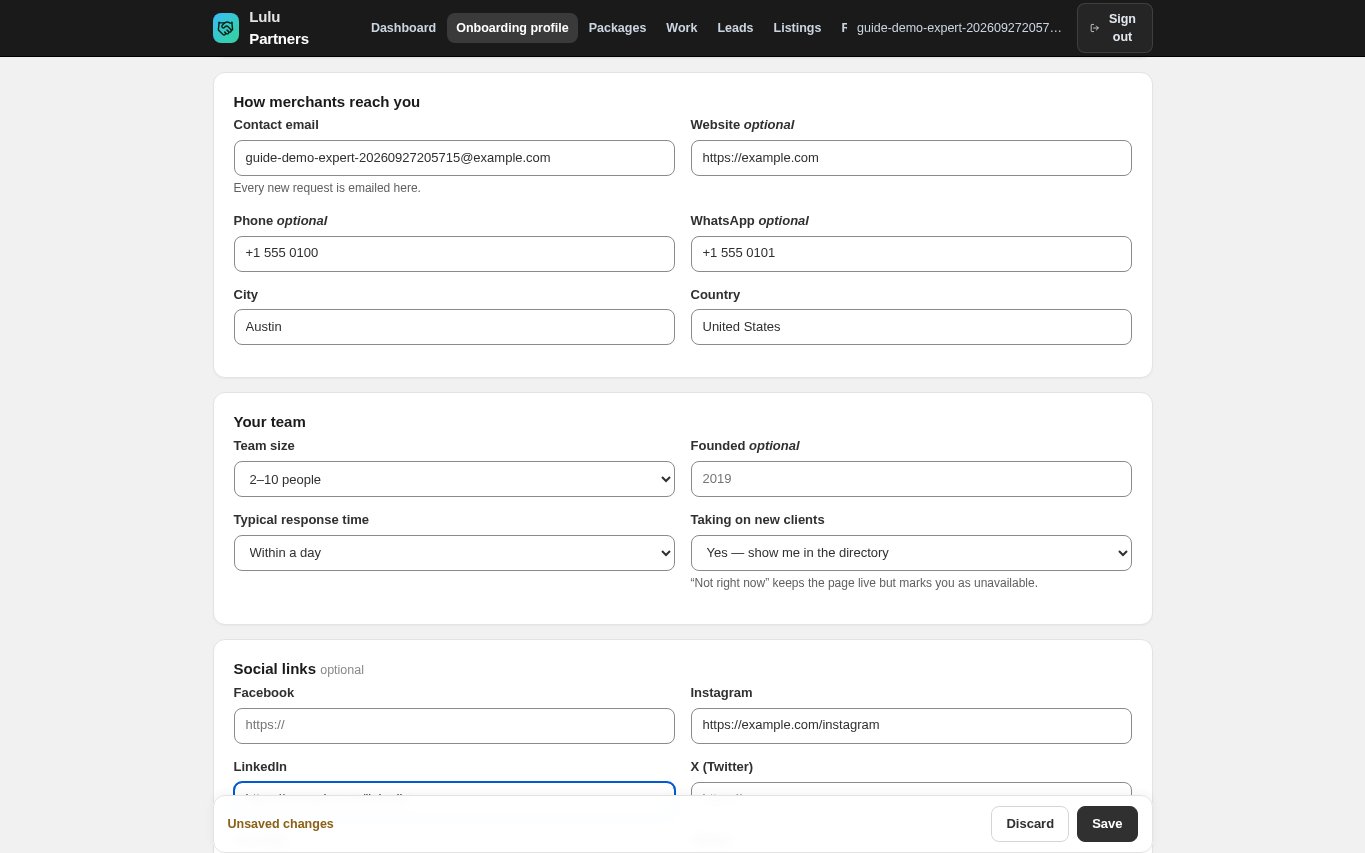
Under "How merchants reach you" enter the "Contact email" (every new request is emailed here) and, if you like, "Website", "Phone", "WhatsApp", plus "City" and "Country" — merchants can filter by country. Under "Your team" choose the "Team size", the optional "Founded" year, your "Typical response time" and whether you are "Taking on new clients" ("Not right now" keeps the page live but marks you as unavailable). "Social links" are optional. Click "Save".
- Links must start with http:// or https://.
Partner: Show your work
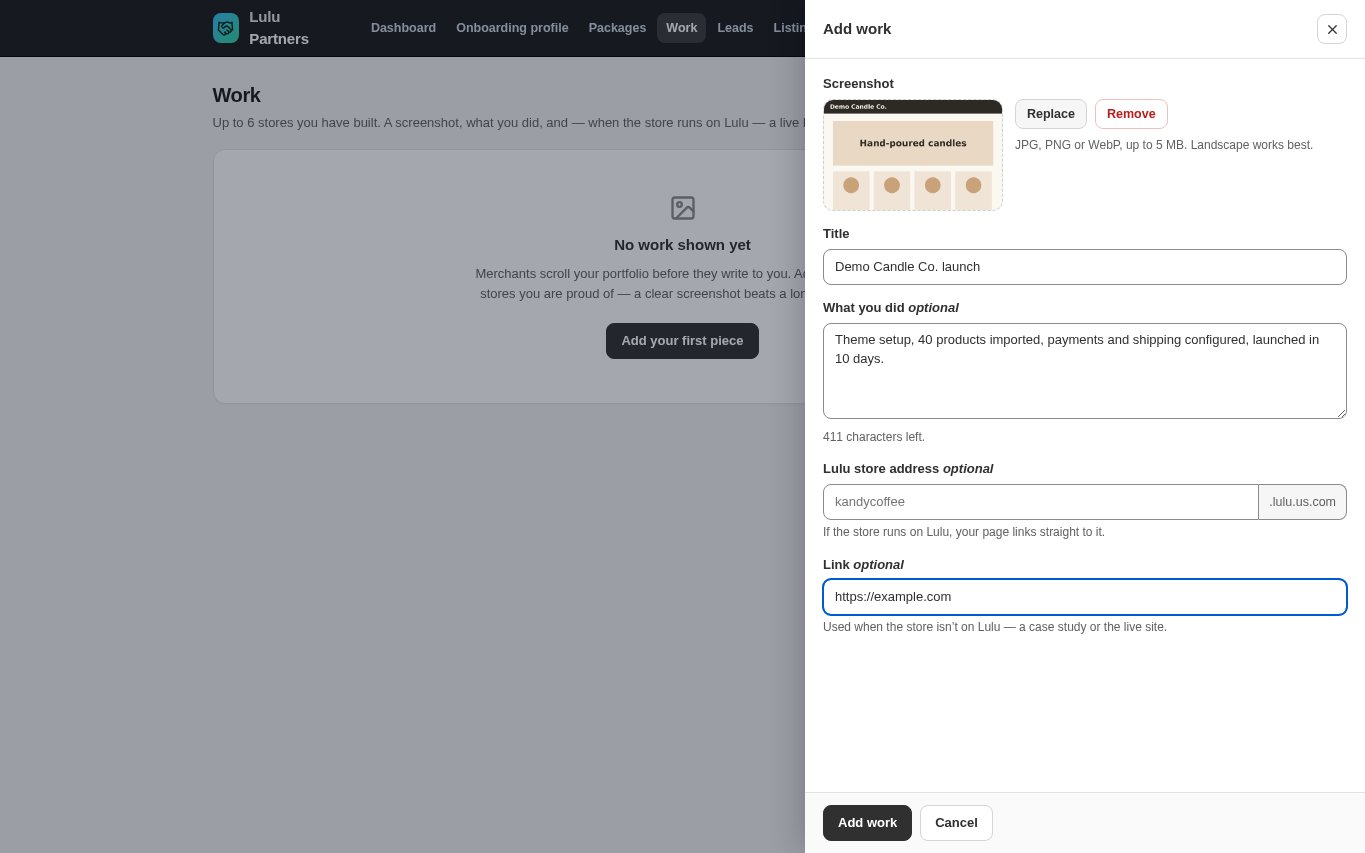
Open "Work" in the top menu and click "Add your first piece" (later "Add work"). Upload a "Screenshot" (landscape works best), give it a "Title", describe "What you did" and add either the Lulu store address or a "Link" to the live site or case study. Click "Add work". You can show up to 6 pieces; they appear as "Recent work" on your public page.
Partner: Add at least one package
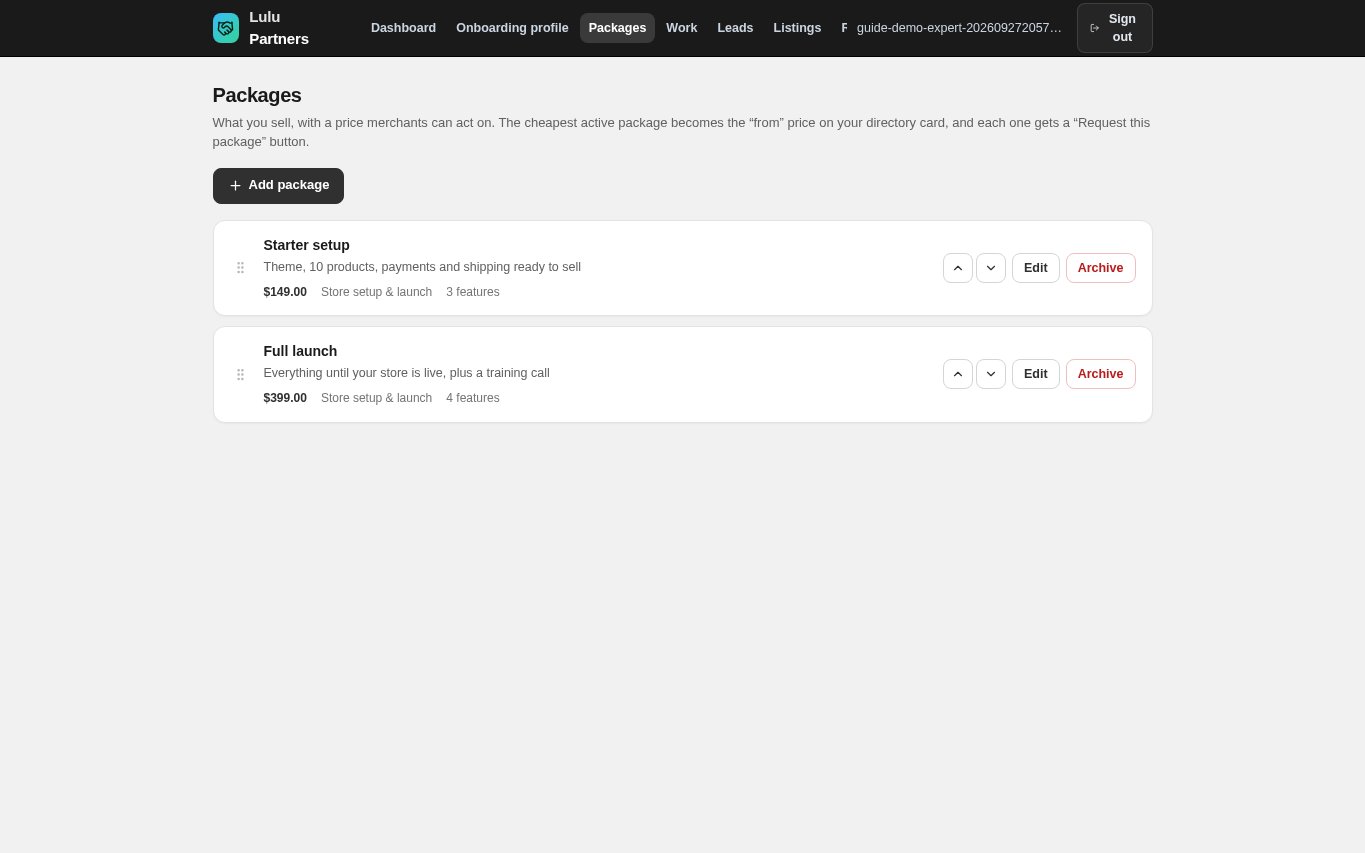
A profile cannot be submitted without at least one active package. Open "Packages", click "Add your first package", give it a title, a price ("Fixed price", "Starting at" or "On request") and what is included, then click "Add package". The cheapest active package becomes the "From" price on your directory card. Creating and ordering packages is covered in detail in the guide "Create onboarding packages and get merchants onboarded".
- Every package has a minimum price, shown as helper text under the price field. For a free consultation use the "On request" price type.
Partner: Submit the profile for review
Back on "Onboarding profile", save any changes first ("Submit for review" stays disabled while there are unsaved changes). When the checklist is complete — business name, tagline, About of 80+ characters, at least one service, at least one package, a contact email and a logo — click "Submit for review".
- If your partner tier does not yet allow a directory listing, the page shows Request invitation instead. Click it once the checklist is complete.
- The Lulu team reviews each request and either invites you or declines. You are emailed either way.
Partner: While your profile is in review
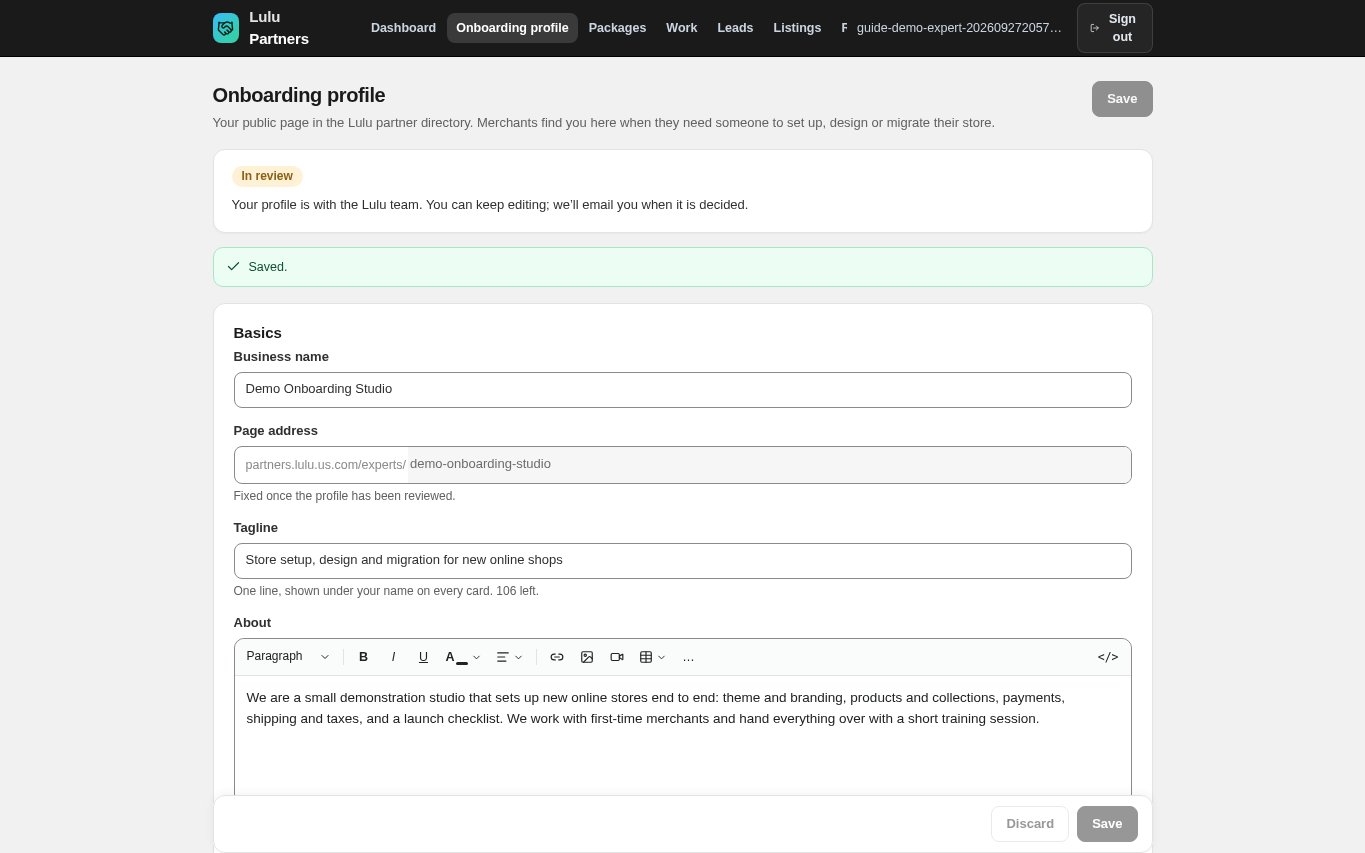
The status changes to "In review": "Your profile is with the Lulu team. You can keep editing; we'll email you when it is decided." The page address is now fixed. The platform administrators receive an email "Partner profile for review — <your business name>".
Admin: Review the onboarding profile
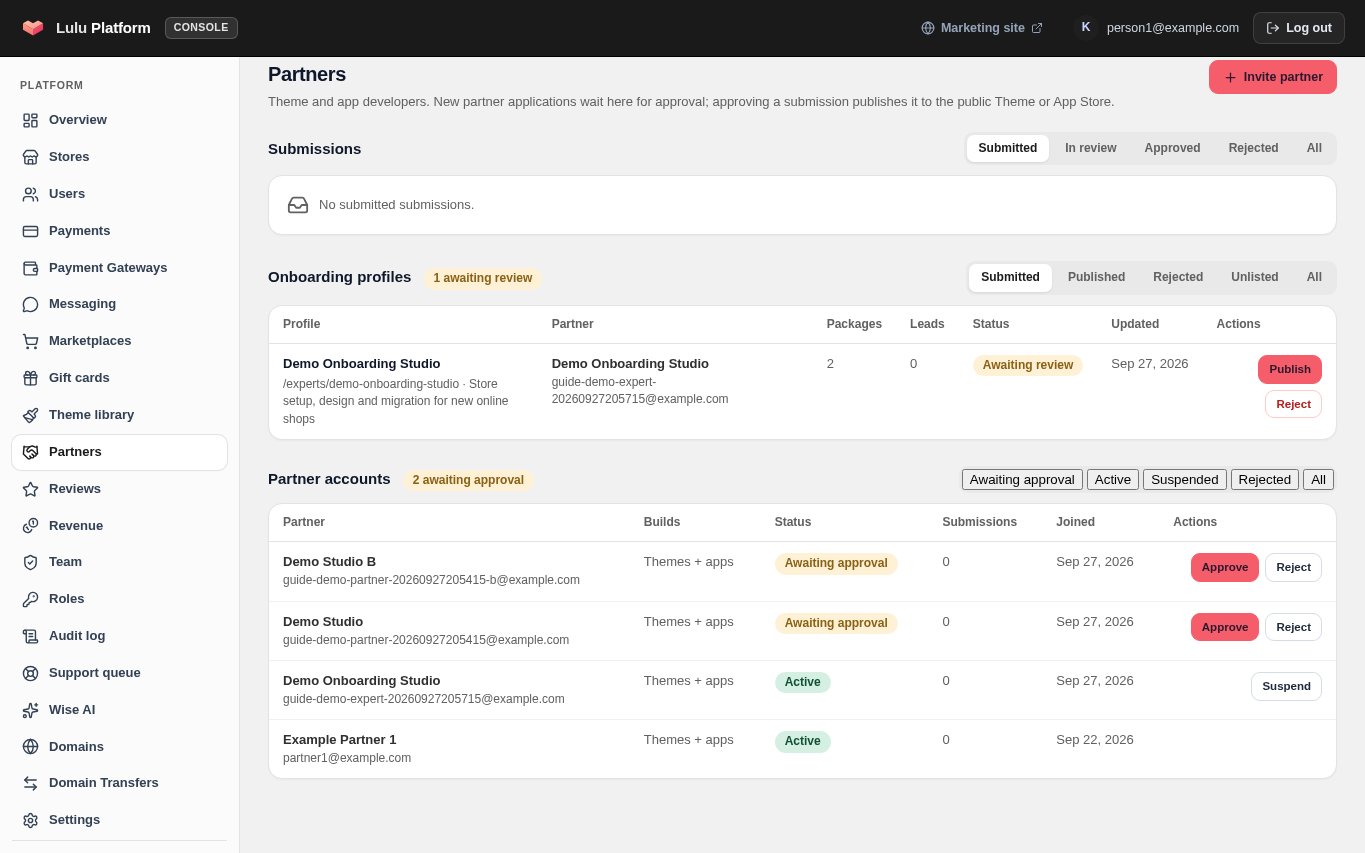
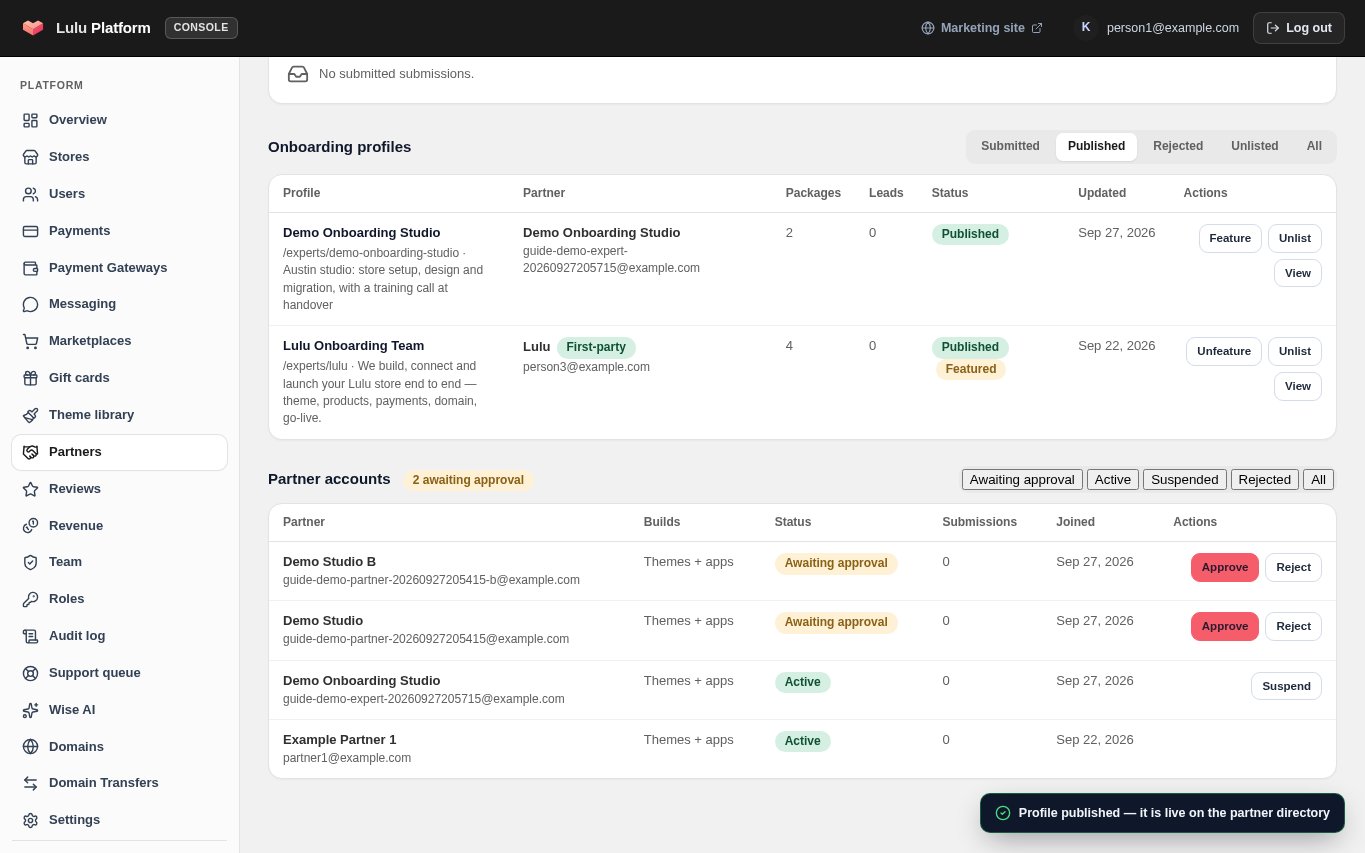
In the platform console open "Partners" and go to "Onboarding profiles". The badge shows how many are awaiting review; the "Submitted" filter lists them with the profile name and page address, the partner account, the number of packages and leads, and the status "Awaiting review". Click "View" on published profiles, or open partners.lulu.us.com/experts/<address> after publishing, to see the public page. Check the name, About text, logo and packages for accuracy and for anything misleading.
- Filters: Submitted, Published, Rejected, Unlisted, All.
Admin: Ask for changes with a note
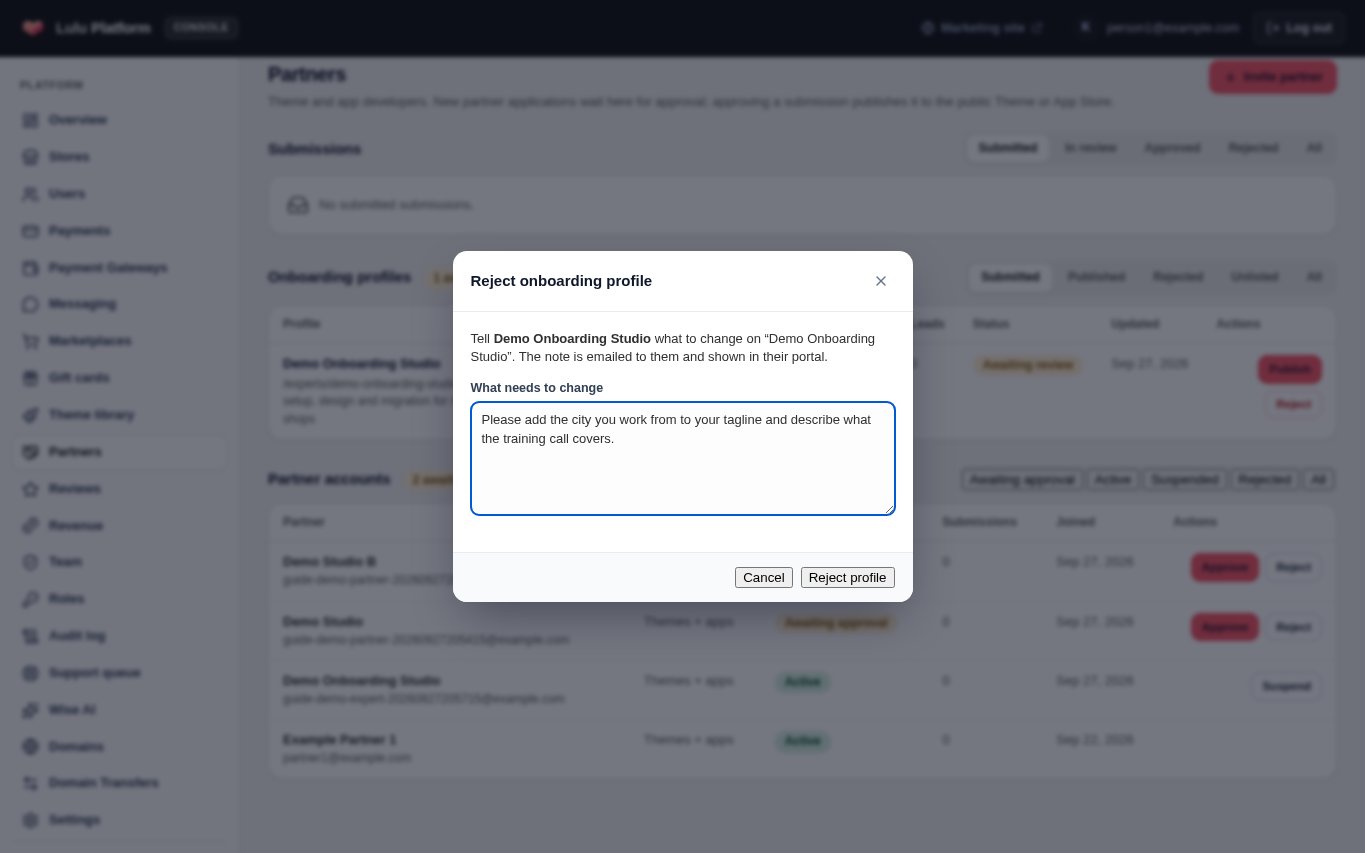
If something needs fixing, click "Reject". In "Reject onboarding profile" write "What needs to change" — a note is required, and it is emailed to the partner and shown in their portal — then click "Reject profile". The partner receives "About your Lulu onboarding profile".
- Be specific: say which field to change and why.
Partner: Fix what was asked and submit again
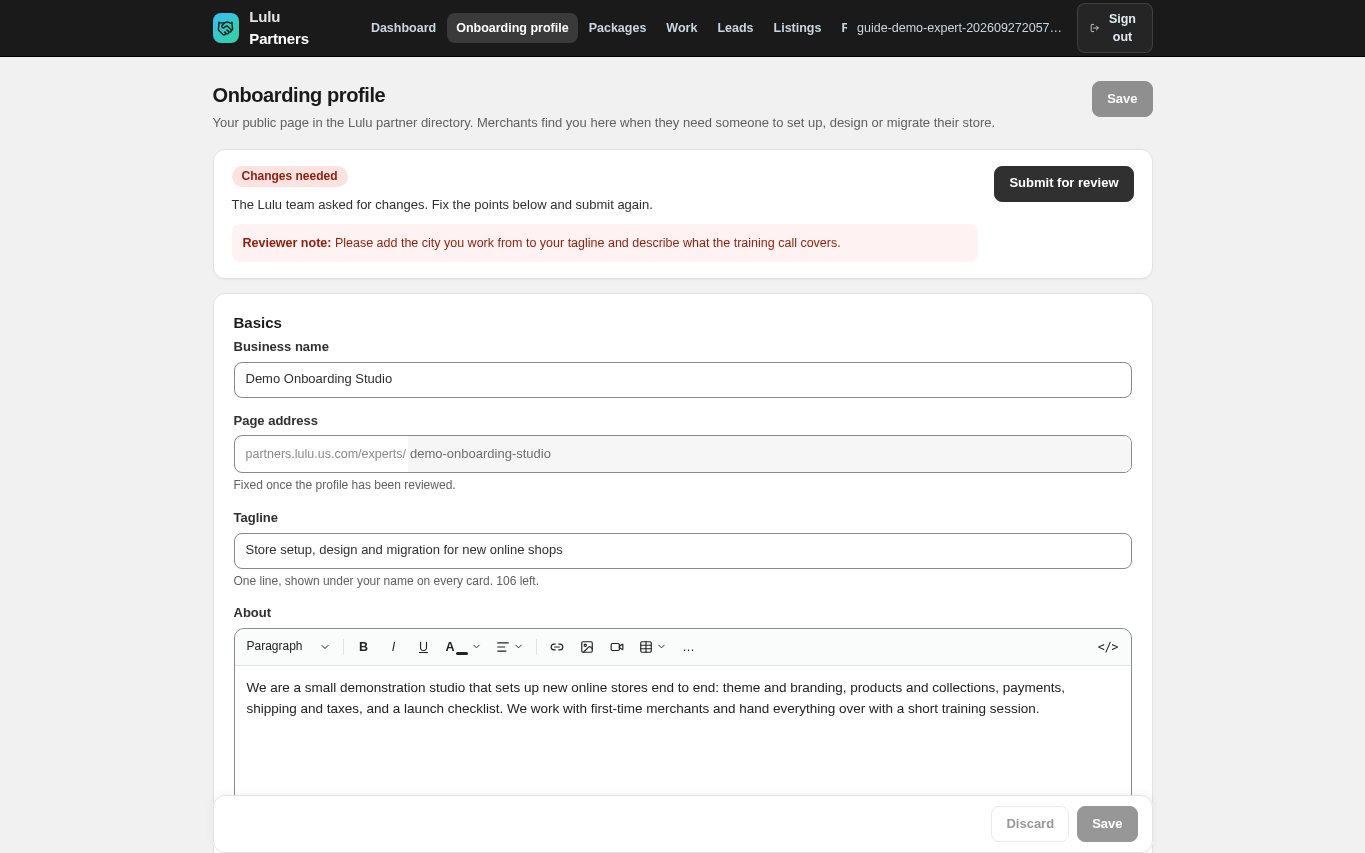
The profile shows "Changes needed" with the "Reviewer note". Make the changes, click "Save", then click "Submit for review" again. The reviewers are emailed "Partner profile updated — <name>".
Admin: Publish the profile
When the profile is ready, click "Publish" in the "Onboarding profiles" list. The console confirms "Profile published — it is live on the partner directory" and the partner receives "Your Lulu onboarding profile is live". Published profiles offer "Feature" (shown first, with a Featured badge), "Unlist" and "View".
- "Publish" also works for a profile that was rejected or unlisted earlier.
Partner: Your profile is live
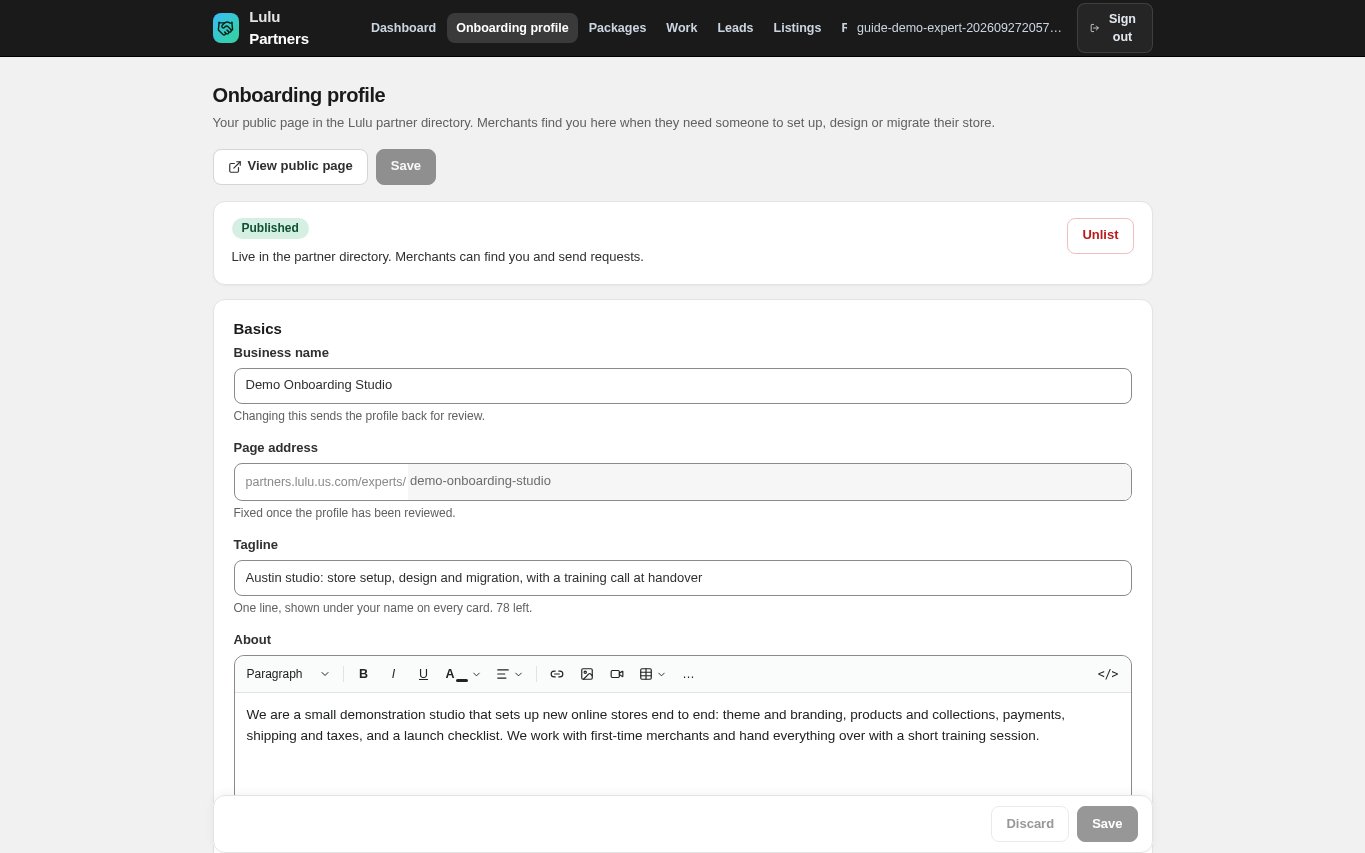
The status is now "Published": "Live in the partner directory. Merchants can find you and send requests." Click "View public page" to see it. Changing the business name, About, logo, cover image or website sends a published profile back to review; everything else, including packages, updates straight away.
- To hide yourself temporarily, click "Unlist". Nothing is lost; click "Submit for review" when you want to be listed again.
Partner: Check your public page
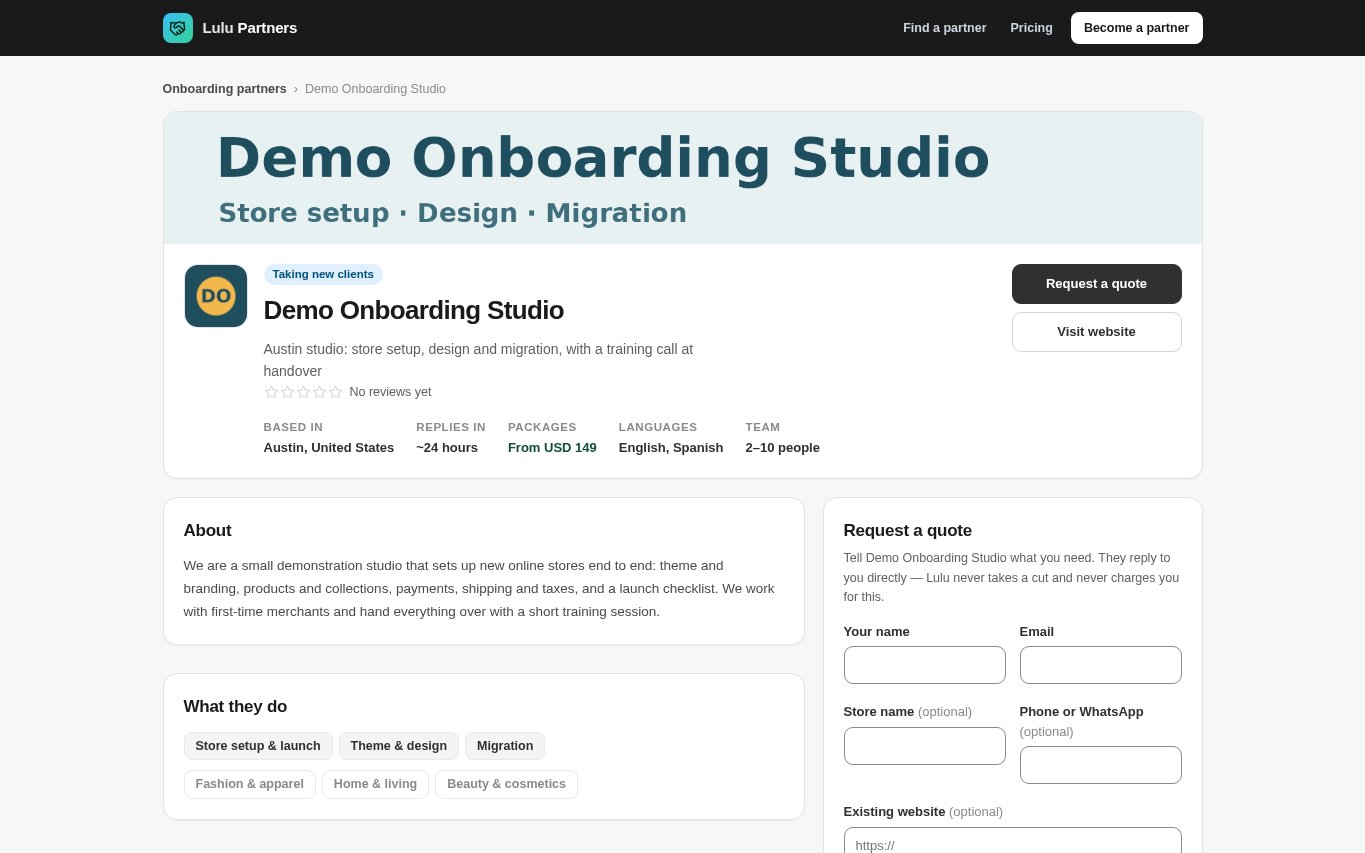
Your page at partners.lulu.us.com/experts/your-address shows your cover and logo, "Taking new clients", tagline, rating, where you are based, how fast you reply, your starting price, languages and team size, then About, What they do, Packages, Recent work, Reviews from merchants and the "Request a quote" form.
Admin: Feature, unlist or suspend later
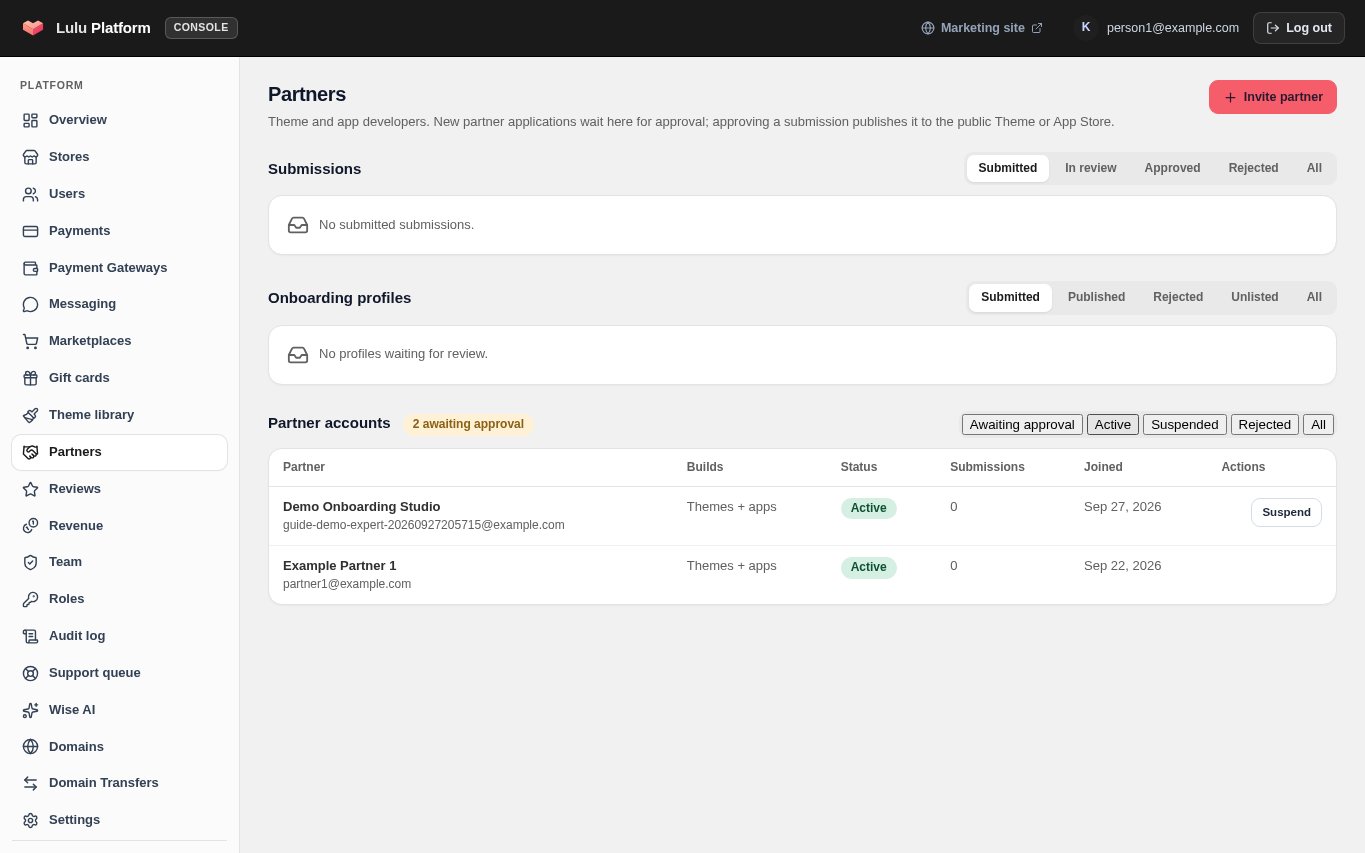
Platform administrators can manage a partner at any time from the same page. In "Onboarding profiles", "Unlist" hides a published profile from the directory (the partner can resubmit it), and "Feature"/"Unfeature" controls the Featured badge. In "Partner accounts", "Suspend" signs the partner out, blocks sign-in and hides their profile from the directory; "Reactivate" restores the account. Every decision is recorded in the audit log.
- The platform's own first-party onboarding team cannot be suspended.
CHECK YOUR WORK
You’re ready when…
- Your partner account is Active and you can sign in at partners.lulu.us.com/partners.
- Your onboarding profile shows Published and "View public page" opens partners.lulu.us.com/experts/your-address.
- Your profile has a logo, a tagline, an About of at least 80 characters, at least one service and at least one active package.
- Your contact email is correct — new requests are emailed there.
- Admins: the profile appears under Onboarding profiles → Published, and nothing is left under Submitted.
IF SOMETHING DOESN’T LOOK RIGHT
Troubleshooting
I can't sign in: it says my application is still under review.
Your partner account has not been approved yet. Wait for the email "Your partner account is approved", usually within one to two business days. If it takes longer, contact support with the email address you applied with.
"Submit for review" is greyed out.
Either you have unsaved changes (click "Save" first) or the checklist under the status is not complete. Every item must be done, including at least one active package on the Packages page and an uploaded logo.
I can't change my page address.
The address can only be edited while the profile is a draft. Once it has been reviewed it is fixed, so links merchants have saved keep working. Contact support if it must change.
My published profile went back to "In review".
Changing the business name, About text, logo, cover image or website on a published profile sends it back for review. Your page stays out of the directory until the Lulu team publishes it again. Packages, contact details, services and availability do not trigger a review.
My profile was rejected. What now?
Open Onboarding profile, read the "Reviewer note" under "Changes needed", fix the points, click "Save" and then "Submit for review" again.
Admin: a profile does not appear in the directory after publishing.
A profile is public only when it is Published AND the partner account is Active. Check the partner's row under "Partner accounts"; a suspended account hides the profile until you click "Reactivate".