



Manage collaborator access for partners
Share a request code with a partner, approve or deny what they ask for, choose what they can do, and remove their access when the work is done.
On this page
You need the store owner account, or a role that includes the "Manage users" permission (Administrators and Store user administrators have it). This covers the merchant side of collaborator access — a partner's own side (requesting access with the code) is covered in the partner help center.
Open the Collaborators tab
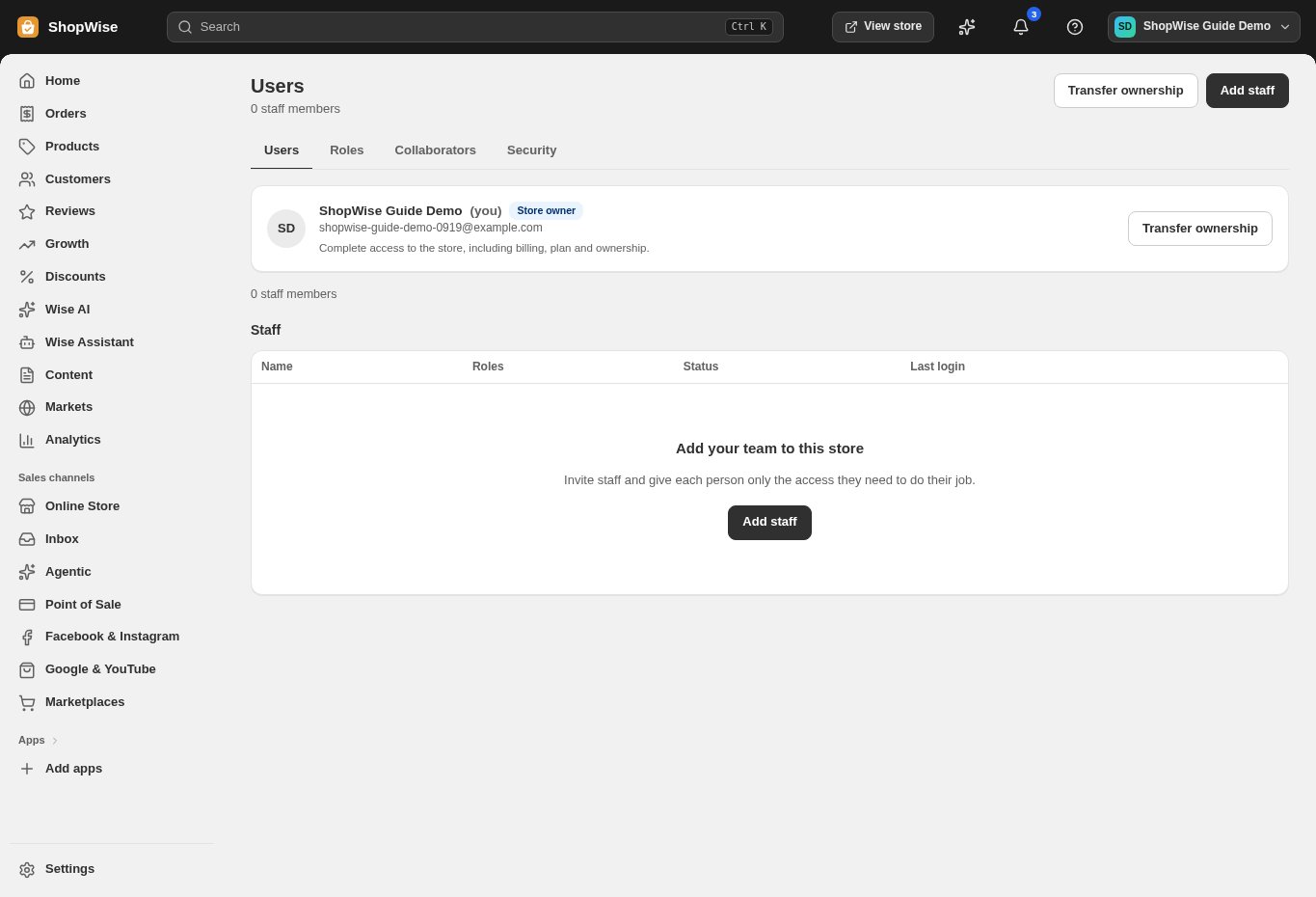
Go to Users (from Settings → Users and permissions), then open the Collaborators tab. The "Collaborator request code" card shows your current code.
Share the code deliberately
Hand the code only to the partner or agency you actually want working on your store. Anyone who has the code can send a request, but you still approve every one individually before they get in.
Approve or deny each request
Under "Requests," each pending item shows the partner's name, email and an optional message. Select Approve to let them in, or Deny to turn them away.
- Approving gives the partner default collaborator access. It does not include exporting customers, exporting orders, exporting a store backup, finance or approving paid app charges.
- A collaborator never uses one of your staff seats and never receives billing emails.
Choose what each collaborator can do
On the Collaborators tab, under "Collaborator access", click "Edit access" next to the partner. Tick or untick sections and click "Save access". "Reset to default" goes back to the default set. This works on every plan.
- To allow exports, tick "Export" under Customers or Orders, or "Export a store backup" under Store settings.
- Collaborators can never manage users or roles, change your plan, transfer or close the store, use Point of Sale or restore a backup.
Regenerate the code if it's been over-shared
Select "Generate new code." The old code stops working the moment the new one is created — partners who already have active access are unaffected and keep it.
Remove access when the work is finished
On the Collaborators tab, find the partner under "Collaborator accounts", open the row's menu and choose "Remove collaborator" (or click "Remove access" on their request in Onboarding partners → My requests). They lose access to your admin immediately; their past activity stays in your store's history, and they'd need to send a brand-new request — or be granted access again — to come back. Access does not end when a partner order completes or a request is closed, so remove it yourself when the work is finished. Access that is not used for 90 days is removed automatically: the partner is warned by email after 75 days, and you are emailed when it expires.
See what a collaborator changed
As the store owner, open Settings → Activity. It lists the changes each collaborator made in your admin, with the date and time. Entries can't be edited or deleted.
CHECK YOUR WORK
You’re ready when…
- The request code hasn't been shared outside the people you want to grant access to.
- Access is removed as soon as a partner's engagement ends.
- Each collaborator has only the permissions the current job needs.
IF SOMETHING DOESN’T LOOK RIGHT
Troubleshooting
A partner says the code doesn't work.
A regenerated code replaces the old one instantly, so share the CURRENT code shown on the Collaborators tab, not one from an earlier email or message.
Does approving a collaborator use one of my staff seats?
No — collaborators never consume a staff seat and never receive billing emails.
I removed someone's access by mistake.
There's no undo. They need to send a new request with your current code, and you approve it again.
I can't find the Collaborators tab.
You need a role that includes "Manage users" (Administrator and Store user administrator have it by default). Check your own role on the Roles tab.
I got an email "Collaborator requests are paused".
Someone entered the wrong request code for your store 5 times. New requests are paused for 60 minutes. Nobody got access. If you did not share your code, select "Generate new code".
A partner's access expired.
They did not sign in to your store for 90 days. Give the access back from the Collaborators tab if they still work for you.
A partner can no longer export customers or orders.
Exports are off by default since 20 November 2026. Turn them on for that partner with "Edit access".