Sign in to your store. The examples below use a demonstration account and sample orders.
Start at Home
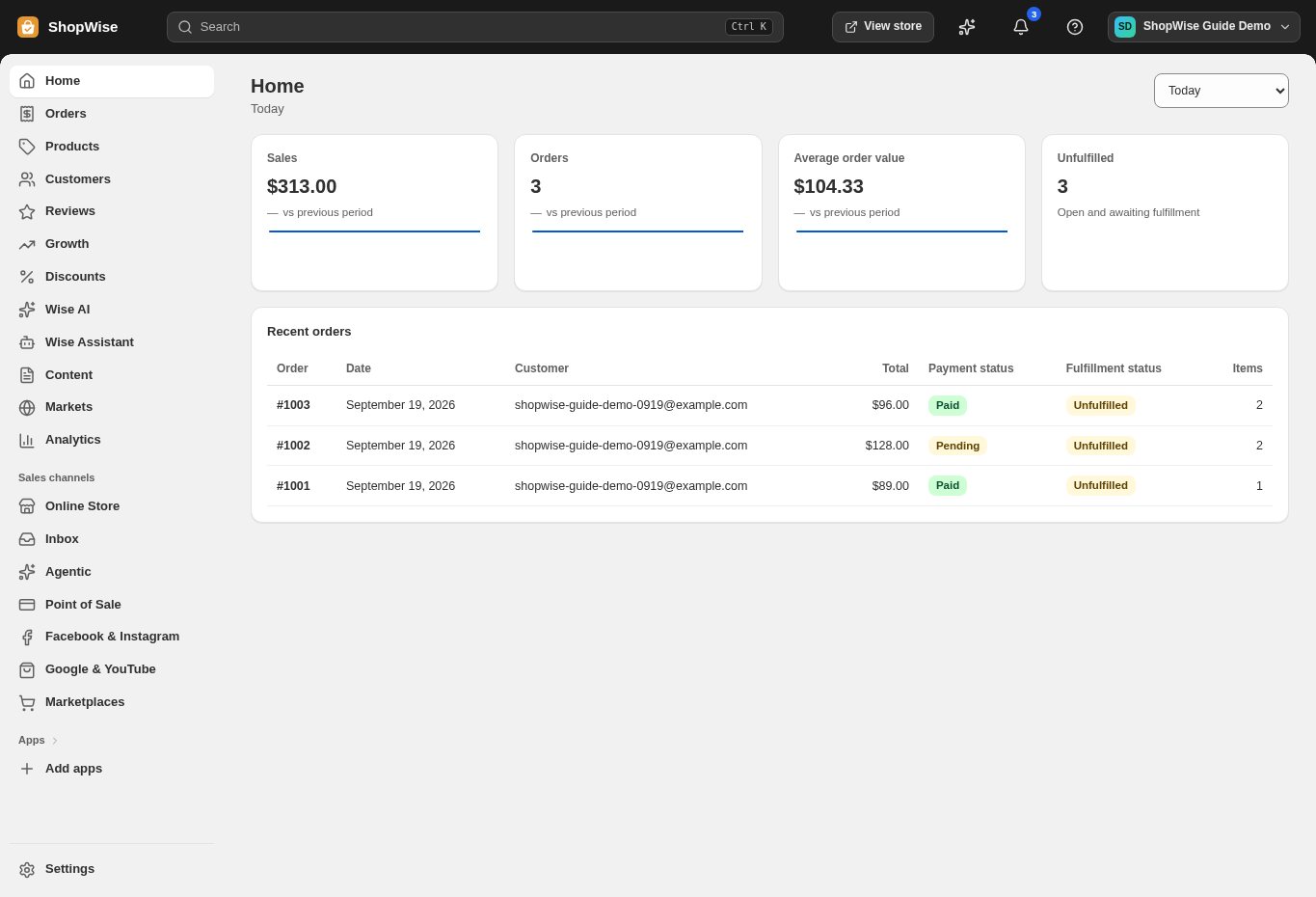
The Home page summarizes sales, orders, average order value, and unfulfilled orders for the selected period. Use the period selector at the top right to change the view. Sample figures in this guide are not business performance claims.
Use the navigation
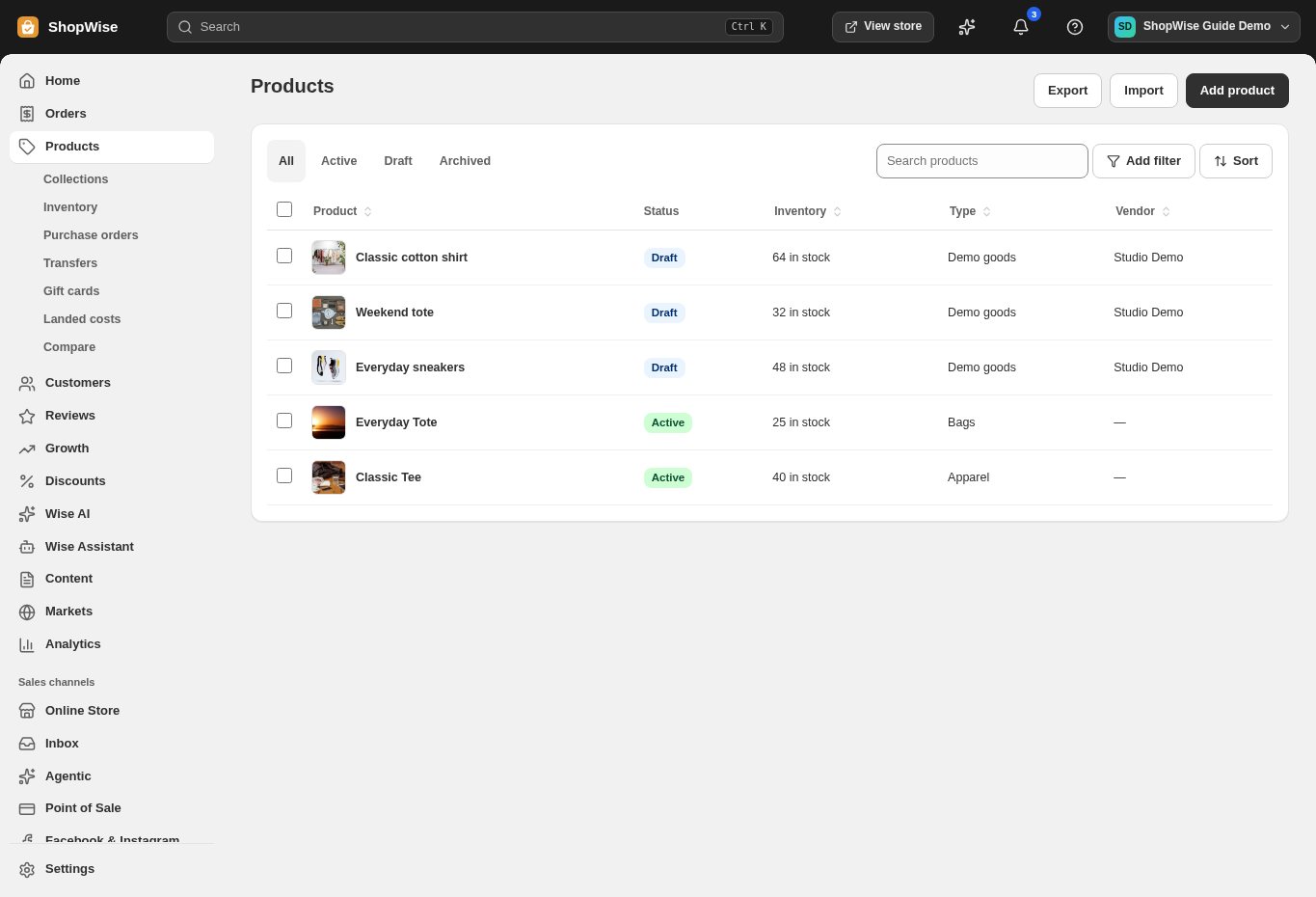
Choose Products to manage your catalog, Orders to work on purchases, Online Store for themes and pages, and Analytics for reports. Some navigation groups expand to show additional pages. On a phone, open the menu first.
Find store-wide settings
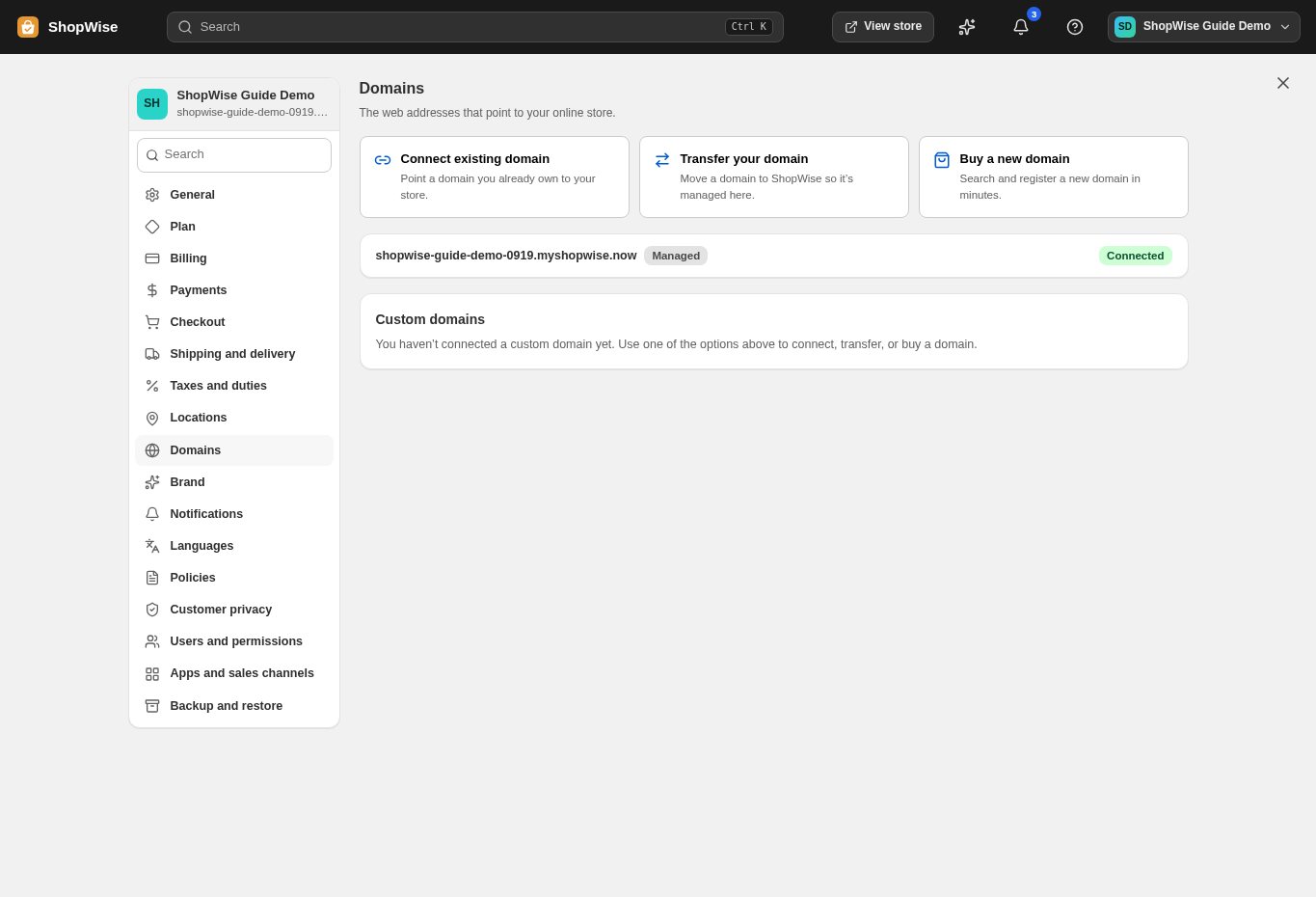
Select Settings at the bottom of the sidebar. The settings menu includes Payments, Shipping and delivery, Domains, and Users and permissions. What you can change depends on your staff permissions.
CHECK YOUR WORK
You’re ready when…
- Confirm the correct store name in the admin before making changes.
- Review the saved result in your storefront or admin.
- Complete the launch checklist before sharing your store.
IF SOMETHING DOESN’T LOOK RIGHT
Troubleshooting
I cannot find this page or action.
Check the store shown at the top of the admin. On a phone, open the navigation menu first. Ask the store owner to confirm your permissions and whether the feature is available for this store.
My change is not visible in the storefront.
Confirm the change was saved, then open the correct storefront in a separate tab. Check product status and the published theme. A preview or draft can differ from the live store.
What should I send support?
Send your store address, the page you were using, the steps you took, and the exact error text. Include a screenshot with private customer details hidden. Do not share passwords, API keys, or full payment information.
Keep going
- Open your Lulu store: from signup to going live →
- Add your first product →
- Choose and preview a theme →
- Connect a payment provider →