You need permission to change orders. Check the payment and fulfillment state first.
Find the original order
Open Orders, search for the order, and inspect its items, payment history, and fulfillment.
- Confirm the customer and order number.
- Check whether an earlier refund already exists.
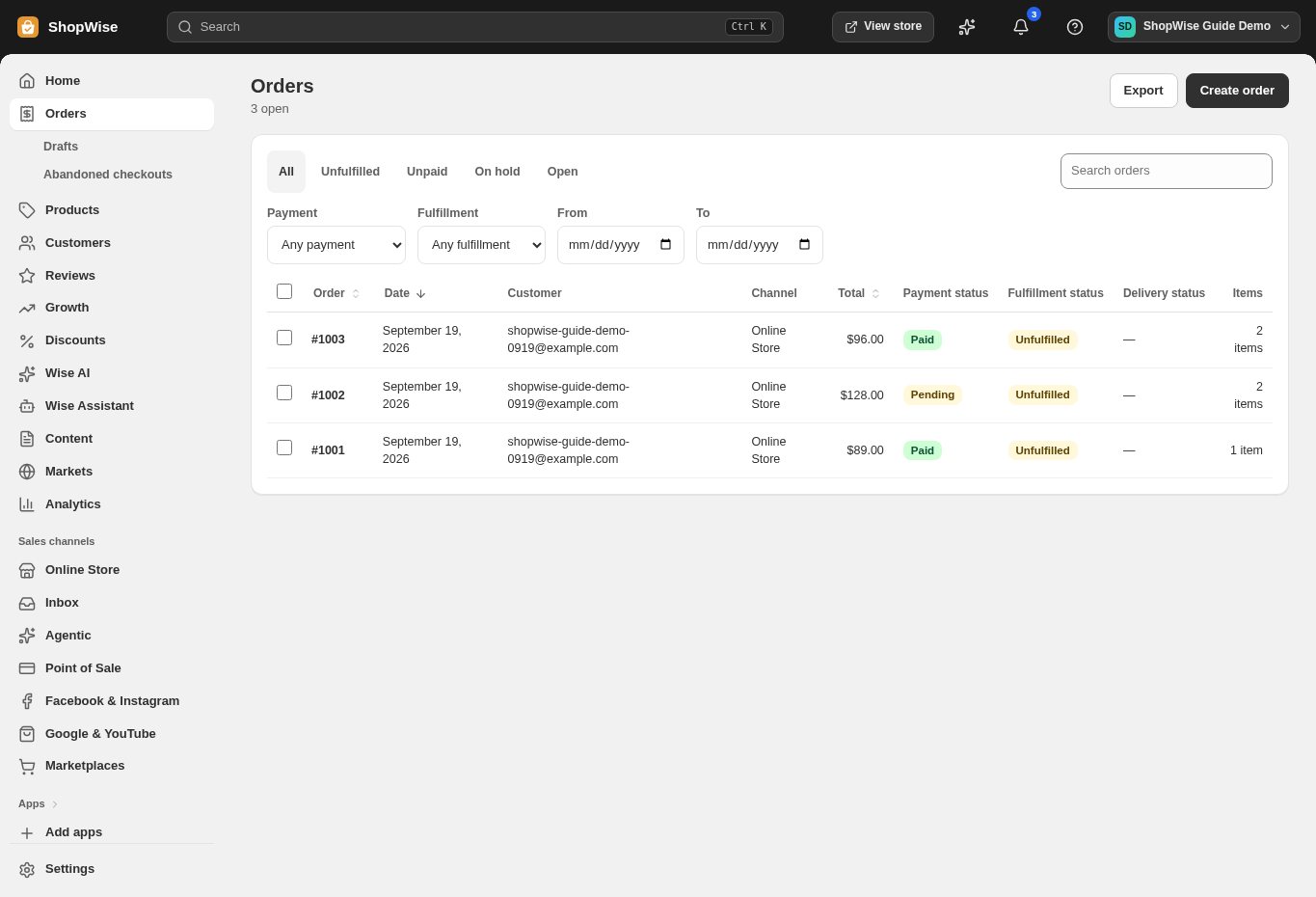
Prepare a refund
Choose Refund when available. Enter item quantities, a reason, and the refund amount.
- The amount must fit the remaining refundable balance.
- Select Restock items only for stock that should become sellable again.
Confirm and reconcile
Review the amount and submit once. Check the order timeline and the payment provider outcome before promising a completed bank refund.
- Manual payment methods may require a separate return of funds.
- If an error occurs, check existing records before retrying.
Cancel when appropriate
Use the order’s Cancel order action for an order that should not proceed. Review the cancellation options and confirm.
- Contact fulfillment or the supplier separately if dispatch has already started.
- Cancellation does not retrieve a shipped parcel.
CHECK YOUR WORK
You’re ready when…
- The order history shows the intended change.
- Stock and the payment-provider record have been reconciled.
IF SOMETHING DOESN’T LOOK RIGHT
Troubleshooting
Why is Refund unavailable?
Check your permissions, the payment state, and the remaining refundable balance. Ask support if the order and provider records disagree.
Why is a control missing or unavailable?
Confirm that you are in the correct store and that your role allows this action. Optional apps and channels may require installation, a plan, or activation. Share the screen name and error with support if access is still unclear.