Apps come from the App Store inside your admin (Apps > Add apps) or from apps.lulu.us.com. Installing always shows what the app can access before anything is added. You need the apps permission.
Open an app's page and click "Install"
The page shows pricing, rating, developer and a plain-language summary of what the app does on your store.
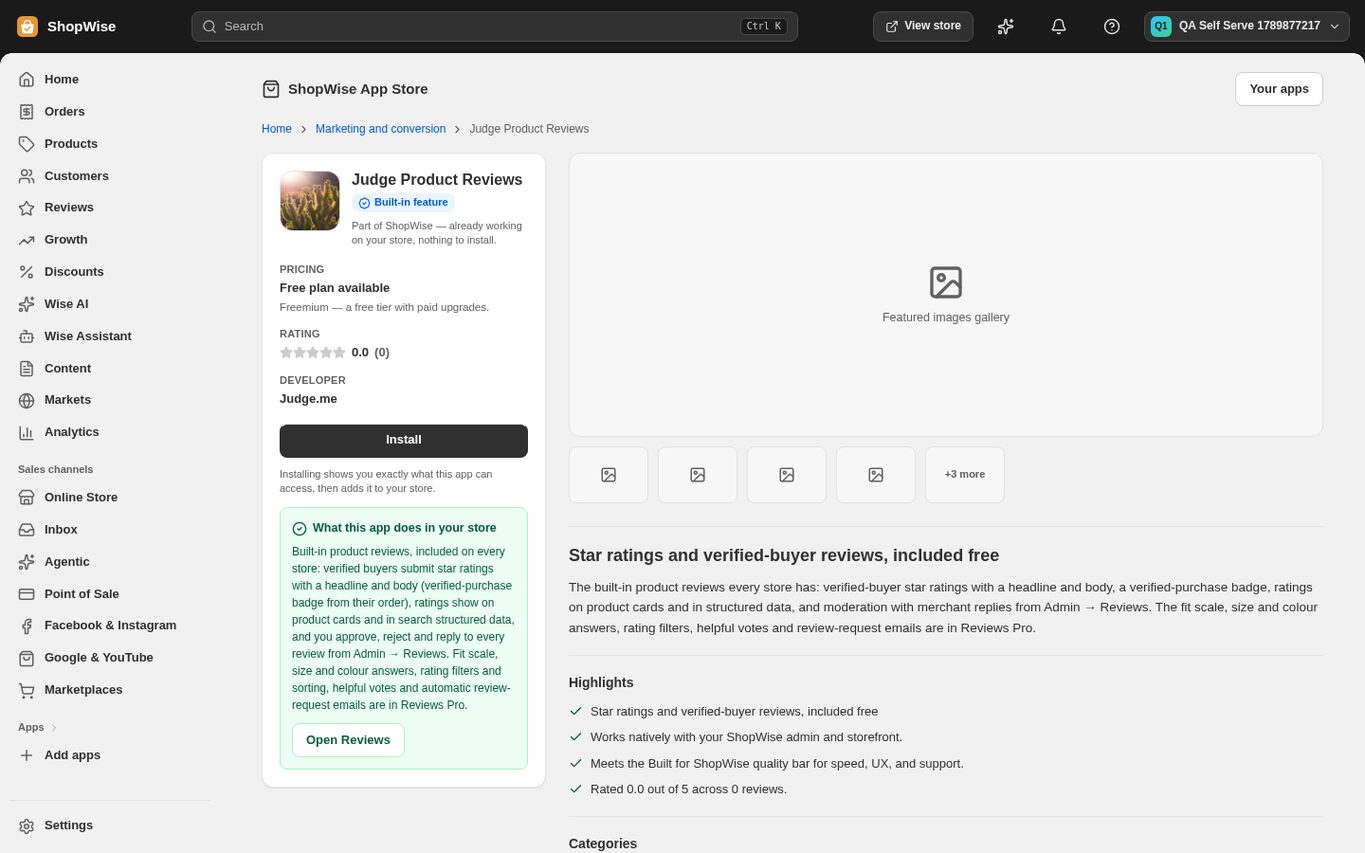
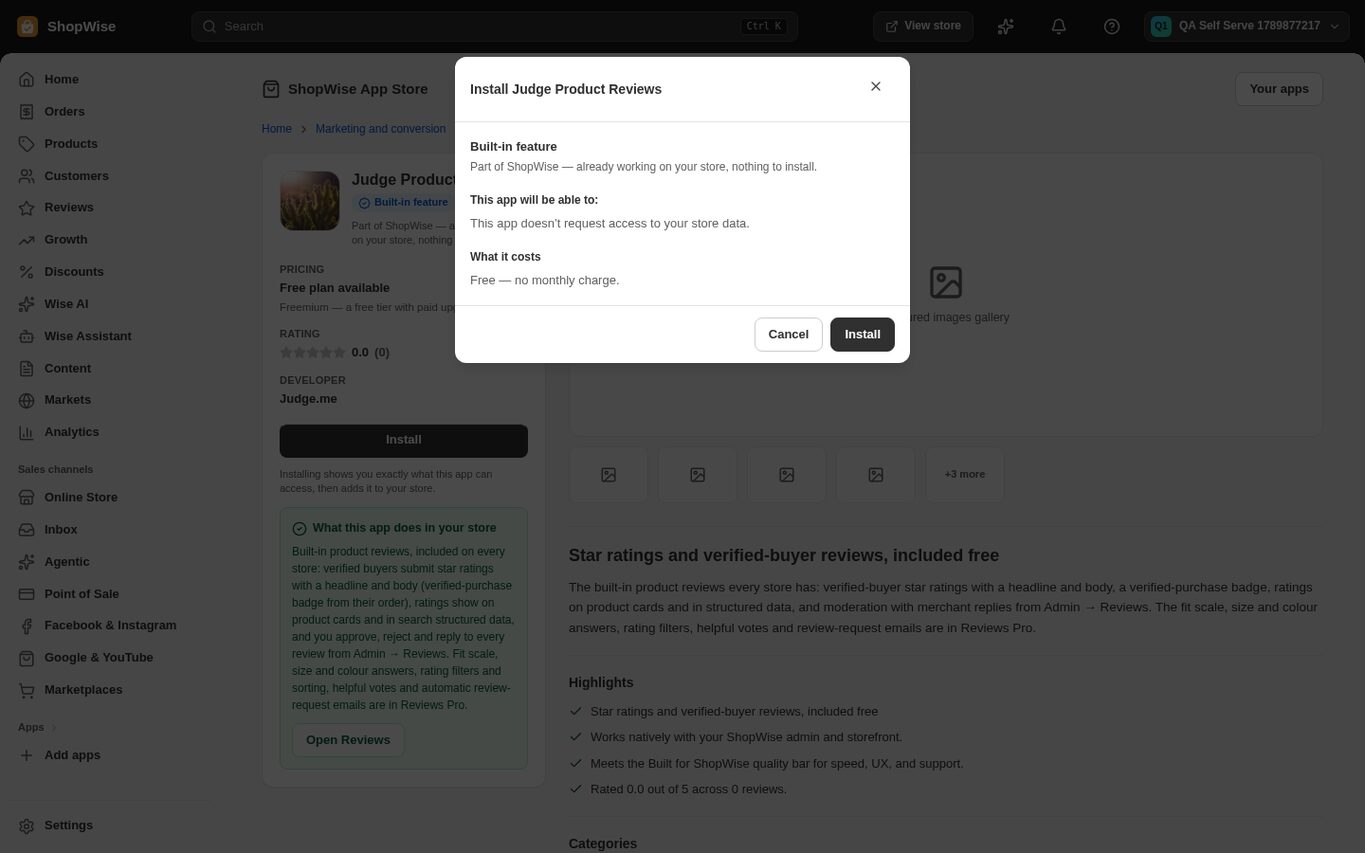
Review the confirmation, then confirm
The confirmation lists what the app does, which data it can read or edit and what it costs. Click "Install" there to add it. The app appears under Apps in the sidebar.
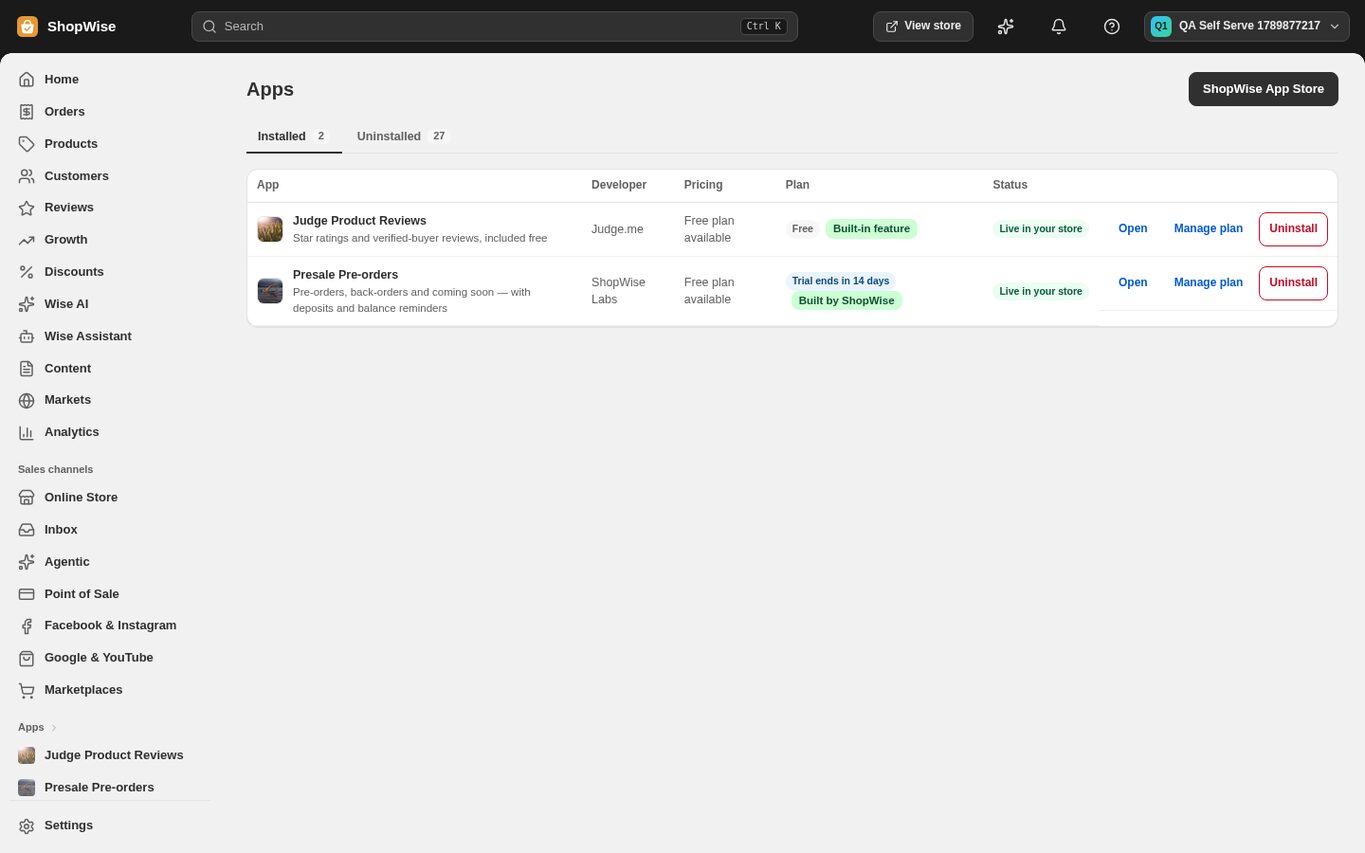
Find your installed apps
Apps lists every installed app with its plan and status, with Open, Manage plan and Uninstall actions. Each app has its own workspace: setup checklist, activity and usage.
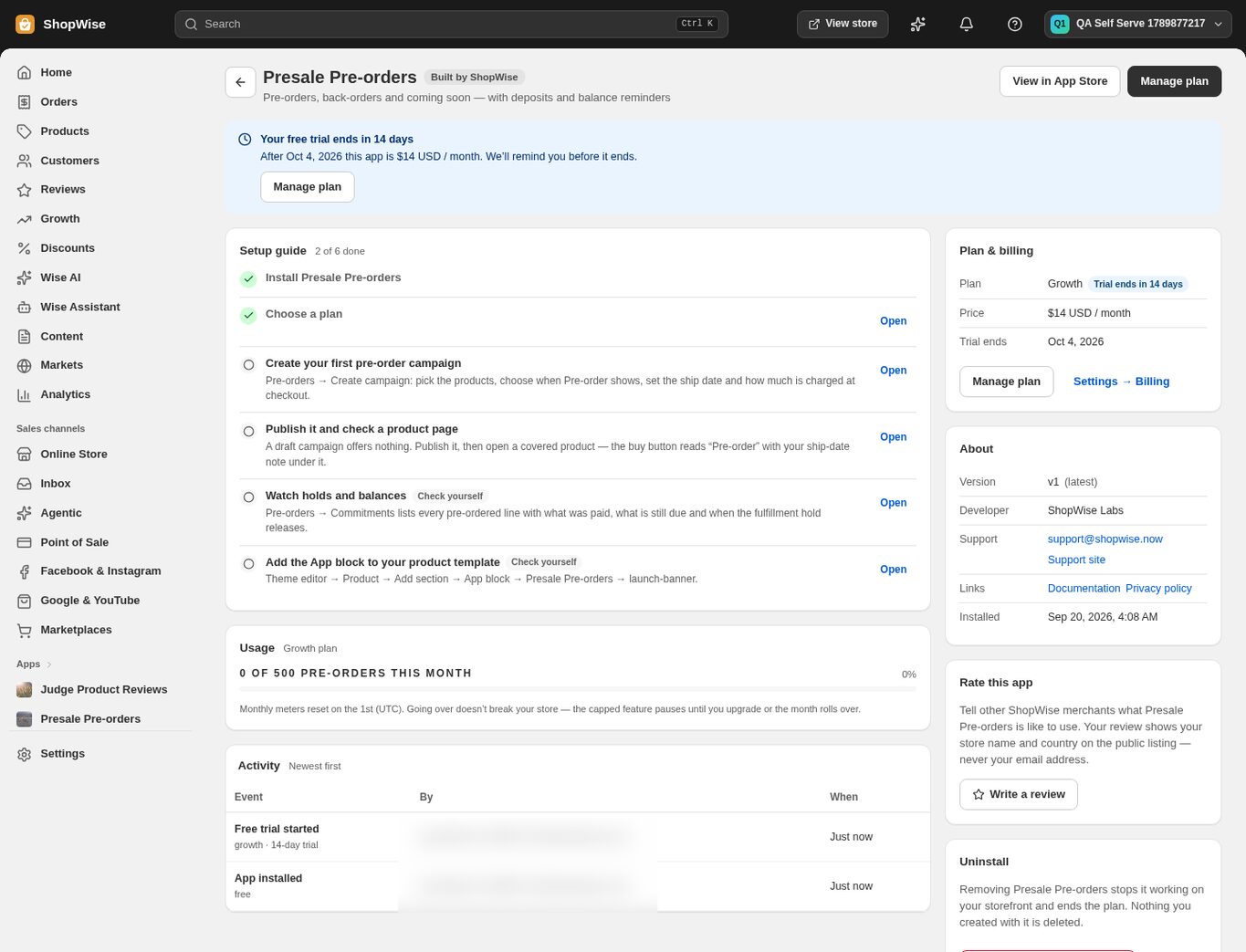
Start a paid tier with a free trial, then pay
Apps with plans start on their free tier. Choose a paid tier from the app's page or "Manage plan"; the first time you get a 14-day free trial with no card. Before the trial ends, pay from the app's page (Plan & billing) or from Settings > Billing > Charges to keep the tier. Otherwise the app drops back to its free tier.
Add app blocks and uninstall
Apps that add storefront blocks appear in the theme editor's Apps panel; add their blocks to your pages from there. To remove an app open its workspace and click "Uninstall": your data stays and the app's features switch off.
CHECK YOUR WORK
You’re ready when…
- The app appears under Apps with the tier you expect.
- A paid tier shows its trial end date or a paid status in Plan & billing.
- Storefront blocks from the app are added where you want them.
IF SOMETHING DOESN’T LOOK RIGHT
Troubleshooting
My trial ended and the app's paid features stopped.
Open the app's workspace and pay for the tier under Plan & billing, or from Settings > Billing > Charges. Your settings are kept and the features return once the payment succeeds.
The payment window says the payment could not start, or closes without a result.
Nothing was charged and your current package, theme or app tier stays exactly as it was. Try again in a few minutes. If it keeps failing, the platform's card payment provider is not live yet for this region: contact support with your store address and what you were paying for, and the team will complete the activation with you.
I cannot find this page or action.
Check the store shown at the top of the admin. On a phone, open the navigation menu first. Ask the store owner to confirm your permissions and whether the feature is available for this store.
What should I send support?
Send your store address, the page you were using, the steps you took, and the exact error text. Include a screenshot with private customer details hidden. Do not share passwords, API keys, or full payment information.
Keep going
- Open your Lulu store: from signup to going live →
- Install and configure an app →
- Billing: invoices, app charges, and plan changes →
- Theme editor: colors, fonts, and app embeds →
- Apps: permissions, updates, and uninstalling →