Check the app listing and activation status. Availability and limitations vary by tool.
Choose the app
Open the App Store and review the relevant auction, presale, or offer app. Read its supported features and requirements.
- Separate available functionality from planned capabilities.
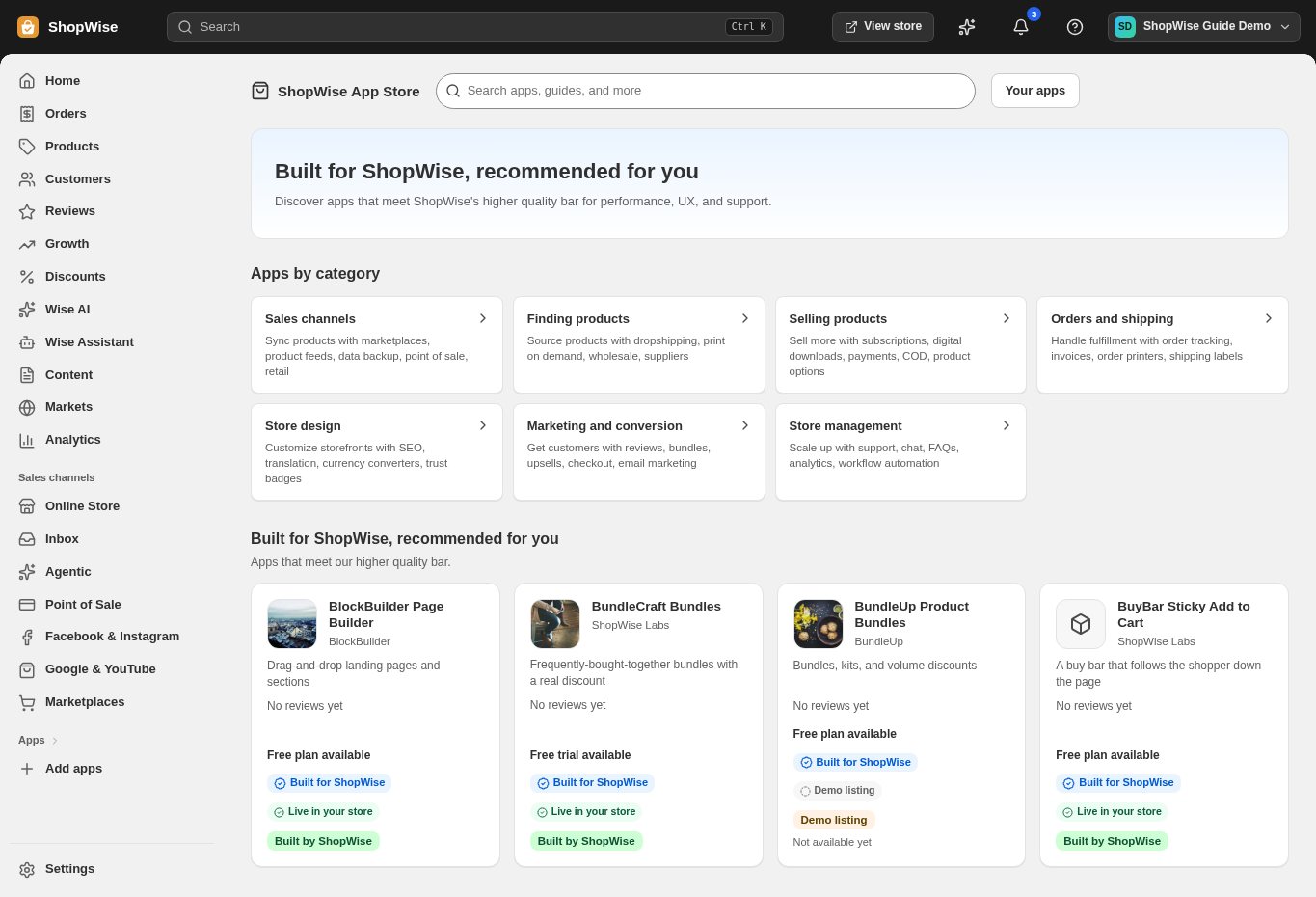
Configure the module
After installation, open Auctions, Presale, or Offers as appropriate. Review its Settings before creating a listing, campaign, or rule.
- Set timing, eligible products, and the transaction rules exposed by that editor.
Review customer messaging
Enable the appropriate theme component and explain the selling terms in customer-facing content.
- For preorders, communicate expected fulfillment.
- For auctions or offers, explain how a purchase is completed.
Test and monitor
Run a controlled test of the customer action and resulting order. Review the module’s orders, bidders, analytics, or reports as applicable.
- Do not begin a live event until timing, payment, and fulfillment have been verified.
CHECK YOUR WORK
You’re ready when…
- The tool is installed and its settings reviewed.
- A controlled end-to-end test has succeeded.
IF SOMETHING DOESN’T LOOK RIGHT
Troubleshooting
Why does the installed app not appear on the storefront?
Review its theme-block requirements and activation status. Installing an app does not automatically publish every component.
Why is a control missing or unavailable?
Confirm that you are in the correct store and that your role allows this action. Optional apps and channels may require installation, a plan, or activation. Share the screen name and error with support if access is still unclear.