Prepare a unique SKU for each stock item and decide which options customers need.
Open the product
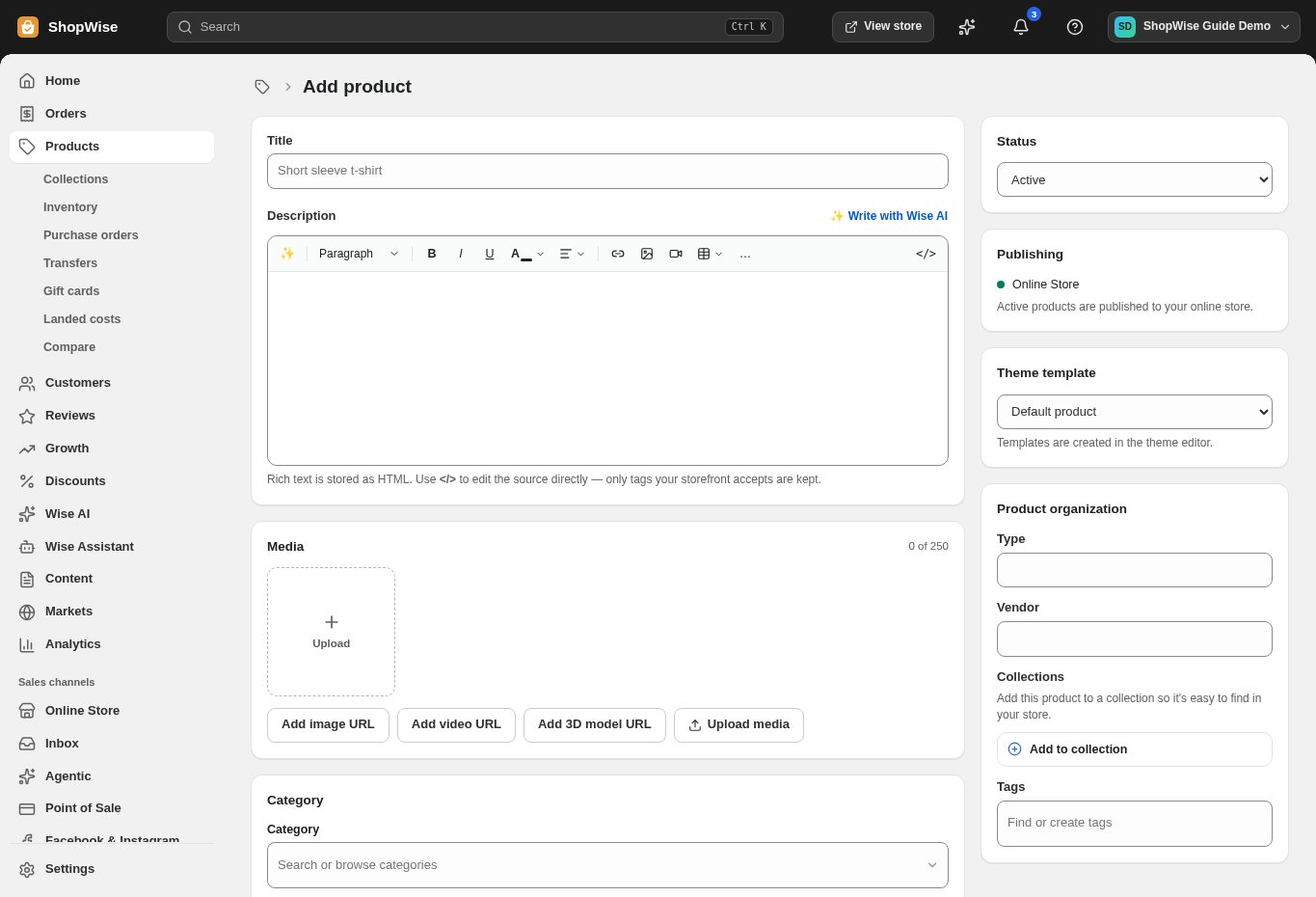
Go to Products and open a product, or choose Add product for a new one. Find its options and variants controls.
- Use short option names such as Size or Color.
Define the choices
Enter the option values that describe your actual stock. Review the generated variant combinations before saving.
- Remove combinations you do not sell.
- Keep names consistent across related products.
Review each variant
Set each variant’s price, SKU, inventory tracking, and available stock as appropriate.
- A product-level price does not replace a review of every variant.
- Confirm the location used for stock.
Test selection
Save, preview the product, and select each option on desktop and mobile. Add a sample variant to the cart.
- Check that the cart shows the chosen variant and correct price.
CHECK YOUR WORK
You’re ready when…
- Every sellable combination has the right SKU and price.
- The storefront selector matches your stock.
IF SOMETHING DOESN’T LOOK RIGHT
Troubleshooting
Why is one size unavailable?
Check that the variant exists, is available for sale, and has sellable inventory at an eligible location. Also review any continue-selling setting.
Why is a control missing or unavailable?
Confirm that you are in the correct store and that your role allows this action. Optional apps and channels may require installation, a plan, or activation. Share the screen name and error with support if access is still unclear.