Use an account with app-management and billing permissions.
Review an installed app
Open Apps and select the installed app. Inspect its functional status, plan, and usage limits.
- Confirm whether you are looking at the installed version or the public listing.
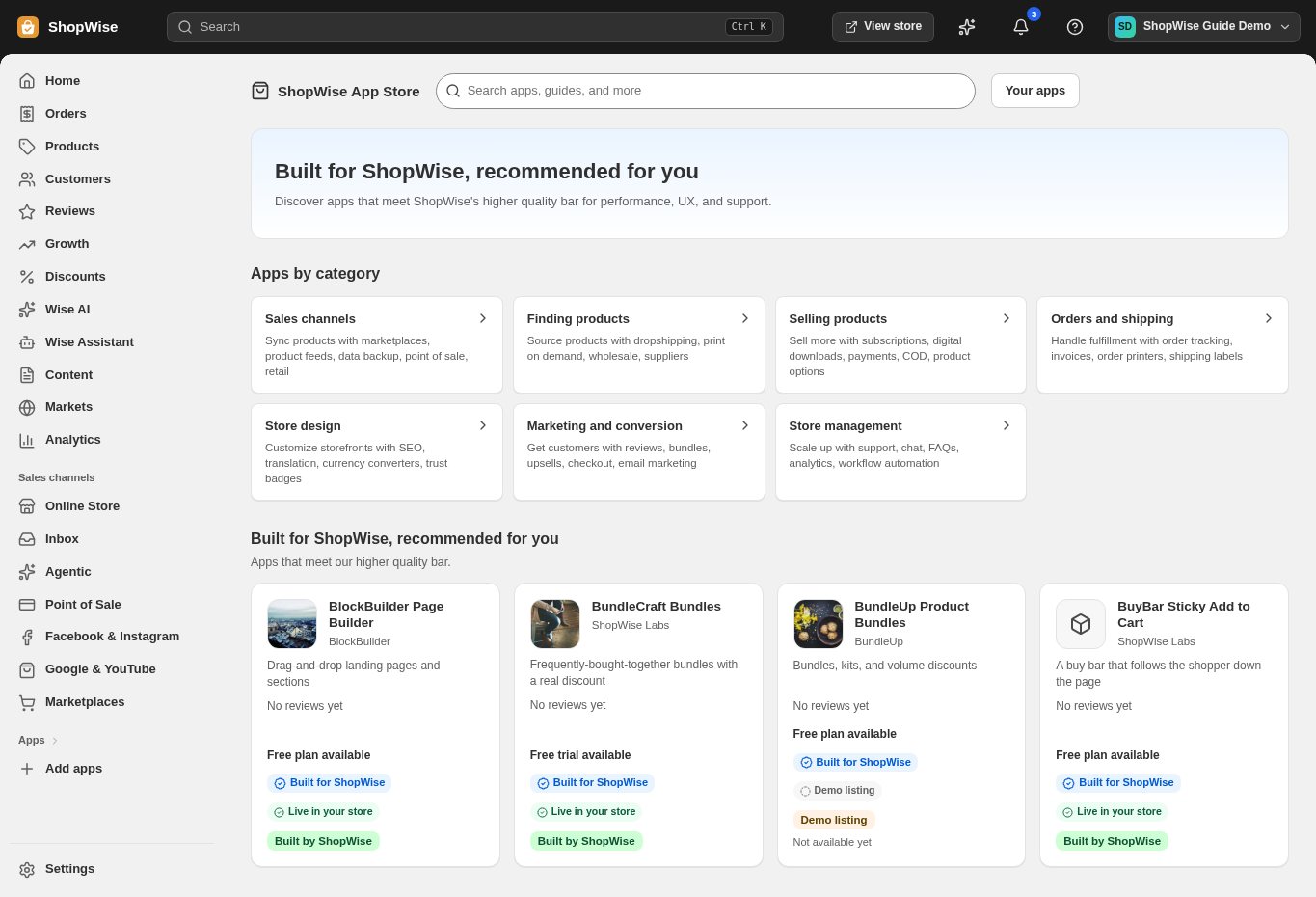
Configure the app
Open its settings and complete the listed requirements. If it has a storefront component, enable it in the theme editor.
- Use the app’s setup guide and test with a small sample.
Review an available update
If an update is offered, inspect the release details and any requested permission changes before approving it.
- Existing stores may stay on their pinned app version until the owner updates.
- Retest the affected storefront flow after updating.
Uninstall deliberately
Use the app’s uninstall action and read the confirmation. Review the theme and any separate external subscription afterward.
- Keep exports or records you need before removing access.
- Confirm billing terms rather than assuming all external charges stop.
CHECK YOUR WORK
You’re ready when…
- The app configuration and access are understood.
- An update or uninstall has been tested in the storefront.
IF SOMETHING DOESN’T LOOK RIGHT
Troubleshooting
Why did the public app listing change but my installed app did not?
The store can remain on a pinned version. Review the installed app’s update controls and release details.
Why is a control missing or unavailable?
Confirm that you are in the correct store and that your role allows this action. Optional apps and channels may require installation, a plan, or activation. Share the screen name and error with support if access is still unclear.