



Presale Pre-orders
Pre-orders, back-orders and coming soon — with deposits and balance reminders
1. Review the fit
Sell what you haven’t got yet. Build a pre-order campaign (pick the products, decide whether Pre-order shows only when stock runs out or always, set the expected ship date or leave it to be finalised), and every covered product gets a Pre-order button, a ship-date note and a badge on its card. Choose how much is charged at checkout: the full amount, a deposit with the rest due on a date or when you fulfil, or nothing now. Unit caps and per-customer limits are enforced at checkout, not just in the widget. Orders are held from fulfillment until the ship date and released automatically, and shoppers get balance reminders, delay notices and a “ready to ship” email. Charging a saved card automatically is NOT included — Lulu has no card vaulting, so the balance goes out as a payment request with a pay-balance link the shopper pays through your normal checkout. This app has available functionality. Check the live listing for the features supported by each plan.
2. Check requirements
Check these requirements before installing.
- Enable in the theme editor. Open Pre-orders after installing.
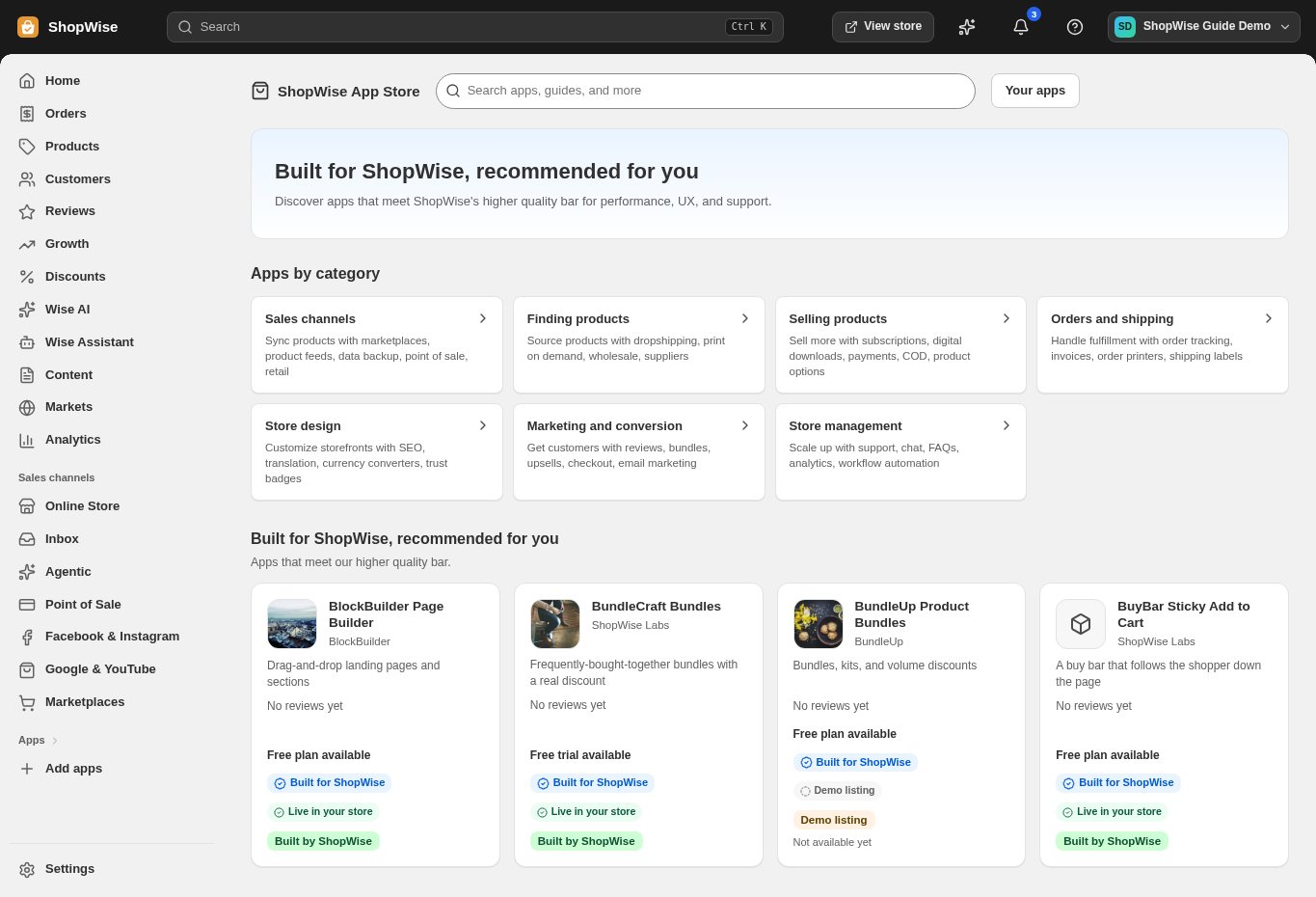
3. Choose and install
Sign in to the store where you want to use the app. Review its requested access and choose a plan that fits your usage. Paid plans and provider charges are separate from your store package.
4. Configure and preview
Open the app from your admin and complete its setup. If it adds a storefront component, enable the appropriate app block or section in your theme. Preview on desktop and mobile before publishing.
5. Test the customer journey
Use sample products or a test order to check the result. Review app usage and plan limits before increasing traffic. Contact the app’s support team through the listing if the result differs from what you expected.