



Connect an AI agent to your store
Let the AI assistant you already use — ChatGPT, Claude (claude.ai, Claude Desktop or Claude Code), Cursor or an automation tool — work inside your store: update products and photos, stock, orders, discounts, pages and your theme, or handle routine jobs on a schedule. You choose exactly what it may touch, it can only ever reach your own store, every action is logged, and you can switch it off at any time.
Download this guide: PDF · Word (.docx)
On this page
- 1. Find your store's MCP address
- 2. ChatGPT: add the store as a connector
- 3. Claude (claude.ai or Claude Desktop): add a custom connector
- 4. Approve the connection
- 5. Claude Code: create a token and run one command
- 6. Cursor and other MCP apps
- 7. Use it
- 8. Watch and switch off
- Completion checklist
- Troubleshooting
This guide is for store owners (or staff with the "Manage and install apps" permission). Have your AI app open — ChatGPT, Claude (claude.ai or Claude Desktop), Claude Code, Cursor or another MCP app. The AI can only ever reach your own store, nothing changes until it actually makes a change, and everything it does appears in your store's audit log.
Find your store's MCP address
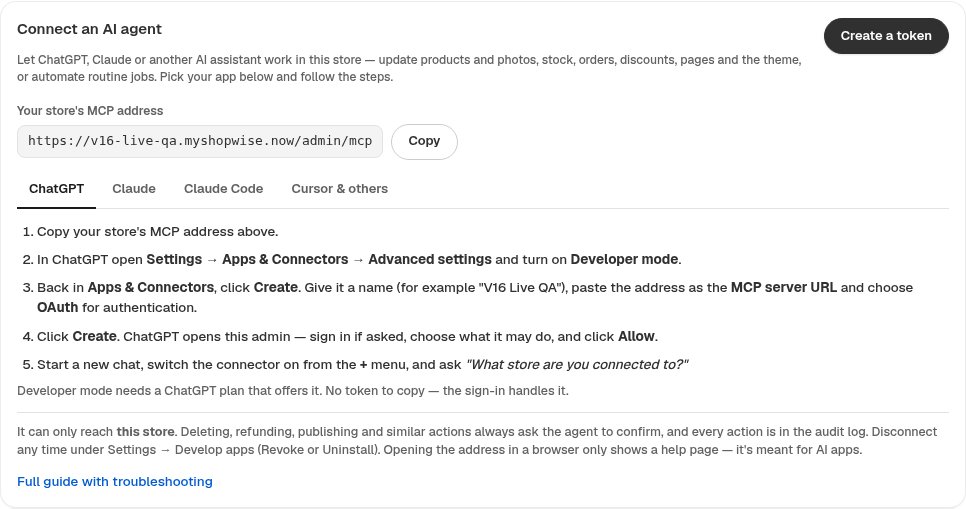
Sign in to your store admin and open Settings → Apps and sales channels → Develop apps. The "Connect an AI agent" card shows your store's MCP address with a Copy button, and step-by-step instructions for each AI app. The address looks like https://your-store.lulu.us.com/admin/mcp.
- Use your store's own address — never the admin address (admin.…).
- Opening the address in a browser only shows a short help page. It is meant to be pasted into an AI app.
- Editing your theme? The same instructions are under Online Store → Themes → Customize → Edit with AI.
ChatGPT: add the store as a connector
In ChatGPT open Settings → Apps & Connectors → Advanced settings and turn on Developer mode. Back in Apps & Connectors, click Create. Give the connector a name, paste your store's MCP address as the MCP server URL, choose OAuth for authentication and click Create. ChatGPT sends you to your store admin to approve (see "Approve the connection" below).
- Developer mode needs a ChatGPT plan that offers it.
- No token to copy — the sign-in takes care of it.
- Afterwards, start a new chat, switch the connector on from the + menu and ask "What store are you connected to?"
Claude (claude.ai or Claude Desktop): add a custom connector
In Claude open Settings → Connectors and click Add custom connector. Give it a name, paste your store's MCP address and click Add. Then click Connect on the new connector — Claude sends you to your store admin to approve (see the next step).
- A connector added on claude.ai also works in Claude Desktop and the Claude mobile app on the same account.
- In a chat, turn the connector on from the tools menu and ask "List my store's themes."
Approve the connection
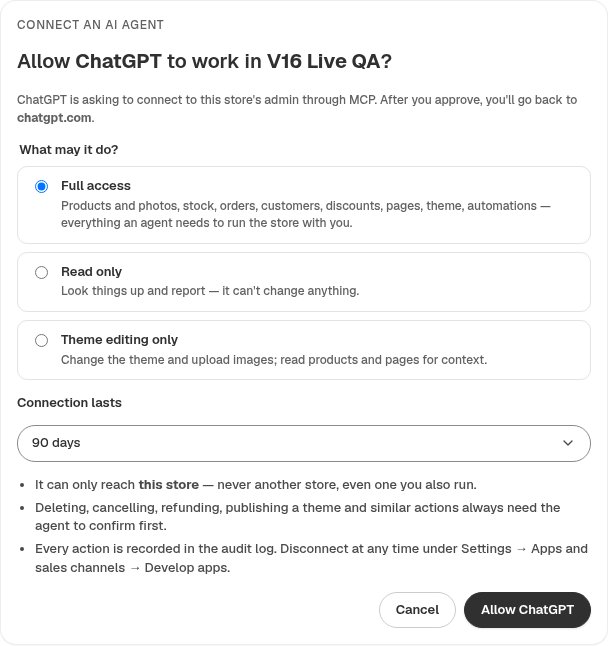
ChatGPT or Claude opens a page in your store admin that asks whether to allow the app. Check where you'll be sent back to (chatgpt.com or claude.ai), choose what it may do — Full access, Read only or Theme editing only — and how long the connection lasts (30, 90 or 365 days), then click Allow. You are taken back to the app, connected.
- Only access you hold yourself is granted. Theme code (custom scripts) is never part of these choices.
- An app the page can't verify shows a warning — only approve it if you started the connection yourself just now. Never approve a request someone else sent you.
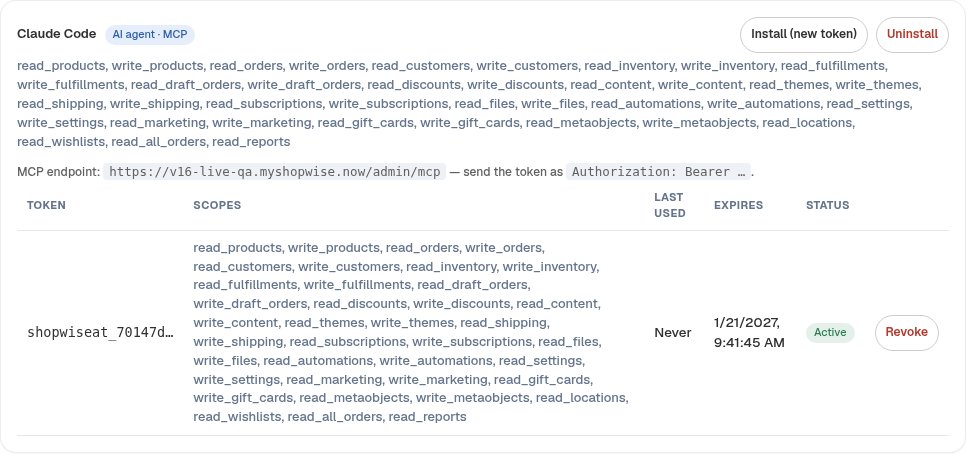
- The connection shows up on Develop apps as an "AI agent · MCP" app.
Claude Code: create a token and run one command
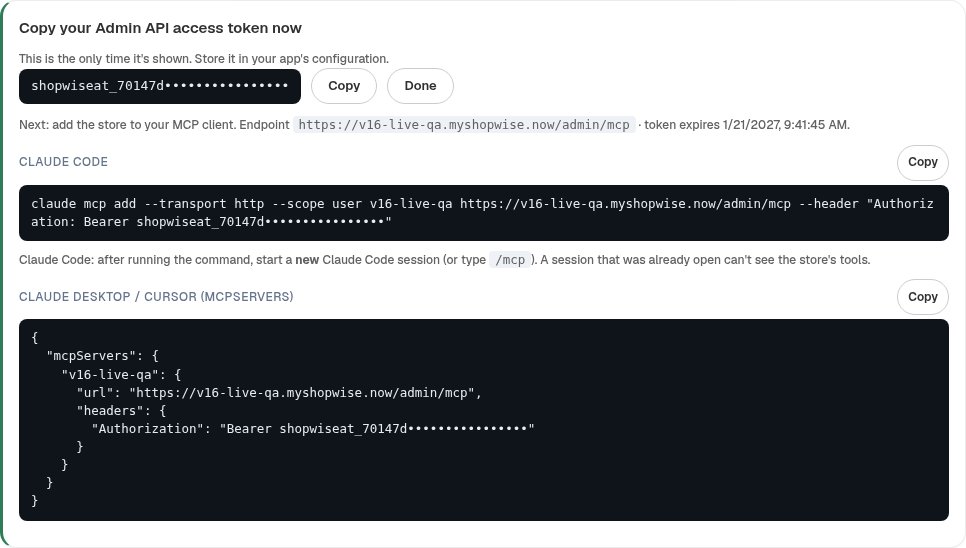
Claude Code and other MCP apps that take a token connect with one (Cursor can sign in instead — next step). On the Connect an AI agent card, open the Claude Code tab and click Create a token. Name the connection, pick how long the token lives (30, 90 or 365 days) and the access, then click Connect and get token. Copy the Claude Code command shown and run it in your terminal.
- The token is shown only once. Lost it? Revoke it and create a new one.
- Then START A NEW Claude Code session (or type /mcp). A session that was already open can't see the store — even though "claude mcp list" says Connected.
- The command includes --scope user so the store works in every folder, not just the one you ran it in.
- Ask "List my store's tools" to check.
Cursor and other MCP apps
Cursor needs no token. In Cursor open Cursor Settings → Tools & MCP (older versions: MCP) and click New MCP Server — Cursor opens its mcp.json file. Copy the block from the Cursor & others tab (it holds only your store's MCP address, no headers line): if the file is empty paste the whole block, otherwise add just your store's entry inside mcpServers, and save. Your store shows Needs login — click Login (or Connect): this admin opens — sign in, choose the access and click Allow. When the dot turns green, open a new chat and ask "What store are you connected to?" If Cursor shows 401 Unauthorized, your mcp.json still has a headers / Authorization line (often the example <token>, which is not a real token): delete that line and save, and Cursor offers the sign-in. Other MCP apps that cannot sign in use a token: create one as in the previous step, press Copy on the "Cursor & other apps" block shown with it (don't retype the token — copy the whole block so it arrives complete), paste it into the app's MCP servers configuration and restart the app.
Use it
Ask in plain language. Start with something harmless — "what store are you connected to?" or "list my five newest products" — then give it a job: "add this photo to the Aurora necklace", "set the stock of SKU HJ-1002 to 12", "mark order #1042 as fulfilled with this tracking number", or for the theme: "on theme #661, change the accent colour to #355e45 and show me before publishing".
- It only sees the tools for the access you chose, so it can't even try anything else.
- Deleting, cancelling, refunding, publishing a theme and similar actions always need it to confirm first.
- Theme changes appear when you reload the theme editor, and in Version history as an "agent save".
Watch and switch off
Every connection is listed on Develop apps with when it was last used. Every action — reads included — is in the store's audit log. Click Revoke on a token, or Uninstall on the app, to cut the AI off immediately.
- Connections also stop when the store is suspended or handed over, or when the person who approved them is removed or suspended.
CHECK YOUR WORK
You’re ready when…
- The connection appears on Develop apps as an "AI agent · MCP" app.
- Your AI app lists the store's tools (for example get_store_info, list_products, list_themes).
- Asking which store it is connected to names your store.
- A test change you asked for shows up in the admin and in the audit log.
IF SOMETHING DOESN’T LOOK RIGHT
Troubleshooting
Claude Code says Connected, but the chat says it can't reach my store.
Claude Code only loads servers when a session starts. Close that chat and start a new Claude Code session (or type /mcp), then ask it to list your store's tools.
ChatGPT opened the admin in a browser and asked me to sign in.
ChatGPT wasn't using the connector for that request — it tried to browse to the admin link instead. Use a normal chat (not Agent mode), pick your store's connector from the + menu, and describe the change in words, for example “On the Svena copy theme, add a hover animation to the hero.” You don't need to paste admin links; the connector already knows which store it is.
I opened the address in my browser and saw a message instead of my store.
That's expected — the address is for AI apps. Paste it into ChatGPT or Claude as a connector, or use the Claude Code command.
ChatGPT or Claude can't find Create / Add custom connector.
In ChatGPT, turn on Developer mode first (Settings → Apps & Connectors → Advanced settings); it needs a plan that offers it. In Claude, custom connectors are under Settings → Connectors.
The approval page says the request expired.
The sign-in must be approved within 15 minutes. Go back to the AI app and connect again.
My app says the connection is unauthorized.
The token was revoked or expired, was pasted incompletely, or the address isn't your store's own /admin/mcp address. Revoke it and create a fresh connection.
The AI says a tool needs access it doesn't have.
A connection only has the access chosen when it was created, and never more than the person who approved it holds. Connect again and choose more access.