Use an account with customer access. Only add or import information you are authorized to handle.
Open Customers
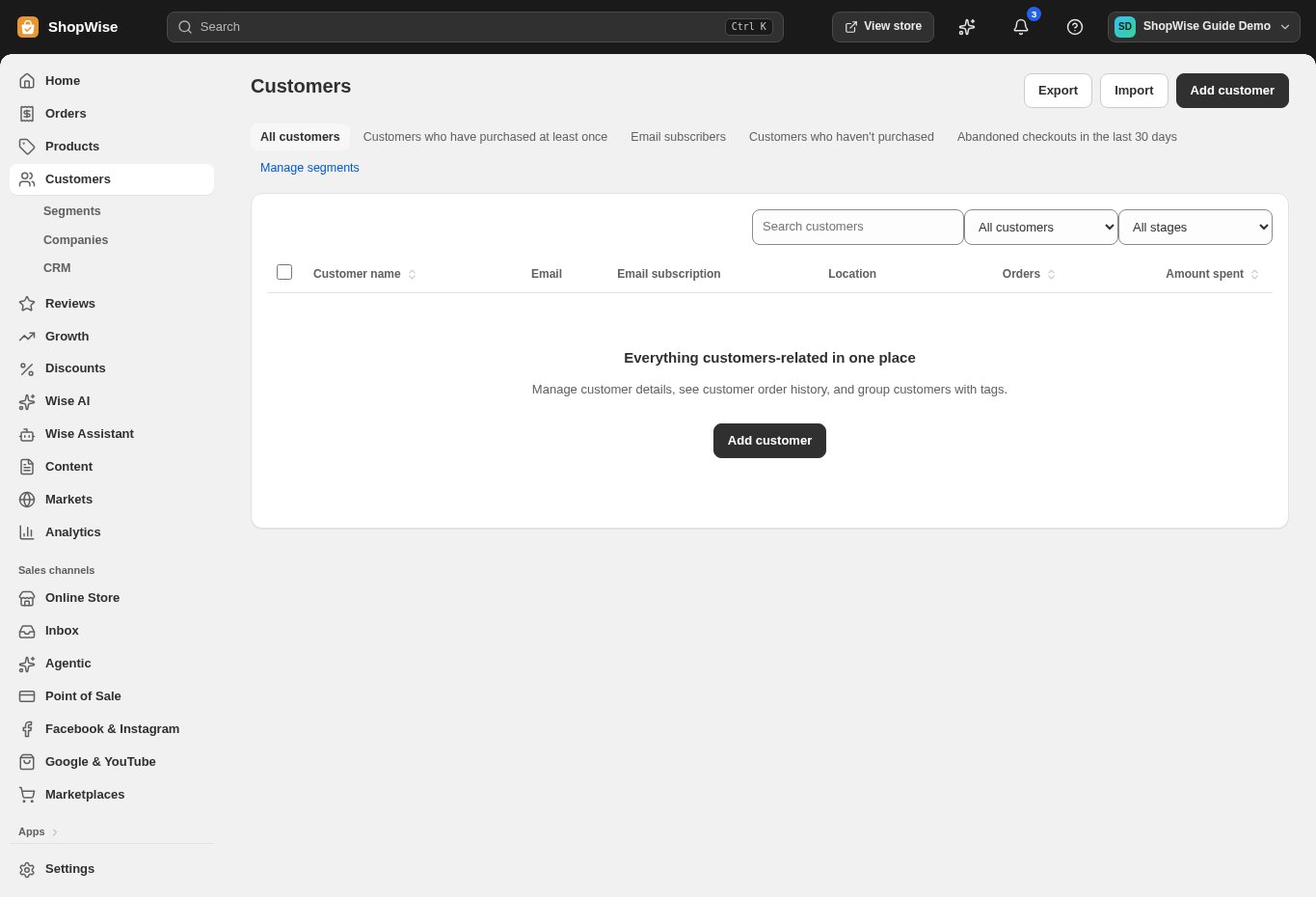
Use Customers in the admin. Start from All customers or one of the available views, and use search to find the person you need.
Check for an existing record
Search the email address before adding a new customer. Compare available identifying details so you do not confuse people with similar names.
Add or update the required details
Use Add customer for a new record, or open an existing customer to edit it. Enter the details needed for the task and review any email-subscription preference carefully.
Review orders and grouping
Use purchase history and available tags or segments to understand the customer relationship. A customer record alone does not confirm a payment, delivery, or marketing subscription.
Save and verify
Save the change and reopen the record to confirm it. Restrict exports to the people who need them and avoid including customer details in public screenshots.
CHECK YOUR WORK
You’re ready when…
- Open the correct order or customer record.
- Check payment and fulfillment separately.
- Review the saved result before sending a customer an update.
IF SOMETHING DOESN’T LOOK RIGHT
Troubleshooting
A customer seems to be missing.
Clear search and view filters, confirm the active store, and search using the email used for checkout.
Can I treat all customers as email subscribers?
No. Review the subscription status for the customer and use your approved consent process before including them in marketing.