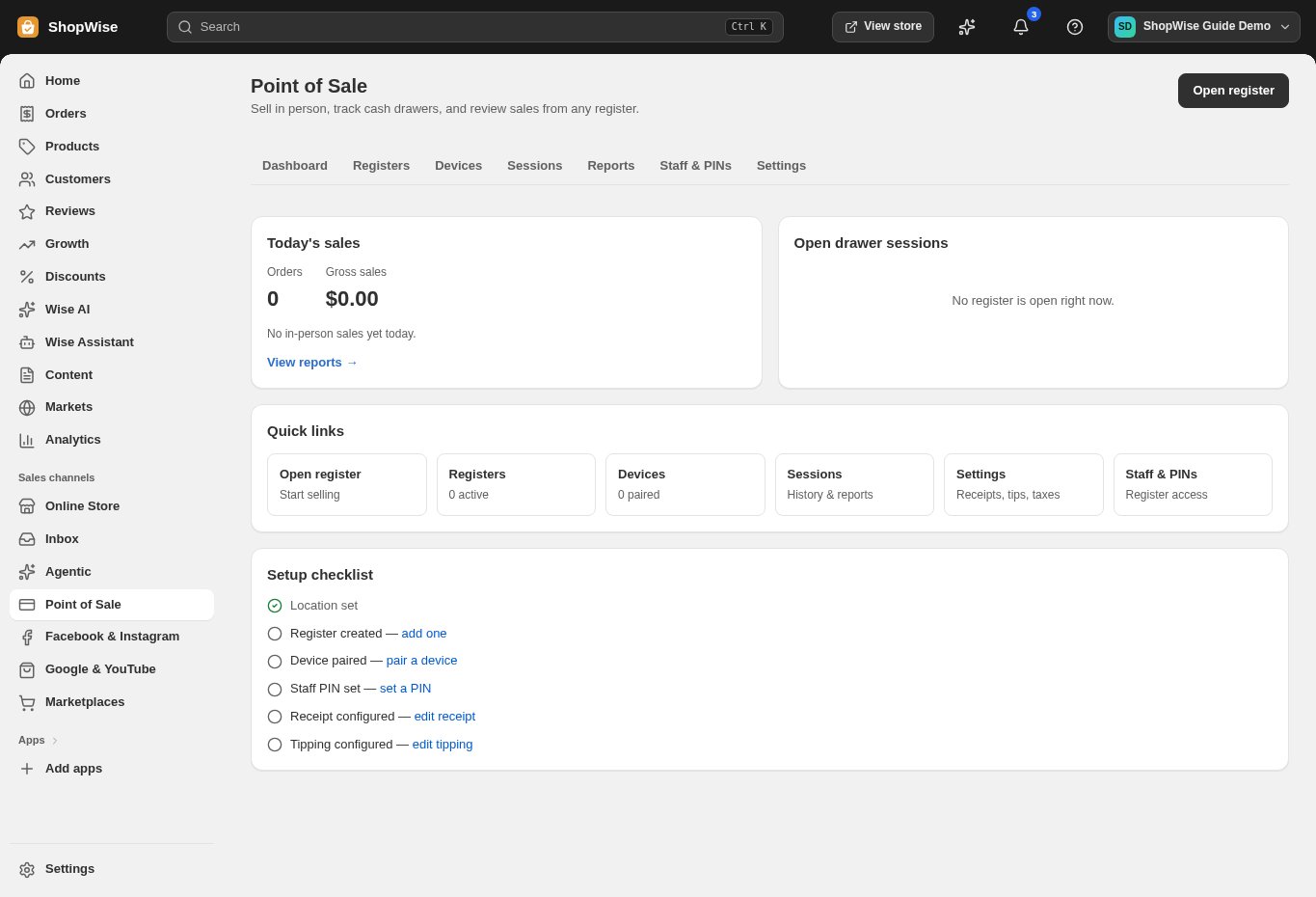
Use a paired device, authorized staff PIN, open drawer session, and configured payment types.
Open the register
Enter the register through Point of Sale and sign in with the authorized staff access. Confirm the register and location.
- Verify you have an active session and the intended inventory location.
Build the cart
Search or scan a product barcode, choose the correct variant, and set the quantity. Add the customer if needed.
- Review item prices and supported discounts before checkout.
- Use saved-cart controls when parking a sale, rather than marking an unpaid sale as paid.
Review checkout
Choose the checkout action and inspect the total, tax, discount, and required customer information.
- Complete any required contact details before taking payment.
- Review tipping if it is configured.
Record the tender
Select an enabled payment type. For cash, enter the amount tendered and check the change. For split payment, record each portion until the balance is covered.
- For card or custom tender, confirm actual external payment success before recording it.
- A register tender entry is not proof that a bank or terminal charged the card.
Finish and receipt
Complete the sale and use the receipt controls to provide the receipt. Review the resulting order if anything is unclear.
- Do not repeat a payment after a slow response until you check the order and provider outcome.
- Use email or print receipts where available. SMS receipts are not currently connected to a gateway.
CHECK YOUR WORK
You’re ready when…
- The sale has the correct products and customer.
- Tender covers the total and cash change is correct.
- The receipt and order record exist.
IF SOMETHING DOESN’T LOOK RIGHT
Troubleshooting
Why is there still a remaining amount?
A partial or split tender has not covered the total. Check the amounts already recorded before adding the remaining payment.
Why is a control missing or unavailable?
Confirm that you are in the correct store and that your role allows this action. Optional apps and channels may require installation, a plan, or activation. Share the screen name and error with support if access is still unclear.
Keep going
- POS: registers, devices, staff, and receipts →
- POS: returns, refunds, and exchanges →
- POS: offline sales and synchronization →