Use an account with permission to manage apps. Some tools have separate subscriptions, provider accounts, or theme requirements.
Open the App Store
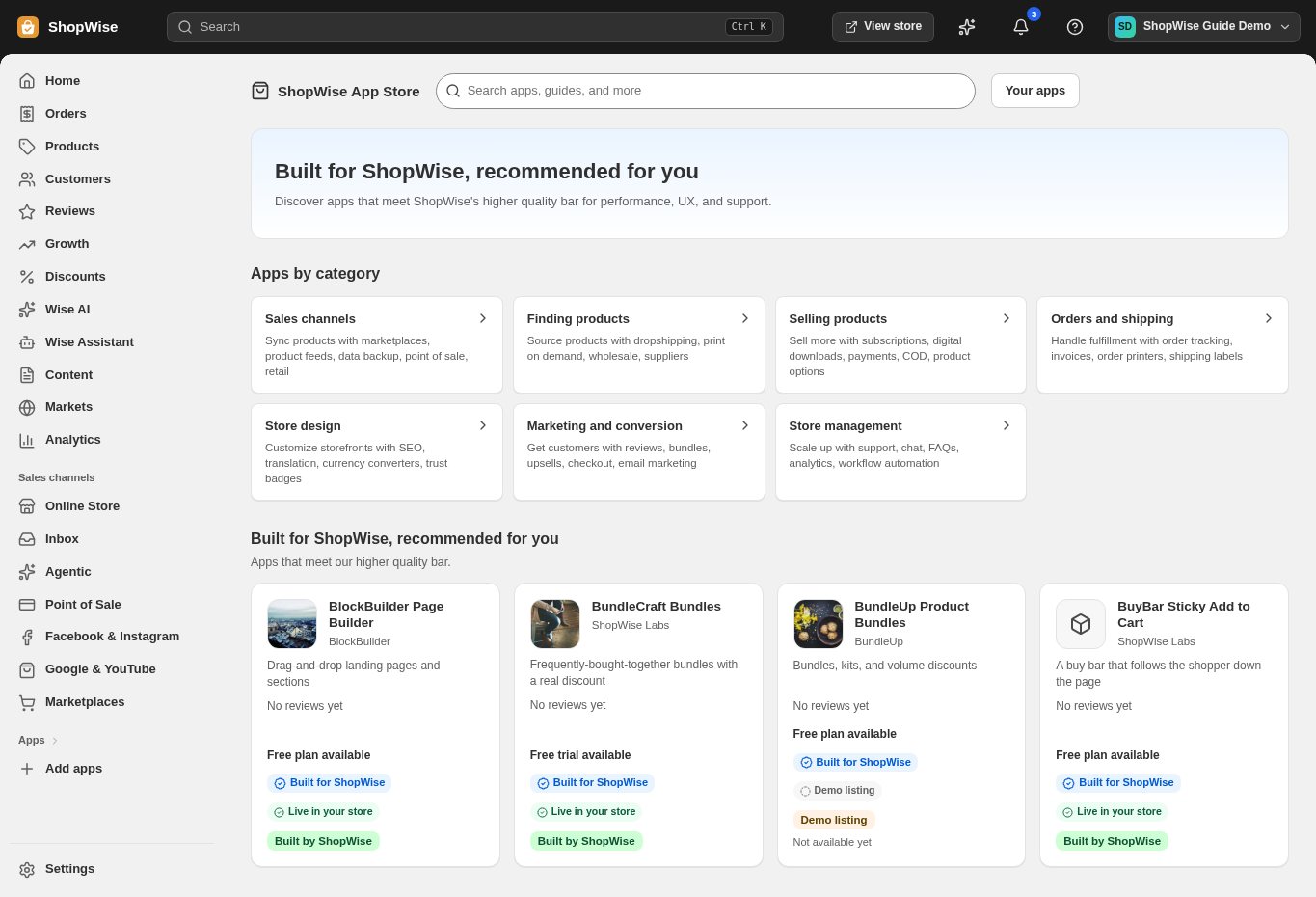
Choose Add apps in your admin or browse the public Lulu App Store. Search for the job you want to solve rather than adding tools without a clear need.
Review the listing
Read the app description, available features, planned capabilities, required permissions, and setup requirements. Compare plan limits and billing terms. A free development-store plan may have different conditions from a live-store plan.
Install and configure
Install the app for the correct store and complete the setup it provides. If the app changes the storefront, enable its supported app block, section, or embed in your theme.
Preview and monitor
Test the experience on phone and desktop. Review usage and costs as traffic grows. Open the app’s specific help guide or use its support link when you need assistance.
CHECK YOUR WORK
You’re ready when…
- Review charges, permissions, and connected account requirements.
- Configure the app before expecting it to affect your storefront.
- Preview the result and keep a note of the settings you changed.
IF SOMETHING DOESN’T LOOK RIGHT
Troubleshooting
I cannot find this page or action.
Check the store shown at the top of the admin. On a phone, open the navigation menu first. Ask the store owner to confirm your permissions and whether the feature is available for this store.
My change is not visible in the storefront.
Confirm the change was saved, then open the correct storefront in a separate tab. Check product status and the published theme. A preview or draft can differ from the live store.
What should I send support?
Send your store address, the page you were using, the steps you took, and the exact error text. Include a screenshot with private customer details hidden. Do not share passwords, API keys, or full payment information.
Keep going
- Choose and preview a theme →
- Choose a package and understand billing →
- Install apps and pay for app plans →