



Require two-step verification for your team
Make everyone who signs in to your store confirm an emailed code on every sign-in, not just on new devices.
On this page
You need the store owner account, or a role that includes the "Manage users" permission (Administrators and Store user administrators have it). This is a store-wide requirement on top of the standard sign-in check described in Security: account details and logged-in devices.
Open the Security tab
Go to Settings → Users and permissions → Users (or open Users directly), then open the Security tab.
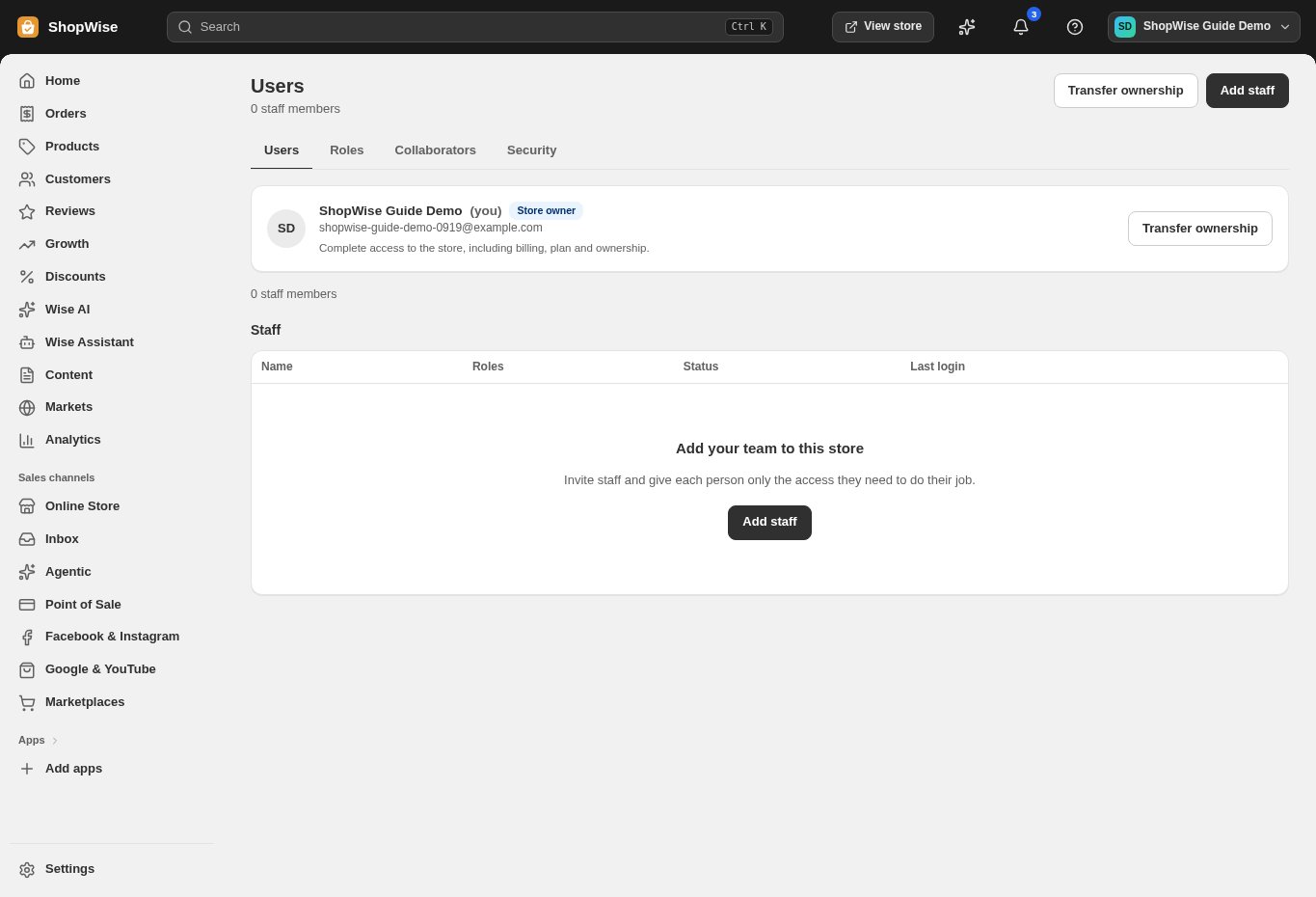
Turn on "Require two-step authentication for all staff"
Switch the toggle on. It saves the moment you change it — there's no separate Save button, and it switches back if the change can't be saved. When you turn it on, every other staff member (and your own other devices) is signed out, so everyone has to sign in again with a code.
Know how the code itself works
There's nothing to set up per person: Lulu emails a 6-digit code to the person's own account email. Without the requirement, the code is only asked for on a device that isn't recognised, or after about 90 days without signing in; a verified device is otherwise remembered for 180 days. With the requirement on, the code is asked for on every sign-in, recognised device or not.
- There's no authenticator-app option — the code always goes by email.
Turning it off
Switching the requirement off returns the store to the standard rule: a code only on a new device or after long inactivity. There is no separate per-person two-step setting to turn on or off.
Collaborator access is on the same tab
If a partner needs access instead of a regular staff seat, use "Manage collaborators" on this same Security tab rather than inviting them as staff.
CHECK YOUR WORK
You’re ready when…
- You know whether a code is required on every sign-in for this store.
- Staff know the code goes to their own account email, not a shared inbox.
- You expected everyone else to be signed out when you turned the requirement on.
IF SOMETHING DOESN’T LOOK RIGHT
Troubleshooting
A staff member says they never receive the code.
The code goes to the email address on THEIR OWN account, not the store's contact address — have them check Account → General for the address on file, and check spam.
I turned the requirement off — did that remove it from people who already set it up?
No one is removed from anything — sign-ins simply go back to the standard rule, where a code is only needed on an unrecognised device or after about 90 days of inactivity.
The toggle is disabled for me.
Only the store owner and users whose role includes "Manage users" (Administrators and Store user administrators have it) can change this. Check your role on the Roles tab.