Create the products and receiving location before recording a purchase order.
Start a purchase order
Open Products → Purchase orders → Create purchase order. Enter the supplier and the receiving details shown in the editor.
- Use a supplier reference you can match to the supplier invoice.
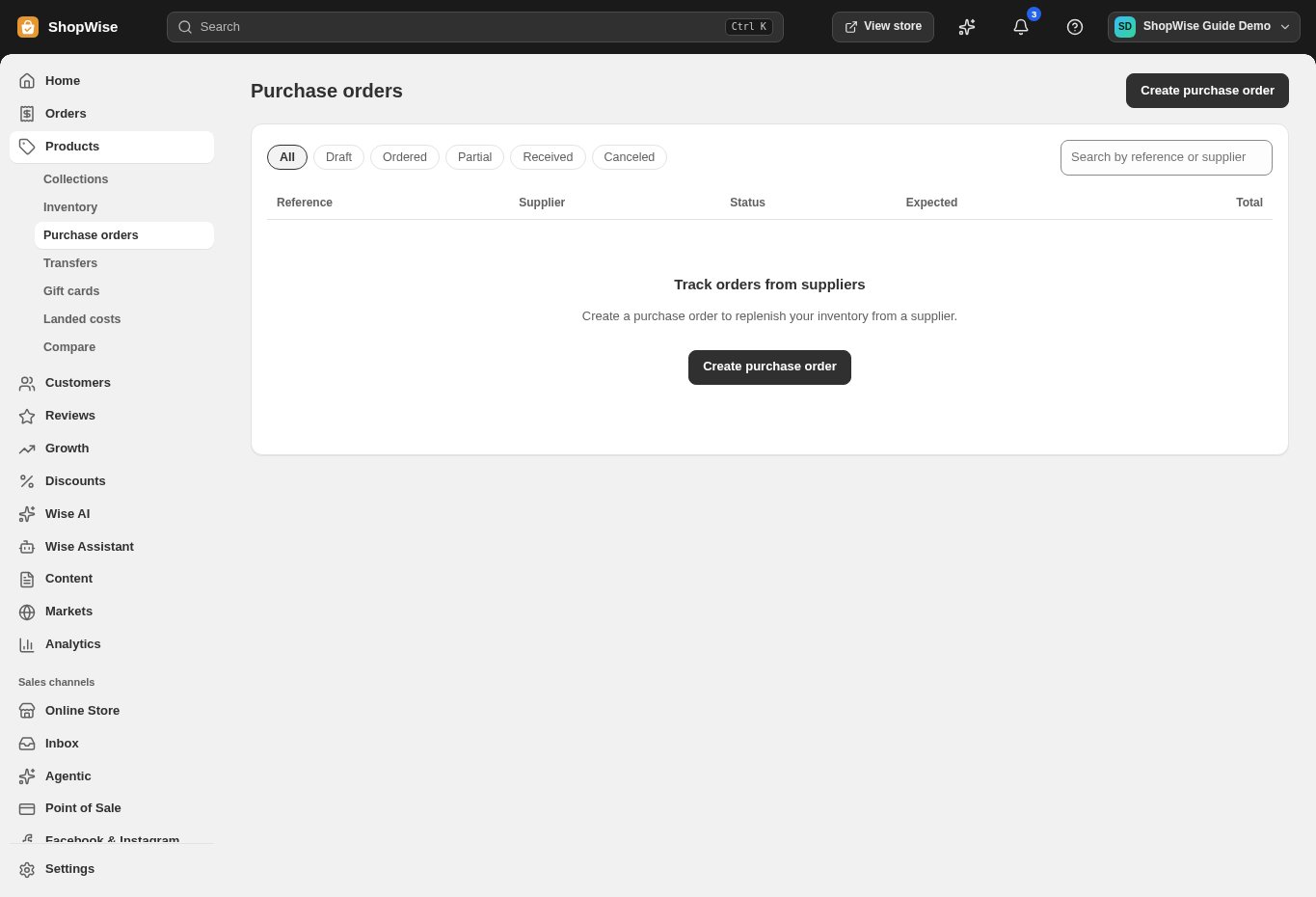
Add products and costs
Choose Add product. Enter quantities and unit costs, then review tax, shipping, and any landed costs.
- Check the currency and totals.
- Save the draft before placing the supplier order.
Record the order
After placing the order with your supplier, choose Mark as ordered.
- Recording a purchase order does not by itself prove that the supplier received an order or payment.
Receive actual quantities
When goods arrive, choose Receive items and enter the quantities physically received.
- Record partial deliveries separately.
- Check Inventory after receiving; do not count incoming goods as available before receipt.
CHECK YOUR WORK
You’re ready when…
- The purchase order matches the supplier reference.
- Received quantities agree with physical stock.
IF SOMETHING DOESN’T LOOK RIGHT
Troubleshooting
Why is the order only partially received?
Some ordered units have not been received. Compare delivery paperwork with the remaining quantities and record the next receipt when it arrives.
Why is a control missing or unavailable?
Confirm that you are in the correct store and that your role allows this action. Optional apps and channels may require installation, a plan, or activation. Share the screen name and error with support if access is still unclear.