Have your product SKUs and a recent stock count ready. Review connected supplier or inventory syncs before making manual changes.
Open Inventory
Under Products, open Inventory. Use the location selector and search to narrow the view before reviewing stock.
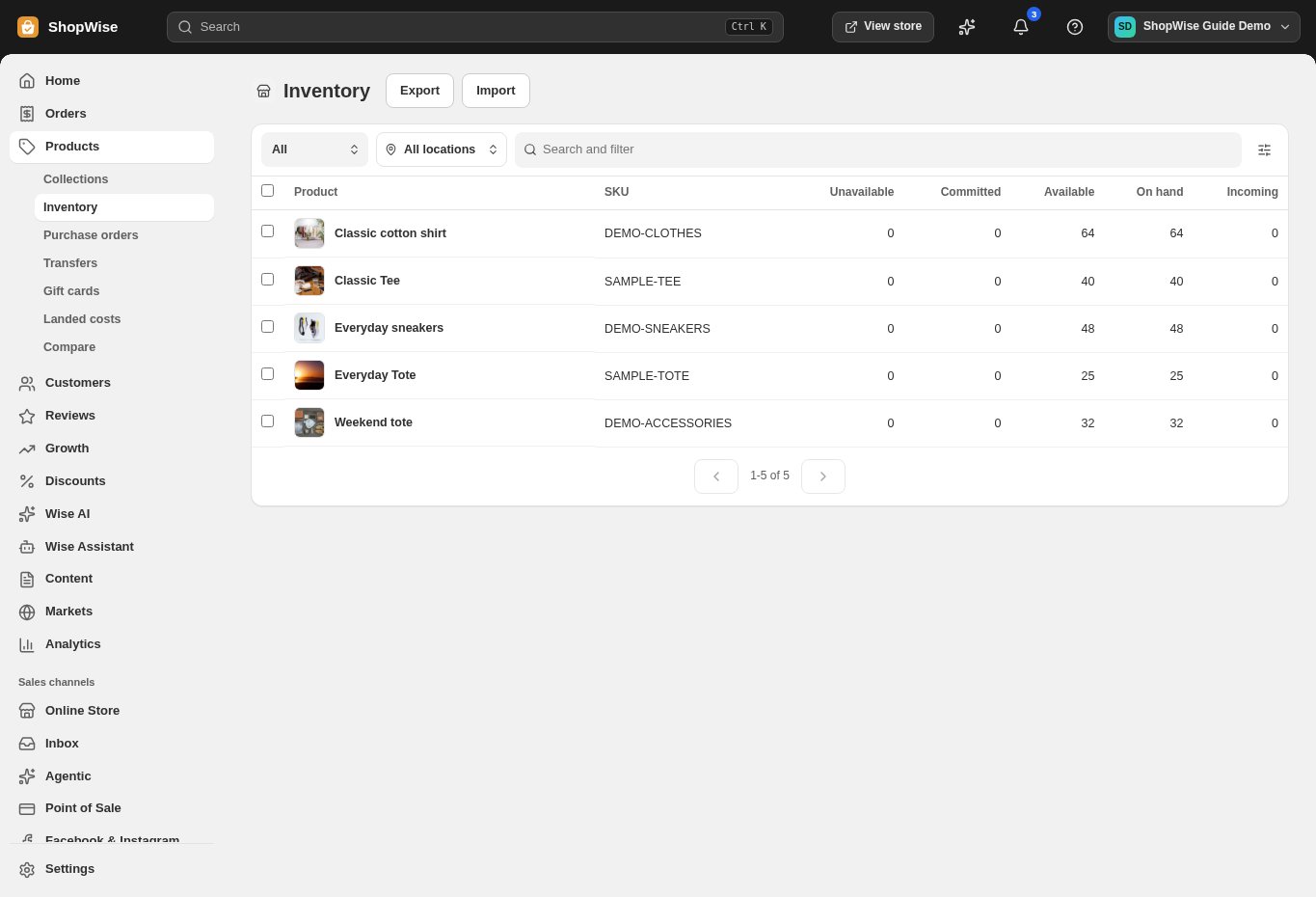
Identify the right variant
Match the product and SKU to your stock record. Similar product titles can refer to different sizes, colors, or variants. Do not update quantities based on title alone.
Read the stock columns
Review Available, Committed, Unavailable, On hand, and Incoming separately. Incoming stock is not the same as stock already available to sell. Investigate differences against orders and stock movements.
Apply the intended change
Use the available inventory editing or import workflow for your store. Keep a record of the reason and check the location before saving. For bulk work, export a reference first and try a small sample.
Verify stock and storefront behavior
Reload the inventory view and inspect the affected product in the storefront. If quantities change again, check whether an external supplier or inventory integration is the source of truth.
CHECK YOUR WORK
You’re ready when…
- Check each variant’s title, SKU, price, and availability.
- Preview the product or collection on desktop and mobile.
- Keep unfinished products in Draft until their details are ready.
IF SOMETHING DOESN’T LOOK RIGHT
Troubleshooting
Available stock differs from the count on the shelf.
Review committed and unavailable units, then confirm the selected location and variant. Check recent orders, adjustments, transfers, and returns before changing the figure.
My manual change is overwritten.
Check connected inventory or supplier syncs. Agree which system should control the quantity and update that source rather than repeatedly editing conflicting values.