Prepare a few products and decide whether you want to choose items manually or use matching conditions.
Open Collections
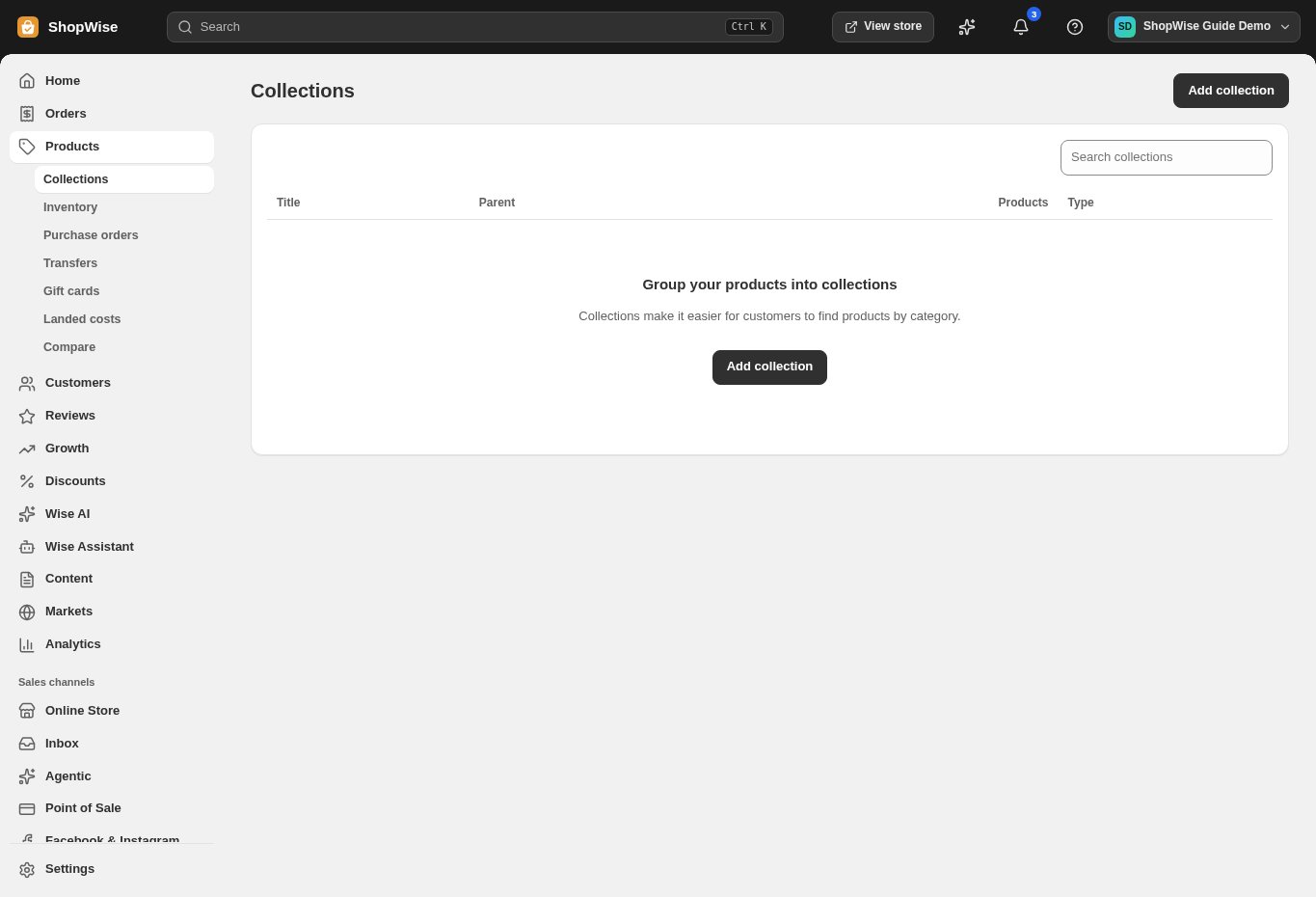
Open Products, then Collections. This page lists your collections and provides search. Select Add collection to begin.
Describe the collection
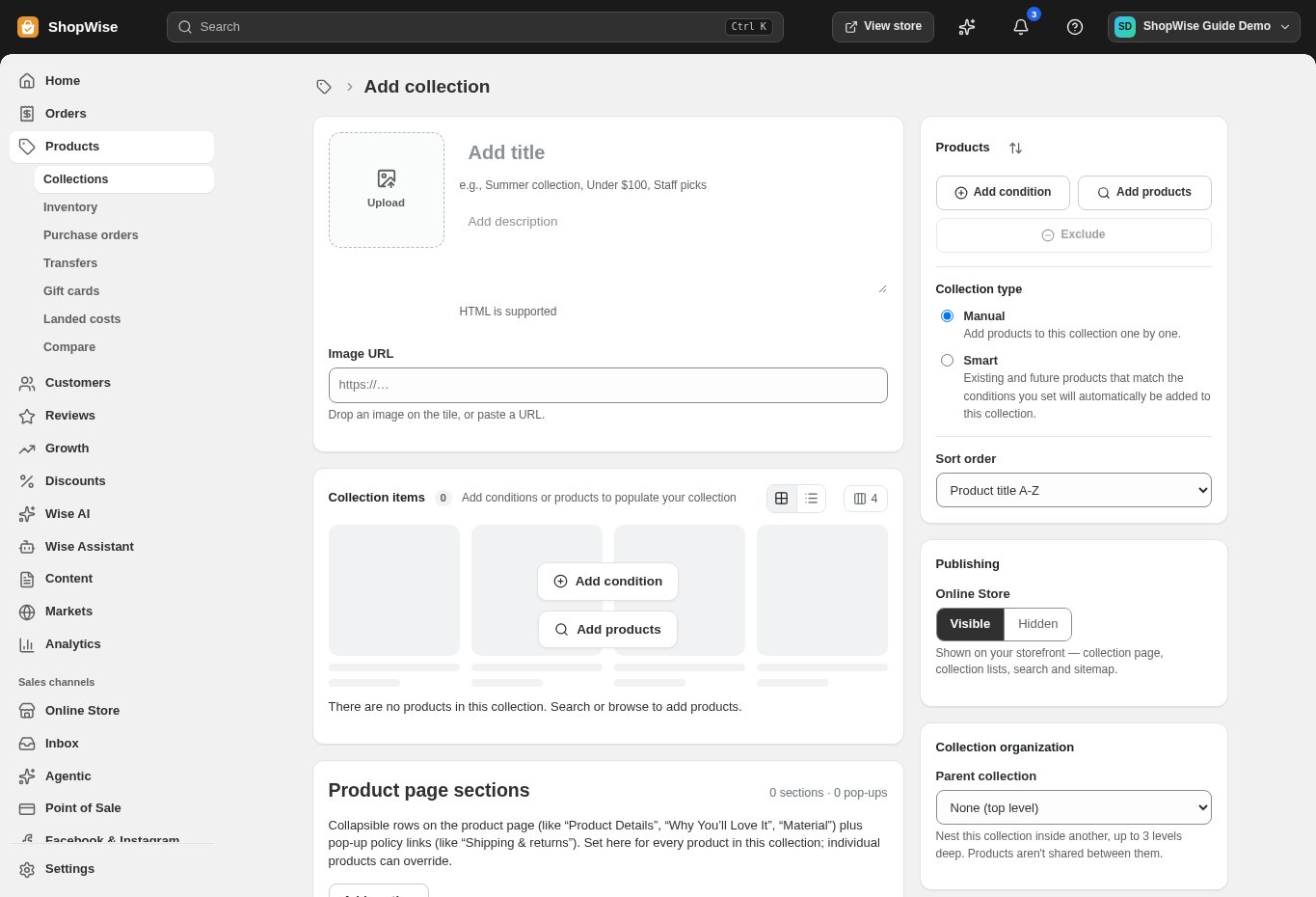
Enter a clear title and a short description. Add an image that represents the range; do not use the image as a substitute for a readable title.
- Use a name customers understand, such as New arrivals or Everyday essentials.
- Check spelling and preview any description formatting.
Choose Manual or Smart
Manual collections let you select products individually. Smart collections use conditions to include matching products. Choose the behavior that fits how you maintain your catalog.
- For Manual, use Add products and review the selected items.
- For Smart, use Add condition and inspect which products match.
Set presentation and visibility
Choose a sort order and review the Online Store Visible or Hidden setting. A parent collection can organize the hierarchy, but it does not share products between collections.
Save and test the collection
Save the collection, then open the storefront. Check its title, image, product order, and product links. Add it to your storefront menu where customers should find it.
CHECK YOUR WORK
You’re ready when…
- Check each variant’s title, SKU, price, and availability.
- Preview the product or collection on desktop and mobile.
- Keep unfinished products in Draft until their details are ready.
IF SOMETHING DOESN’T LOOK RIGHT
Troubleshooting
The collection is empty.
For a manual collection, check the selected products. For a smart collection, inspect the matching conditions and product values. Also check whether the products are visible to storefront customers.
The collection exists but customers cannot find it.
Check the collection’s publishing setting and add an appropriate menu link. A saved collection is not necessarily linked from your header or footer.