Have customer records in your store and a clear purpose for the group.
Start from a segment
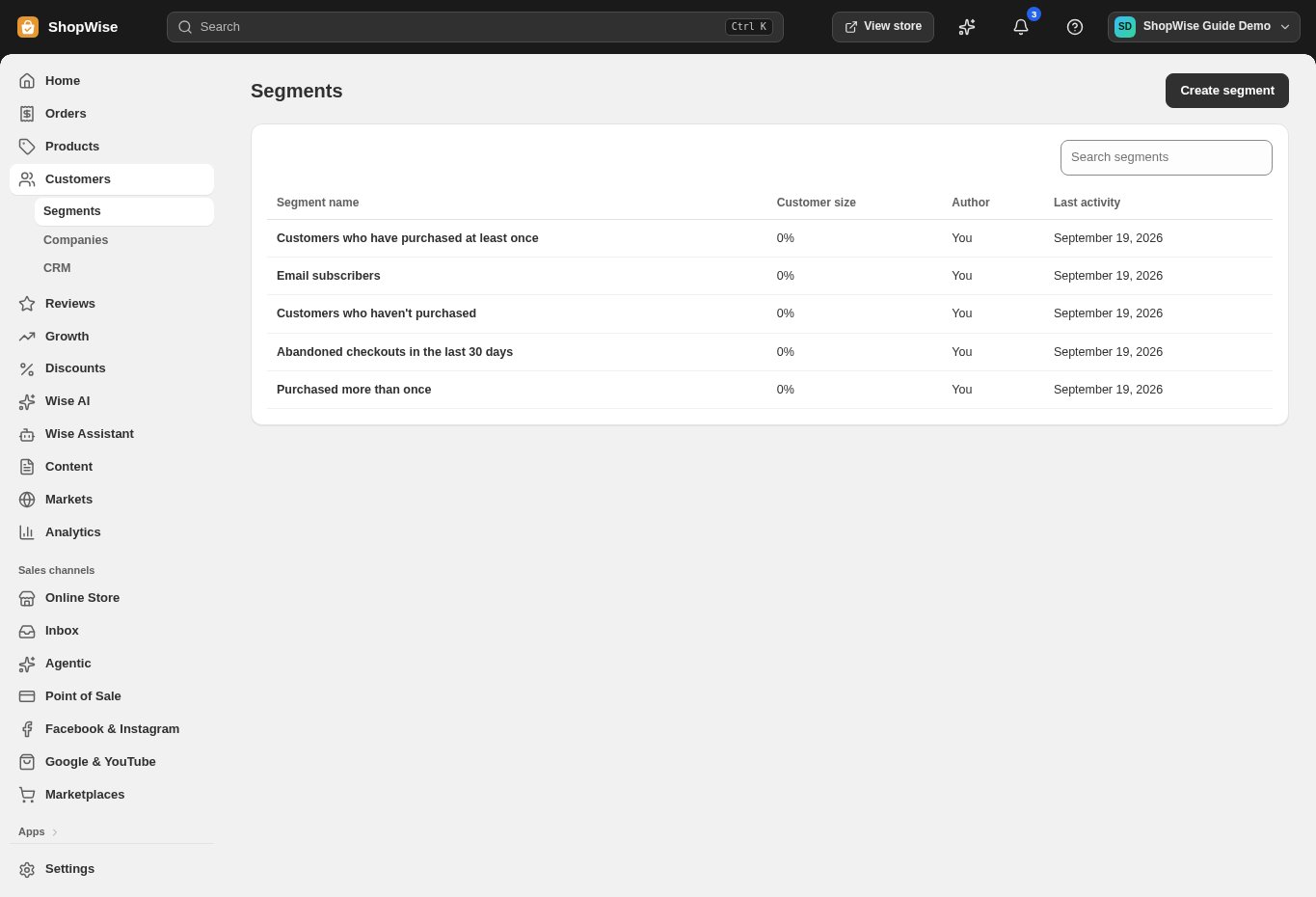
Open Customers → Segments. Inspect an existing segment or choose Create segment.
- Existing examples include purchased customers and email subscribers.
Set the query
Use the segment editor’s Query controls to define the conditions.
- Use the syntax and suggestions offered in the editor.
- Give the segment a descriptive name.
Inspect matching customers
Review the Customers result before saving. Adjust conditions if the list is too broad or empty.
- A segment based on purchases does not automatically mean email-marketing consent.
Save and revisit
Save the segment and reopen it to confirm the stored query. Recheck membership when using it in a campaign.
- Keep campaign consent checks separate from audience selection.
CHECK YOUR WORK
You’re ready when…
- The query matches the intended customers.
- The segment can be reopened from the list.
IF SOMETHING DOESN’T LOOK RIGHT
Troubleshooting
Why are no customers included?
Review each condition and whether any stored customer data matches it. Start with a broader condition and narrow it gradually.
Why is a control missing or unavailable?
Confirm that you are in the correct store and that your role allows this action. Optional apps and channels may require installation, a plan, or activation. Share the screen name and error with support if access is still unclear.