Sign in as the owner or an account allowed to manage users. Confirm any staff-seat limits before adding people.
Open Users
Open your store’s user-management area. Review the Users, Roles, Collaborators, and Security tabs available to your account.
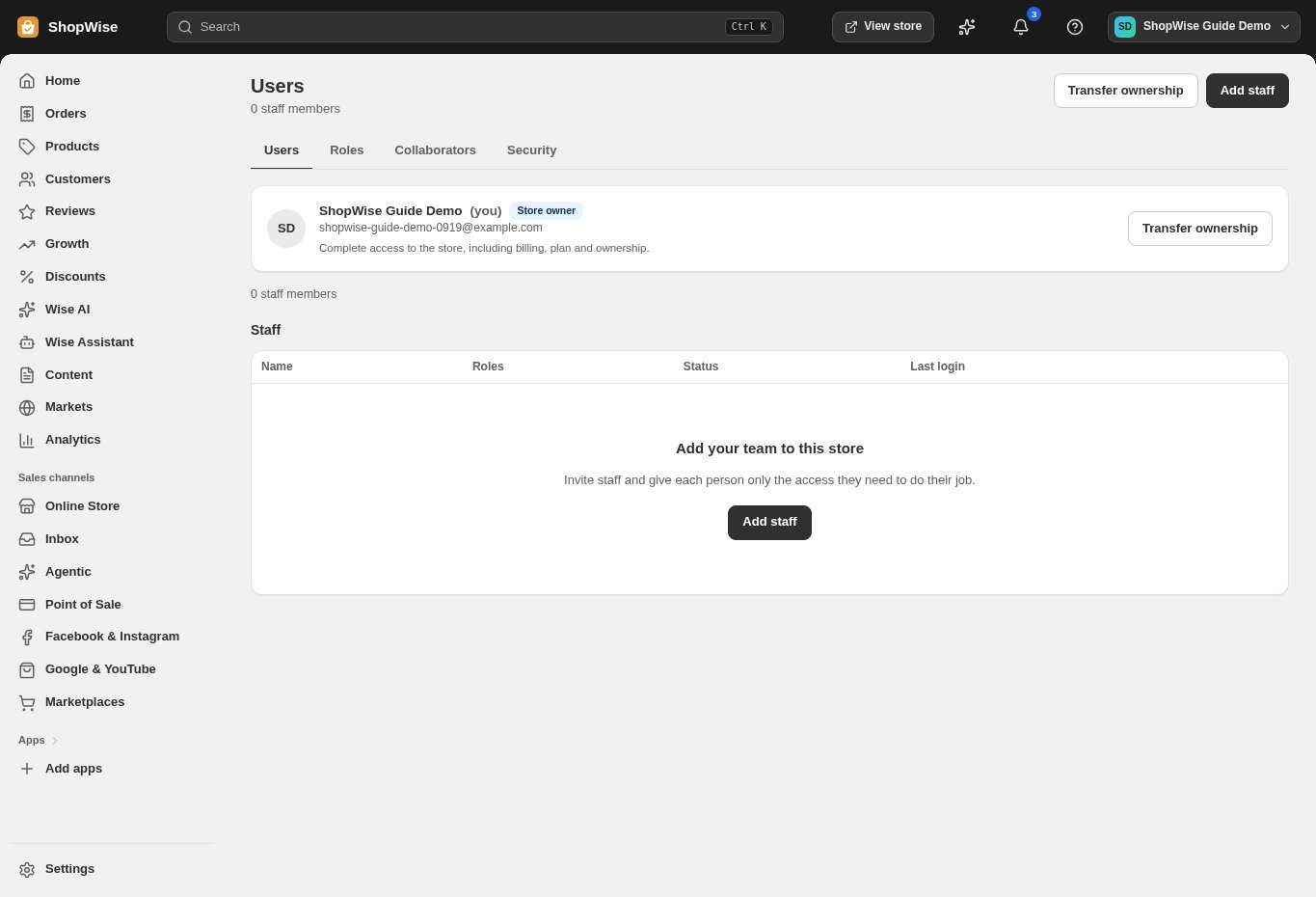
Review the current team
Check who already has access and the role assigned to each person. Confirm the store name before changing anyone’s access.
Add the staff member
Choose Add staff, enter the requested identity details, and follow the form’s access setup. Each person should use their own account instead of sharing the owner login.
Choose an appropriate role
Use the available roles and permissions to match the person’s work. Keep billing, user management, and sensitive settings limited to people who actually manage them.
Check access and review regularly
Have the staff member confirm that the intended pages open. Review access when someone’s role changes or they leave. Treat ownership transfer as a separate, deliberate operation.
CHECK YOUR WORK
You’re ready when…
- Check the store and account you are managing.
- Review the actual terms and currency shown before a paid action.
- Keep the confirmation or contact support if details do not match.
IF SOMETHING DOESN’T LOOK RIGHT
Troubleshooting
A team member cannot open a page.
Ask an authorized administrator to check their role and permissions. Also confirm the feature is enabled and available for the store.
The Add staff action is unavailable.
Check your account permissions and package staff limit. Ask the owner to review the store settings or contact support.