Confirm the customer, items, and agreed prices. Sending an invoice contacts the customer.
Create the draft
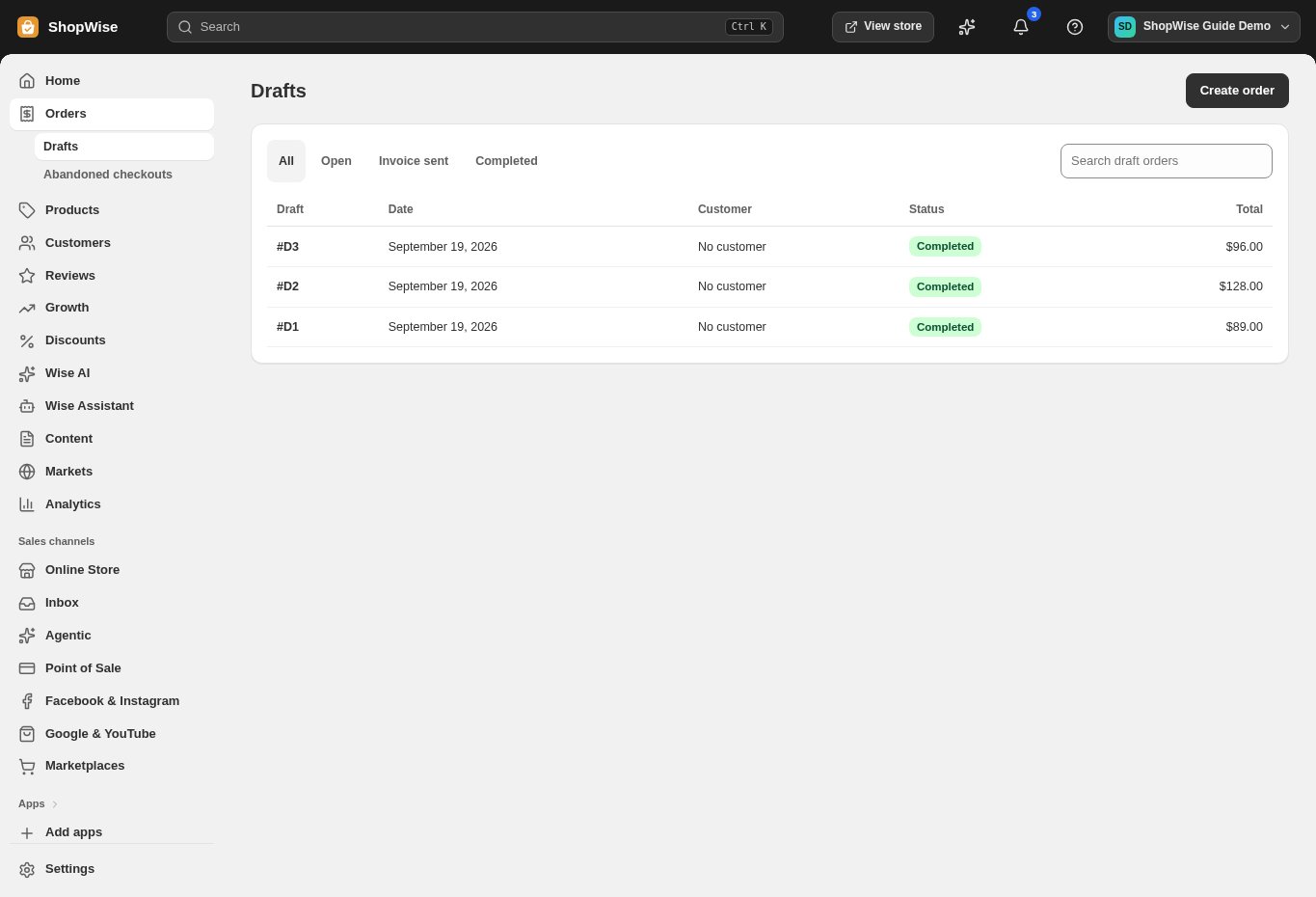
Open Orders → Drafts → Create order. Select the customer or create the record needed for this sale.
- Check the customer email before sending anything.
Build the order
Choose Add product, or Add custom item for a line outside the catalog. Set quantities and review the payment total.
- Review market, notes, and tags.
- Check shipping, discounts, and taxes shown by the editor.
Save or invoice
Choose Save as draft to return later. Choose Send invoice only when the draft is ready for the customer.
- Review the recipient and invoice details before confirming.
Record payment correctly
Use Mark as paid only after you have actually received the payment. Follow the resulting order in Orders for fulfillment.
- Marking an order as paid is not a bank transfer or card charge.
CHECK YOUR WORK
You’re ready when…
- The draft contains the agreed items and customer.
- Payment status reflects actual money received.
IF SOMETHING DOESN’T LOOK RIGHT
Troubleshooting
Why is an invoice-sent draft not a paid order?
Sending an invoice requests payment. Check the payment outcome before marking the order paid or fulfilling it.
Why is a control missing or unavailable?
Confirm that you are in the correct store and that your role allows this action. Optional apps and channels may require installation, a plan, or activation. Share the screen name and error with support if access is still unclear.