Apply for and obtain the merchant account your provider requires. Check country, product, currency, and recurring-payment eligibility.
Open Payments
Go to Settings, then Payments. Development stores show a test-payment notice. Test payments do not collect real money.
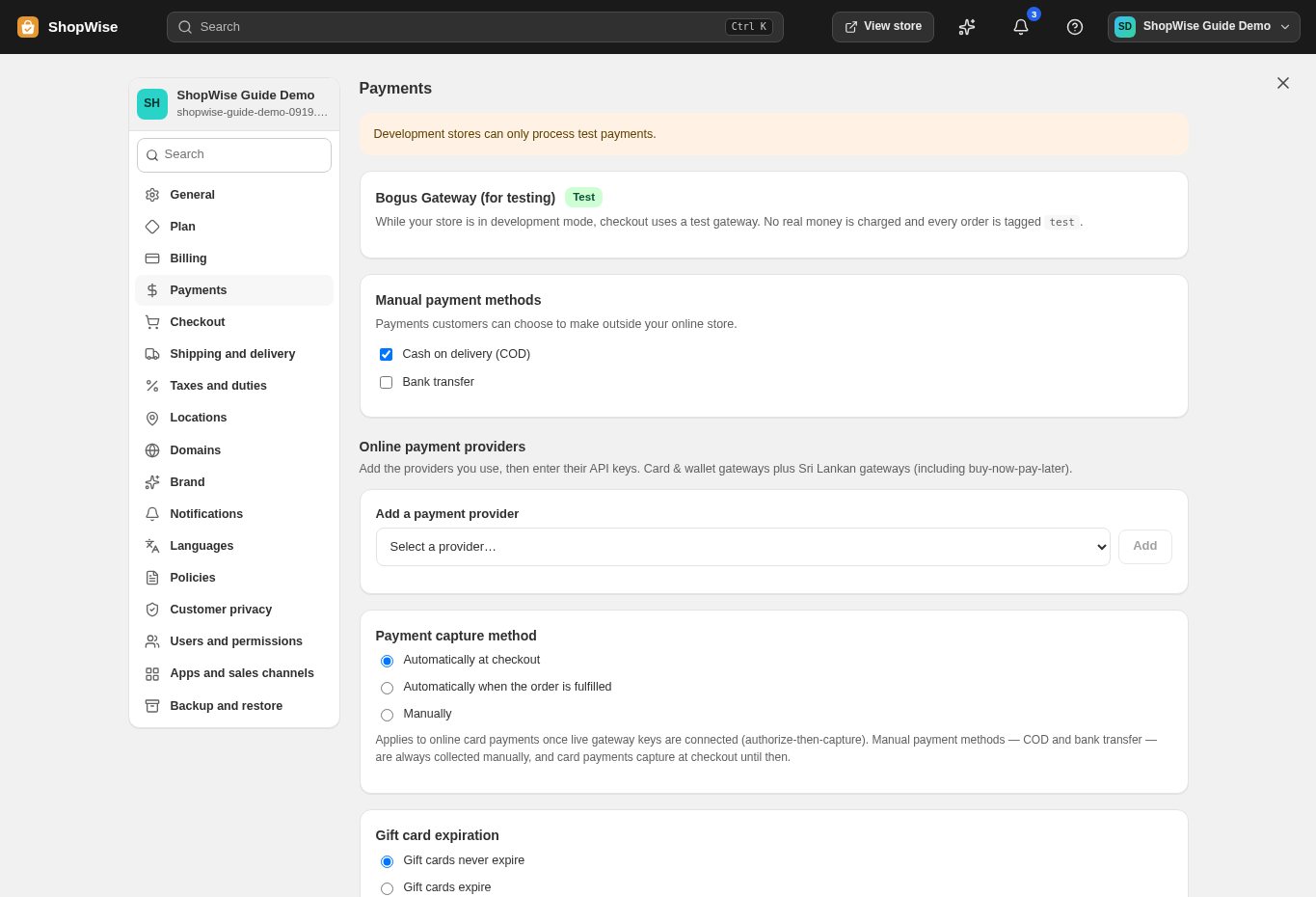
Choose your payment methods
Review the Manual payment methods options if you plan to offer cash on delivery or bank transfer. For an online gateway, select the appropriate provider from Add a payment provider and follow its configuration fields.
Connect credentials securely
Use the credentials required by your provider and choose test or live mode carefully. Never paste secret keys into public pages, support screenshots, or email. Save the settings after reviewing them.
Test and confirm activation
Test a complete checkout and verify the payment status in Orders. Before accepting real money, confirm store activation, live provider credentials, currency support, and the applicable package and processing fees.
CHECK YOUR WORK
You’re ready when…
- Confirm your provider account and store settings are ready.
- Test a supported address and payment method end to end.
- Check the resulting order status before treating an order as paid or shipped.
IF SOMETHING DOESN’T LOOK RIGHT
Troubleshooting
I cannot find this page or action.
Check the store shown at the top of the admin. On a phone, open the navigation menu first. Ask the store owner to confirm your permissions and whether the feature is available for this store.
The checkout reports a connection or payment error.
Check that the selected provider is activated, its account can accept payments, and the credentials match the intended test or live environment. Review the order and provider dashboard before retrying so you do not charge twice.
What should I send support?
Send your store address, the page you were using, the steps you took, and the exact error text. Include a screenshot with private customer details hidden. Do not share passwords, API keys, or full payment information.