1. Review the fit
Build newsletters and abandoned-cart flows with a drag-and-drop editor, segment customers, and send SMS campaigns from one dashboard. Some functionality is available, while other capabilities may still be planned. Review the live listing before relying on a particular workflow.
2. Check requirements
Check these requirements before installing.
- Requires an email/SMS provider account. Campaign planning — budgets, UTM tracking, and an activity log — works today in Growth → Campaigns. Actually sending bulk email or SMS to customers requires connecting an external email/SMS provider, which isn’t available on your plan yet.
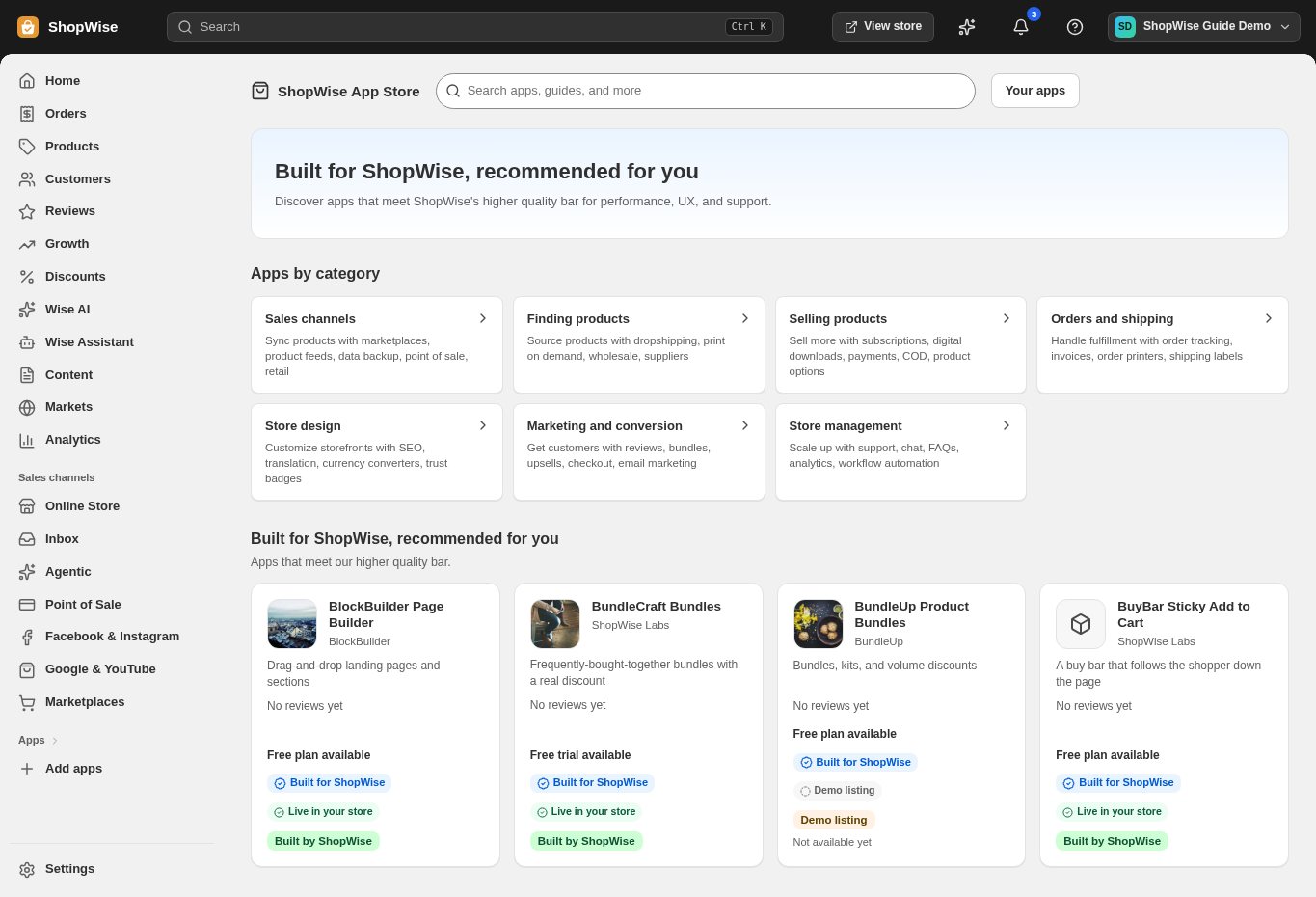
3. Choose and install
Sign in to the store where you want to use the app. Review its requested access and choose a plan that fits your usage. Paid plans and provider charges are separate from your store package.
4. Configure and preview
Open the app from your admin and complete its setup. If it adds a storefront component, enable the appropriate app block or section in your theme. Preview on desktop and mobile before publishing.
5. Test the customer journey
Use sample products or a test order to check the result. Review app usage and plan limits before increasing traffic. Contact the app’s support team through the listing if the result differs from what you expected.