Prepare a title, description, product photos, price, stock quantity, and any variant choices.
Open Products
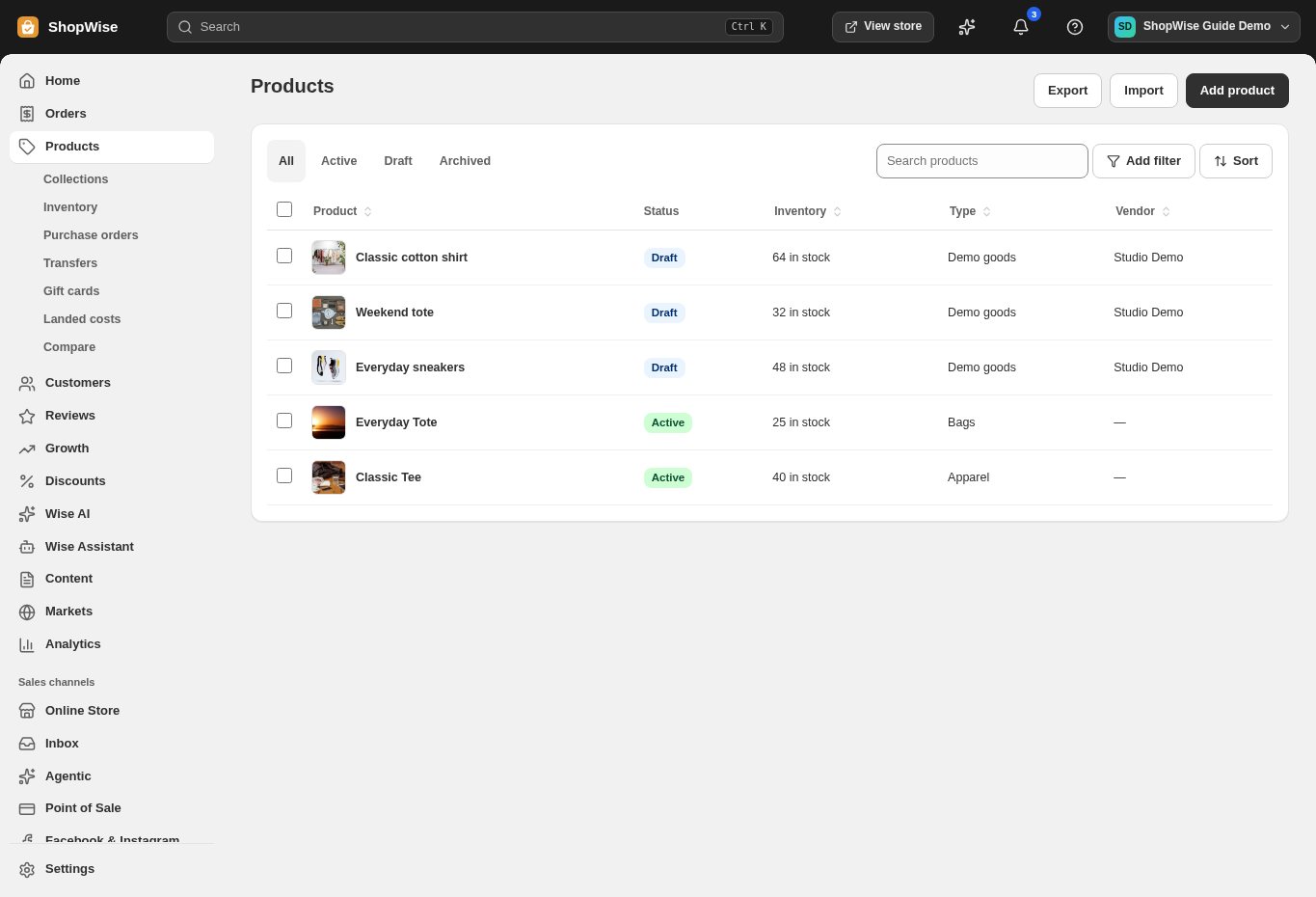
In your admin, select Products. The All, Active, Draft, and Archived tabs help organize the catalog. Select Add product in the top right.
Write the title and description
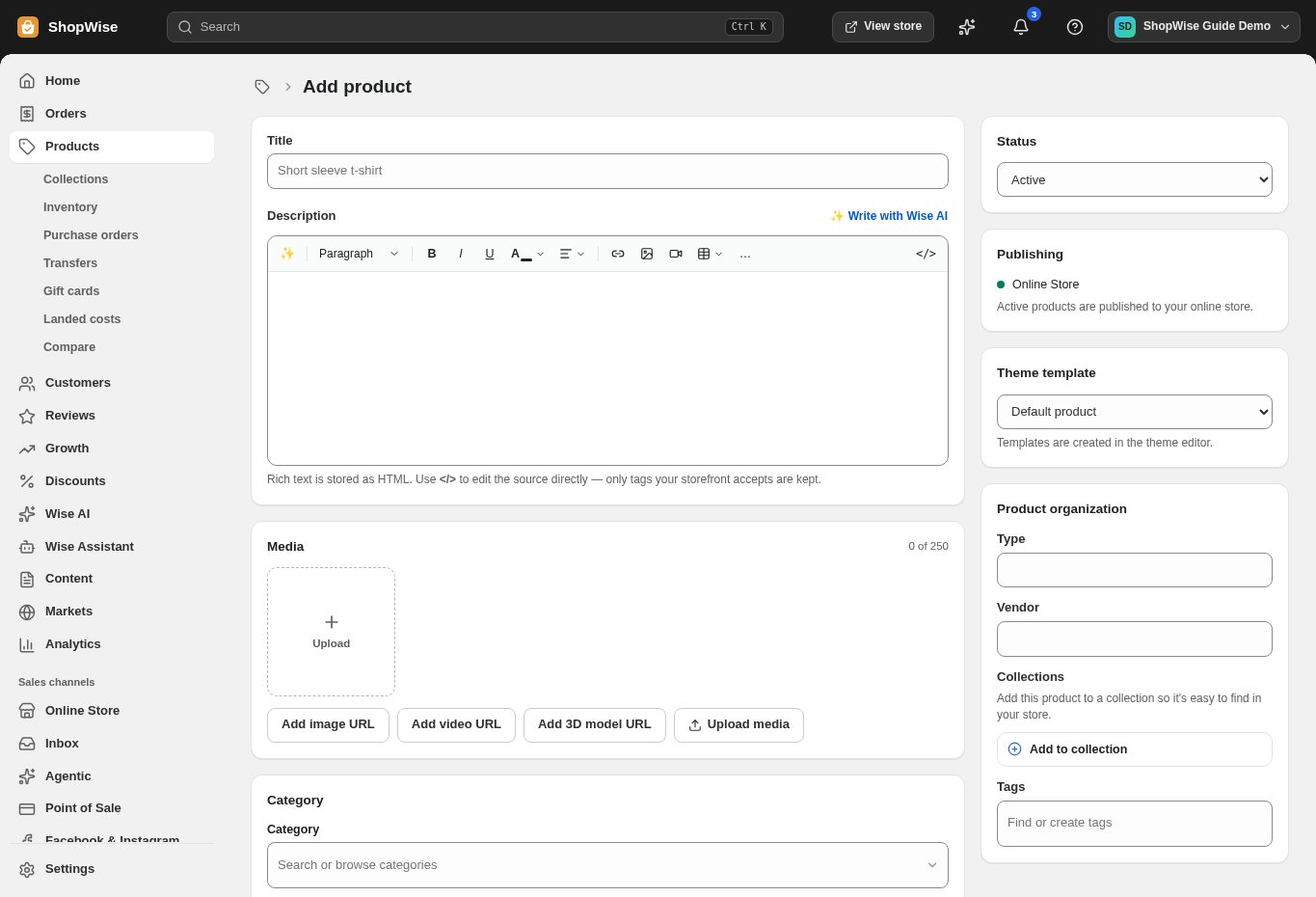
Enter a clear product title and accurate description. Add details such as materials, dimensions, care, or compatibility. If you use Write with Wise AI, review the generated text before saving.
Add media, price, and stock
Use the Media controls to upload images or add supported URLs. Continue down the page to set pricing, inventory, and variants where needed. Enter the real selling price and stock values; example products in this guide are only demonstration data.
Choose status and save
Use Draft while you are preparing the product. Review the publishing setting and save when the content is ready. Preview an active product on the storefront to check images, variants, and the add-to-cart flow.
CHECK YOUR WORK
You’re ready when…
- Check each variant’s title, SKU, price, and availability.
- Preview the product or collection on desktop and mobile.
- Keep unfinished products in Draft until their details are ready.
IF SOMETHING DOESN’T LOOK RIGHT
Troubleshooting
I cannot find this page or action.
Check the store shown at the top of the admin. On a phone, open the navigation menu first. Ask the store owner to confirm your permissions and whether the feature is available for this store.
The product is missing from my store.
Confirm the product was saved with the intended status and storefront availability. If customers browse through a collection or menu, check that the product is reachable there too.
What should I send support?
Send your store address, the page you were using, the steps you took, and the exact error text. Include a screenshot with private customer details hidden. Do not share passwords, API keys, or full payment information.