Use a draft theme and download a backup before editing code. JavaScript and head snippets require owner or admin access.
Open Edit code
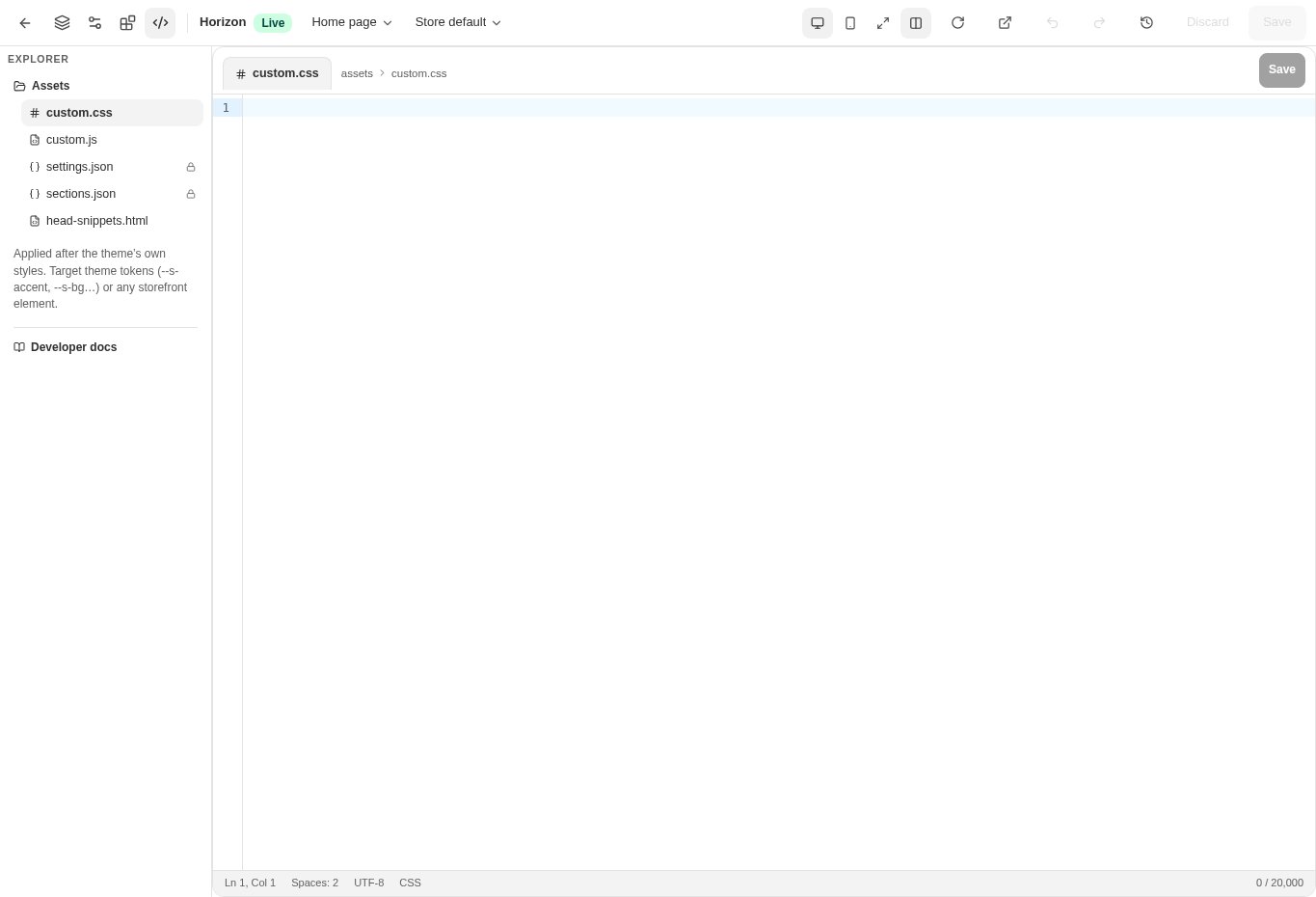
In the theme editor choose Edit code. Select the file you intend to inspect.
- custom.css adds storefront styles.
- custom.js runs on storefront pages after loading.
- head-snippets.html supplies supported head tags.
- settings.json and sections.json are read-only views; edit those through Theme settings and Sections.
Make one focused change
Edit only the supported file for the task. Use the admin’s Developer docs for current tokens, section schemas, and file limits.
- Keep media, fonts, and scripts on your own hosted paths.
- Do not paste secrets or private customer data into storefront code.
- Adding a file name does not create an arbitrary server-side feature.
Save and verify
Save and inspect the preview on desktop and mobile. Test navigation, forms, cart, and the component affected by the change.
- If the save reports a conflict, reload and reconcile the newer changes rather than overwriting blindly.
Use version history
Open the editor’s version-history control, review the saved versions, and restore the intended version when appropriate.
- Restoring changes the theme state. Verify the target and preview afterward.
- Keep a downloaded package for an additional recovery point.
CHECK YOUR WORK
You’re ready when…
- The code saves without errors.
- The affected customer journey still works.
- You know which version or package to recover from.
IF SOMETHING DOESN’T LOOK RIGHT
Troubleshooting
Why can’t I edit settings.json directly?
It is a read-only view. The supported settings and section editors validate the values before saving them.
Why is a control missing or unavailable?
Confirm that you are in the correct store and that your role allows this action. Optional apps and channels may require installation, a plan, or activation. Share the screen name and error with support if access is still unclear.